How to Get Supplier Invoices Into Ramp Automatically
Compare ways to send invoices to Ramp Bill Pay, then set up Tailride’s Email Routing add-on to collect supplier PDFs and forward them automatically.


By Tailride · 15 min read · Updated October 2026
You can get supplier invoices into Ramp Bill Pay through AP email forwarding, a connected Gmail inbox or file upload. For invoices scattered across mailboxes and supplier portals, Tailride provides another route: collect and process the documents, then send their PDFs to Ramp through the Email Routing add-on.
The right setup depends on where your invoices are today. A shared AP mailbox may only need a forwarding rule. A team that still checks several inboxes and downloads PDFs from supplier accounts has collection work to automate as well.
This guide compares those routes, then walks through Tailride's integration with Ramp: finding the AP destination, configuring Email Routing and moving from one test invoice to automatic delivery.
Choose a route for getting invoices into Ramp
Start with the sources your finance team actually uses. These four approaches cover common invoice-delivery needs.
| Approach | A useful fit when… | What you set up |
|---|---|---|
| Direct or forwarded AP email | Suppliers can email the right destination, or invoices already arrive in a shared AP mailbox. | Give suppliers the Ramp AP address or configure mailbox forwarding; confirm the receiving policy. |
| Ramp's Gmail AP inbox connection | The relevant invoice emails are in Gmail and this feature is available in your account. | Connect the inbox through Ramp's AP settings. |
| File upload in Ramp | You already have the invoice files and need to import an occasional document or batch. | Upload the files into Bill Pay. |
| Tailride with Email Routing | You want recurring collection from several mailboxes or supported supplier portals, followed by delivery to Ramp. | Connect the sources in Tailride and configure the Email Routing add-on with the Ramp AP address. |
Ramp documents AP email forwarding, Gmail AP inbox automation and file upload. The Gmail connection and AP-forwarding routes are alternatives: when Gmail AP automation is connected, Ramp says it does not also process AP-forwarded emails.
If your suppliers already send everything to the right Ramp inbox, there may be little collection work left to automate. Tailride becomes useful when finance still has to retrieve documents before Ramp can receive them. That is the scenario covered by the detailed setup below.
How the Tailride–Ramp integration works
The connection uses Ramp's AP email import and Tailride's Email Routing add-on. You enter the Ramp destination in Tailride; no Ramp API key is part of this email setup.
Supplier inboxes and portals → Tailride collection and processing → Email Routing → Ramp Bill Pay
Each part has a specific job:
| Stage | What happens |
|---|---|
| Collect in Tailride | Invoices from connected mailboxes and supported supplier portals appear in your Tailride account. |
| Process and route | Tailride extracts invoice details and uses your Email Routing settings to choose the destination. |
| Import into Ramp | Ramp evaluates the email and its attachments, then creates eligible draft bills. |
| Continue in Bill Pay | Your team uses its Ramp workflow to review the bill and handle approval and payment. |
The integration sends the invoice document into Ramp. It does not synchronise payment status back to Tailride or map Tailride's accounting categories into Ramp fields. That distinction helps you decide where the team should check the document and where it should manage the payable.
What Email Routing sends
The outgoing message contains a subject built from your template, a formatted summary of the invoice details and the available original PDF attachments. This gives finance both a recognisable email and the underlying document. For this Ramp workflow, check that the collected invoice has an accessible PDF before forwarding it.
For example, a fictional invoice from Northstar Services might produce the subject Invoice NS-1042 from Northstar Services - 480 USD. The amount in that subject helps someone identify the message; it does not set the payable amount in Ramp. The imported bill still needs to reflect the invoice itself.
Replies to a Tailride forwarding email go to your Tailride account email address. Decide who will monitor that mailbox if a processing notification or a colleague's question arrives there. The account-specific sending address and the reply address serve different purposes.
This is an email-based integration with a defined handoff. You can inspect the collected file in Tailride, identify the forwarded message and find the bill in Ramp using the same supplier and invoice number.
Set up Email Routing for Ramp Bill Pay
You will need a Tailride account with the Email Routing add-on activated, a supplier invoice PDF, and access to the relevant Ramp Bill Pay account. Someone on the finance team should be able to find and review the first imported bill.
1. Get your company's Ramp AP email address
In Ramp, open Bill Pay → Bills → New bill → Forward invoices to pre-fill drafts. Copy the address shown for your business or entity. It ends in @ap.ramp.com; use the exact address from your account. See Ramp's AP forwarding instructions.
Before configuring the connection, confirm two settings:
-
Intake method: Ramp says a business with Gmail connected for AP inbox automation does not also process AP-forwarded emails. This guide uses AP forwarding; check the existing setup with the Ramp administrator. Ramp AP inbox documentation.
-
Accepted senders: Ramp's Process emails setting must accept the message sent by Tailride. Tailride sends from an account-specific address on
fw.tailride.so; have the administrator confirm the policy using the first test email. Ramp sender settings.
2. Bring the supplier invoices into Tailride
Connect the mailboxes where the invoices currently arrive. Tailride's inbox scanning collects supplier documents and extracts details such as the vendor, date and total, giving your team one place to inspect them before onward delivery.
For invoices available only in a supplier account, use Tailride's supplier portal tools. Tailride Desktop can collect from supported portals on a schedule. It needs to be running on your computer for scheduled collection; a supplier login may occasionally need your attention.
For example, a company might receive contractor invoices in its finance mailbox while its telecom provider keeps monthly bills in a portal. Tailride brings those documents together, and Email Routing provides their common path into Ramp. The finance team no longer needs to download and forward each collected PDF separately.
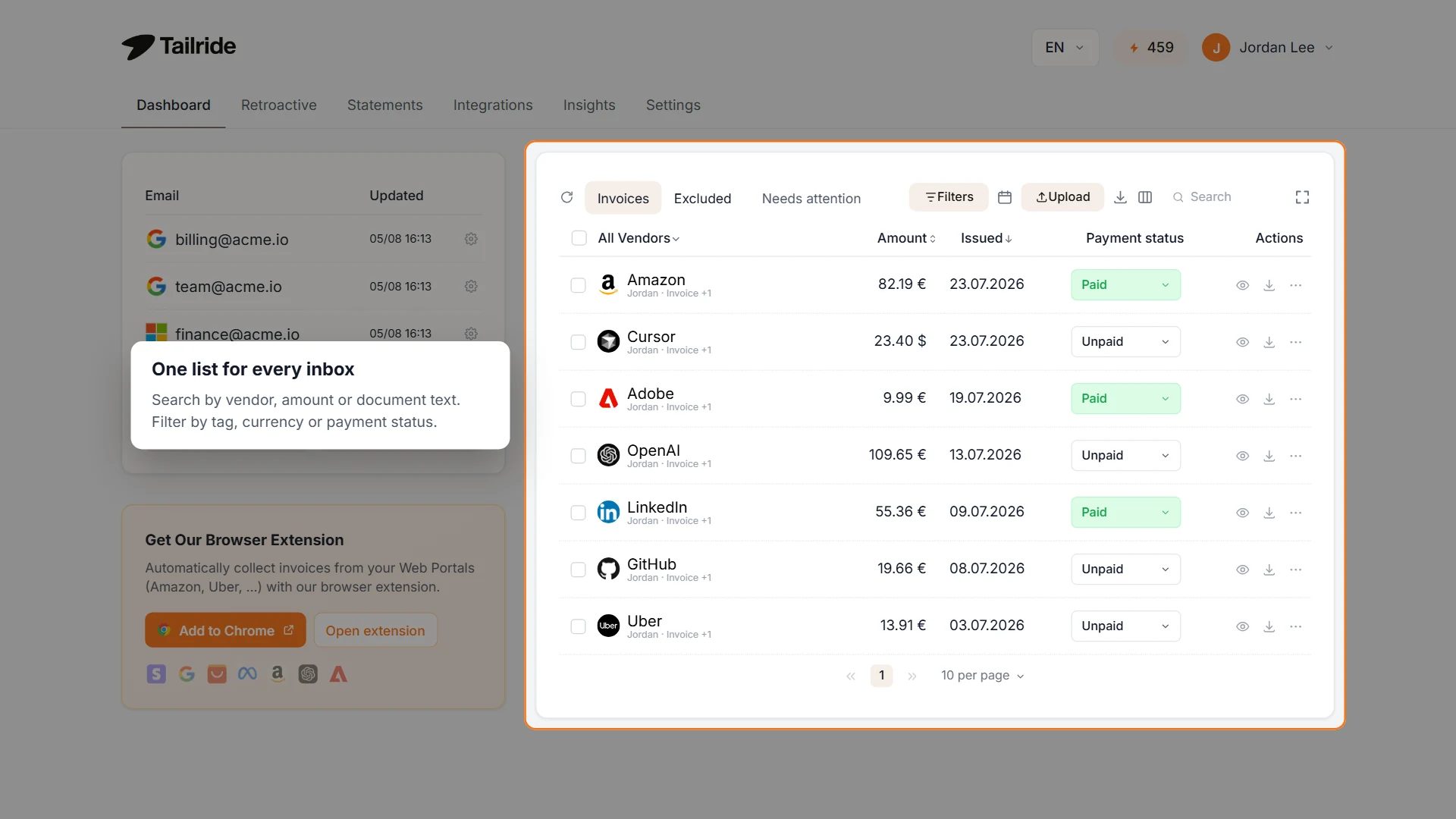
Illustrative Tailride web dashboard with example data. Collected supplier invoices can be sent to Ramp through the Email Routing add-on.
For a detailed portal-collection walkthrough, see how to automatically download invoices on a Mac.
3. Add the Ramp destination in Email Routing
In Tailride's web interface, open Integrations → Email Routing → Settings. Turn on Enable Email Forwarding, paste the copied Ramp address into Forwarding Email Address, and save the settings.
The subject template can help finance identify the incoming message. For example:
Invoice {invoiceId} from {vendor} - {amount} {currency}
Keep the variable names in braces unchanged. They are replaced with the corresponding invoice values when Tailride builds the email.
The default address is suitable for an account whose collected invoices all belong to the same destination. If you already use routing rules or account-specific destinations, check which setting matches the test invoice. A more specific destination can take precedence over the default. The Email Routing guide explains the order.
4. Send one invoice and find it in Ramp
Leave Automatic Sending off for the first test. Open a collected invoice in Tailride, check its PDF, and choose Forward to email from its actions. Use a document that has not already been imported into Ramp.
In Ramp Bill Pay, locate the resulting draft and open its attachment. Use this first import to check the details your team will depend on during ordinary processing:
| Check | What you want to confirm |
|---|---|
| Supplier and invoice number | You are reviewing the same document that was sent from Tailride. |
| Amount and currency | The bill reflects the PDF, including its currency and tax treatment. |
| Dates | The invoice and due dates agree with the source document where provided. |
| Company or entity | The bill belongs to the business that owes the supplier. |
| Attachment | The complete, readable invoice is available to the reviewer. |
If one of these details needs correcting, note whether the problem was already in the source document or appeared during import. That tells the team where to resolve it before the same supplier sends next month's bill.
A successful send in Tailride means the email was sent; the Ramp record confirms that the document was imported. If the draft is missing, use the short troubleshooting table below before sending another copy.
5. Enable automatic sending
Once the first invoice arrives correctly, return to Email Routing, enable Automatic Sending, and save. Future processed invoices will be sent according to the configured routing settings.
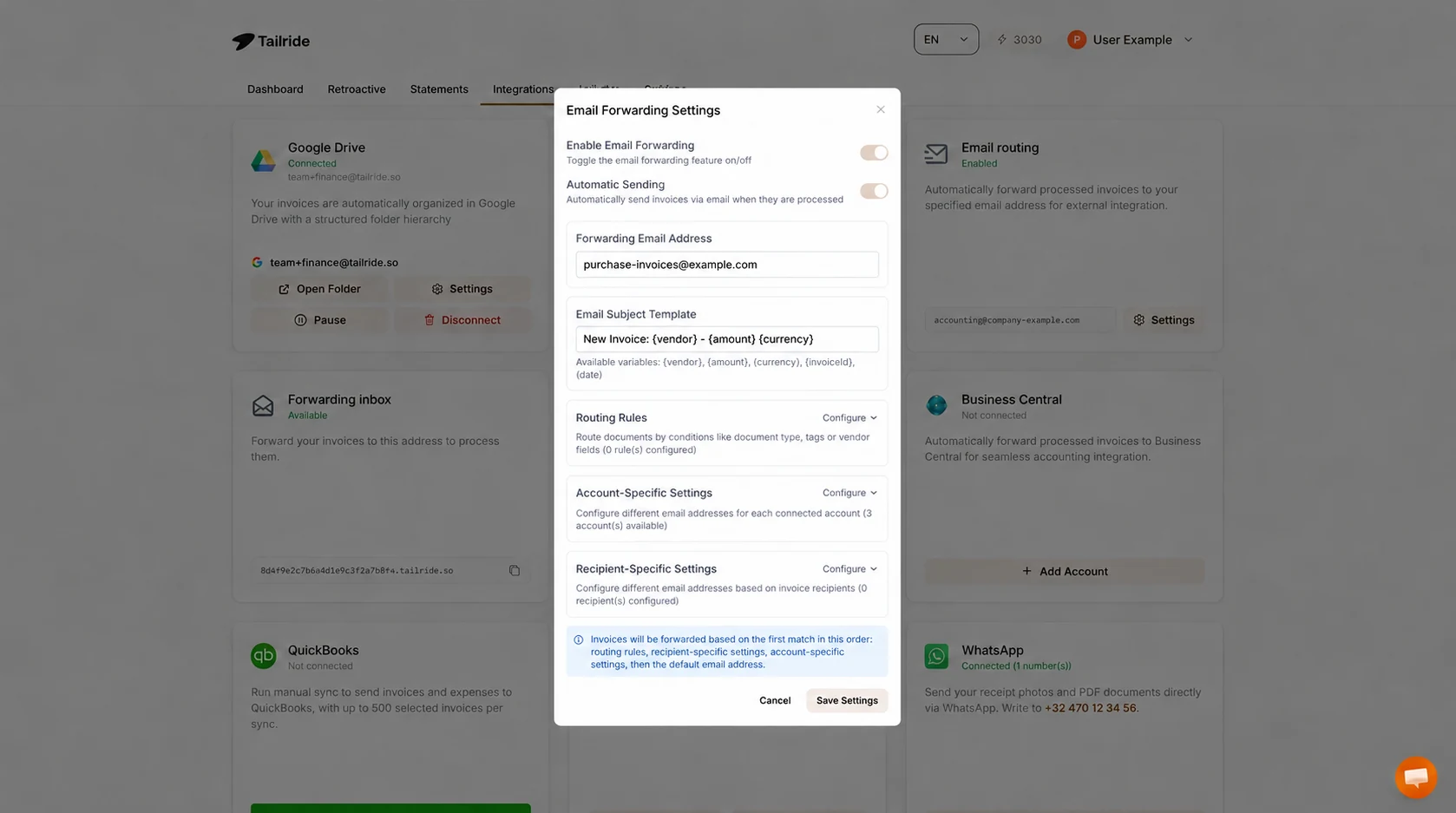
Illustrative Tailride settings with automatic sending enabled. Replace the example address with your company's Ramp AP email address.
The screenshot uses purchase-invoices@example.com for illustration. Your setup must use the destination copied from Ramp.
Invoice collection and email sending are separate parts of the flow. A portal checked weekly will supply new documents on that collection schedule; turning on Automatic Sending does not make the portal check more often. Choose a collection schedule that gets bills to finance in time for review.
Choose which invoices the integration sends
A useful automatic route starts with a clear set of supplier bills. Consider a company that collects unpaid contractor invoices, telecom bills and receipts for purchases already made on a corporate card. All three may appear in Tailride, but finance may want only the supplier bills sent into Ramp Bill Pay.
In Email Routing, you can use document type, tags, supplier or recipient details, and source accounts to distinguish the intended documents. A practical starting point is a dedicated finance mailbox whose documents all belong to the same company. A mixed mailbox may need more specific routing rules.
One company with a dedicated invoice stream
When every document in the stream belongs in the same Ramp Bill Pay account, the default forwarding address is the simplest configuration. Keep a short record of the connected sources and the destination so a teammate can understand the setup later.
Before adding another mailbox or portal, check whether its documents belong on that same route. A new source could contain card receipts, another company's purchases or older invoices. Connecting it to Tailride expands what gets collected; it can also expand what automatic sending delivers.
Mixed documents or multiple destinations
A routing rule can combine conditions. For example, Document type = Invoice together with Recipient tax ID = your company's tax ID can select supplier invoices for a particular company. Use a tax ID that is present and reliably extracted from those documents, and test examples from more than one supplier.
Routing rules choose an address; they are not automatically an exclusion filter. If a document matches no rule, Tailride continues through recipient-specific settings, account-specific settings and finally the default address. If that default is Ramp, unmatched documents can still go to Ramp. Check the fallback as carefully as the main rule.
Where the intended documents cannot be distinguished reliably, keep automatic sending off and forward them after review. An Invoice classification on its own does not establish that the document is unpaid or belongs to the intended entity.
Separate companies and finance mailboxes
For multiple companies, maintain separate destination settings and verify each route with a document from that company. Ramp supports entity-specific AP inboxes; check the entity selected on the imported bill as part of the test. Ramp's multi-entity forwarding guidance.
Account-specific routing is useful when different connected email accounts represent different companies. Portal documents may need a recipient-based condition instead. Choose a field that actually identifies the company in those documents, rather than assuming all sources carry the same mailbox information.
Start with current invoices. If you use Tailride's historical invoice scanning to recover older documents, review that batch before forwarding it: some may already be recorded or paid in Ramp. Keep automatic sending off while setting up a historical import.
Put the integration into a recurring finance workflow
Consider a small team with three regular sources: contractor invoices in a shared finance inbox, facilities bills in an operations mailbox and telecom invoices in a supplier portal. The team reviews payables in Ramp, but a person currently moves the PDFs from those sources each month.
The initial setup connects the relevant sources to Tailride and establishes their Ramp destination. After the first successful import, Email Routing handles onward delivery of new processed invoices. The finance team can spend its time on the bill review instead of repeating the download-and-forward task for each document.
Keep a clear owner for each part of the routine. Whoever manages Tailride checks collection issues, expired portal sessions and forwarding errors. The person working in Ramp checks imported bills and follows the company's approval process. In a small business these may be the same person; the distinction still makes a missing invoice easier to trace.
For the first billing cycle, compare a small sample of expected supplier invoices with the records in both products. This checks the recurring collection schedule as well as the email connection. An invoice that never reached Tailride cannot be delivered by Email Routing, even if the Ramp destination is configured correctly.
Also agree which suppliers already send directly to Ramp. Avoid deliberately sending the same monthly invoice through both routes. The useful outcome is a consistent path for each source, with less manual forwarding and a clear place to investigate exceptions.
What happens to the invoice in Ramp?
Ramp's invoice import documentation describes how accepted attachments become draft bills. The PDF is the document passed between the systems; Ramp applies its own processing and your Bill Pay settings to it.
Your team can then check the supplier, amount, due date and other bill details in Ramp. Approval and payment continue through the company's existing workflow. Email Routing does not authorise a payment or replace those controls.
This also explains where to make corrections. A change to a bill in Ramp is not an instruction to update the original record in Tailride. Treat this as document delivery into Bill Pay, with the payable managed in Ramp after import.
Credit notes need separate handling. Ramp documents that forwarded vendor credit memos can initially appear as draft bills and can be converted after review. Agree how your finance team will handle those documents before including them in an automatic route. Ramp invoice and credit-memo import.
If an invoice does not appear in Ramp
Locate the point where the flow stopped:
| What you see | What to check |
|---|---|
| The invoice is absent from Tailride | Check the connected mailbox or portal, collection date range and any sign-in request. |
| Tailride reports a forwarding error | Open Needs attention, read the error, correct the destination or sending issue, then use Retry. |
| Tailride sent the email, but there is no Ramp draft | Check the destination, active intake method and sender policy, then whether the PDF was processed or was already present. |
Ramp's processing notification can explain why an attachment was skipped. Its import guide also describes manual upload if you need to get an individual bill into the workflow while investigating.
To put the integration to work, start with one supplier source, one Ramp destination and one successful import. Then connect the remaining sources in Tailride integrations and extend the same Email Routing setup.
FAQ
Can I send invoices to Ramp without Tailride?
Yes. Ramp provides AP email forwarding, a Gmail AP inbox connection and file-upload options. Tailride adds collection and processing from your connected sources before sending the PDFs through its Email Routing add-on. Choose it when that collection step is part of the work you want to automate.
How do I connect Tailride to Ramp?
Activate Tailride's Email Routing add-on, copy your Ramp AP address into the forwarding settings and send a test supplier invoice. After confirming it appears in Ramp Bill Pay, enable Automatic Sending for the documents you want to route there.
Do I need a Ramp API key for this integration?
No. This setup uses email delivery to your Ramp AP inbox. It does not require a Ramp API connection or synchronise accounting fields between the two products.
Can Tailride collect invoices from supplier portals for Ramp?
Yes. Tailride can collect from supported portals, process the documents and use Email Routing to send their PDFs onward. Scheduled portal collection uses Tailride Desktop; check that your supplier is supported and collection works before enabling the recurring route.
Is this the same as forwarding receipts to receipts@ramp.com?
No. Ramp documents receipts@ramp.com for matching receipts to card transactions. This guide uses the company's AP address for supplier bills. Receipt matching has its own sender requirements and needs a separate setup. Ramp's receipt matching guide.
Will sending an invoice automatically pay it in Ramp?
No. Tailride sends the document for processing. Review, approval and payment follow the Bill Pay settings and permissions your company manages in Ramp.
