How to Automatically Download Your Invoices on a Mac
Automatically download invoices on your Mac from supplier portals, Proton Mail, and local folders. Set up Tailride Desktop in a few minutes.

Last updated: September 2026 · ~7 min read · Published by Tailride
Automatically downloading invoices on a Mac no longer means keeping dozens of browser tabs open or handing your portal passwords to a cloud service.
With Tailride Desktop, your Mac can check supplier portals on a schedule, collect invoice attachments from Proton Mail, and watch local folders for new PDFs or scans. The app runs from the menu bar, while the actual portal logins happen on your computer.
This guide covers the complete setup, including schedules, saved logins, two-factor authentication, and where your downloaded invoices go.
TL;DR - automatically download invoices on a Mac
To set up automatic invoice collection:
-
Move the app to your Applications folder and open it.
-
Sign in with your Tailride account.
-
Add the supplier portals, Proton Mail account, or local folders you want to monitor.
-
Choose how far back Tailride should look for existing invoices.
-
Set an hourly, daily, weekly, monthly, or quarterly collection schedule.
-
Leave Tailride running in the menu bar.
Your browser can be closed, but your Mac needs to be on for a scheduled collection to run. If the computer is asleep at the scheduled time, Tailride catches up after it wakes.
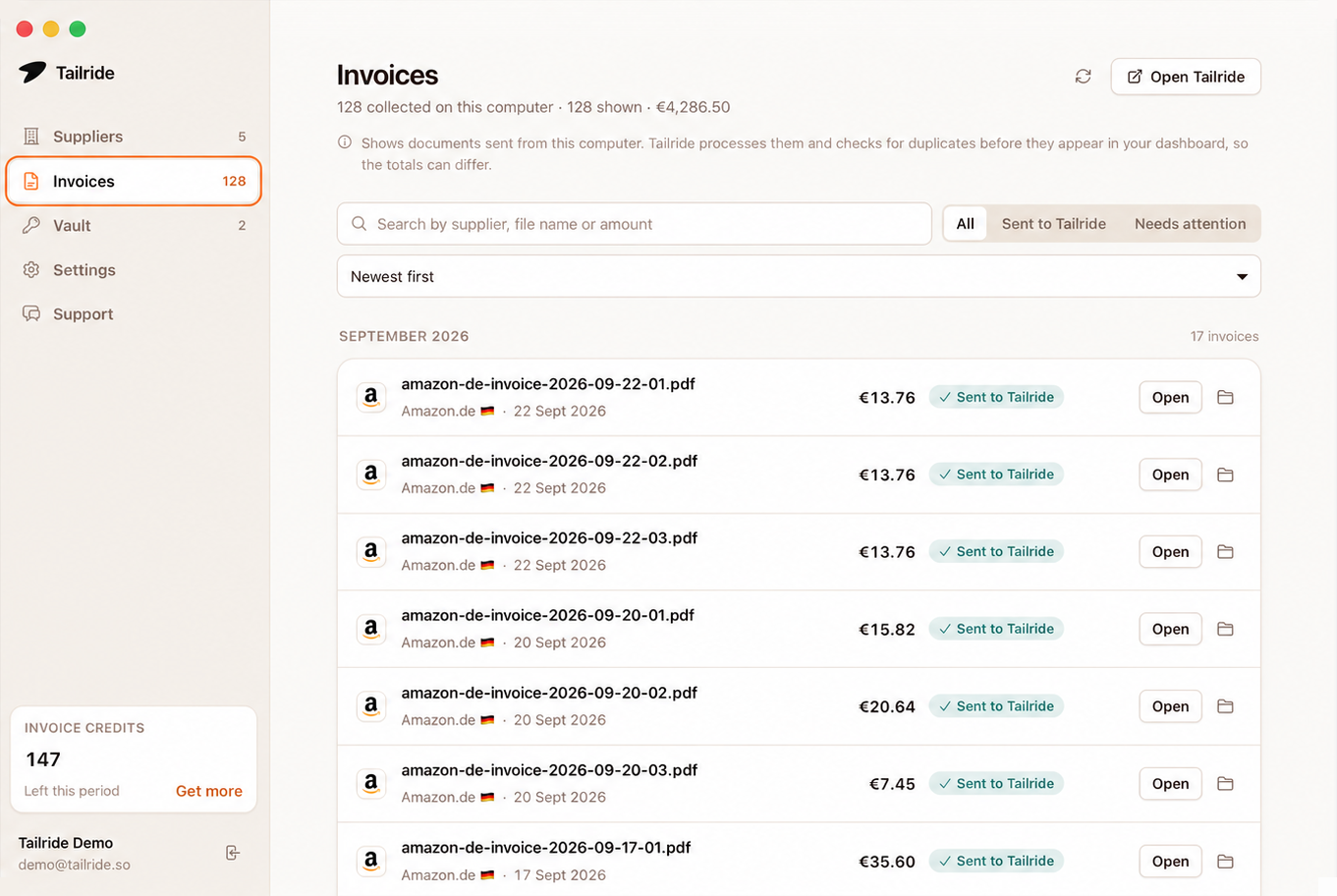
What Tailride can collect from your Mac
There are three main ways invoices can reach Tailride Desktop.
Supplier portals
Tailride can sign in to supported portals and download available invoices for you. These include services such as Amazon, Stripe, AWS, Google Ads, Microsoft 365, Adobe, Meta, OpenAI, GitHub, Vercel, Notion, Figma, and Uber.
You can add more than one account for the same portal. For example, two Amazon Business accounts can run as separate supplier profiles without mixing their sessions or invoices.
Not every website with downloadable invoices is supported, so check the supplier list in the app before planning your workflow around a specific portal.
Proton Mail
Because Proton Mail is encrypted, a normal cloud inbox connection cannot read it. Tailride Desktop connects through Proton Mail Bridge on your Mac instead.
This allows Tailride to scan selected folders, find likely invoice attachments, and turn supported HTML receipts into PDFs. You will need a paid Proton Mail plan and Proton Mail Bridge running on the computer.
See invoice collection from Proton Mail for the requirements and supported filtering options.
Local folders
Tailride can also watch a folder on your Mac for new PDFs and images. This is useful for downloaded invoices, scanned receipts, or documents placed in a shared bookkeeping folder.
Each new file is picked up once. Renaming or moving the same document does not cause it to be imported again.
See Folder Sync for supported files and current limits.
How to automatically download invoices on a Mac
Step 1 - Install Tailride on your Mac
Download the macOS .dmg from the Tailride Desktop page. The same download works on Apple Silicon and Intel Macs.
Open the downloaded file and drag Tailride into the Applications folder. You can then launch it from Applications or Spotlight.
If macOS says it cannot verify the app, right-click Tailride in Applications and choose Open, then confirm Open in the dialog. You can also allow it under System Settings → Privacy & Security. This is normally required only the first time.
Step 2 - Sign in
When you open Tailride, it sends you to tailride.so in your normal browser to sign in. You do not enter your Tailride password directly into the desktop app.
After sign-in, Tailride appears in the menu bar. Closing its main window does not quit the app.
Open Settings and enable Start at login if you want invoice collection to resume automatically whenever you start your Mac.
Step 3 - Add your first invoice source
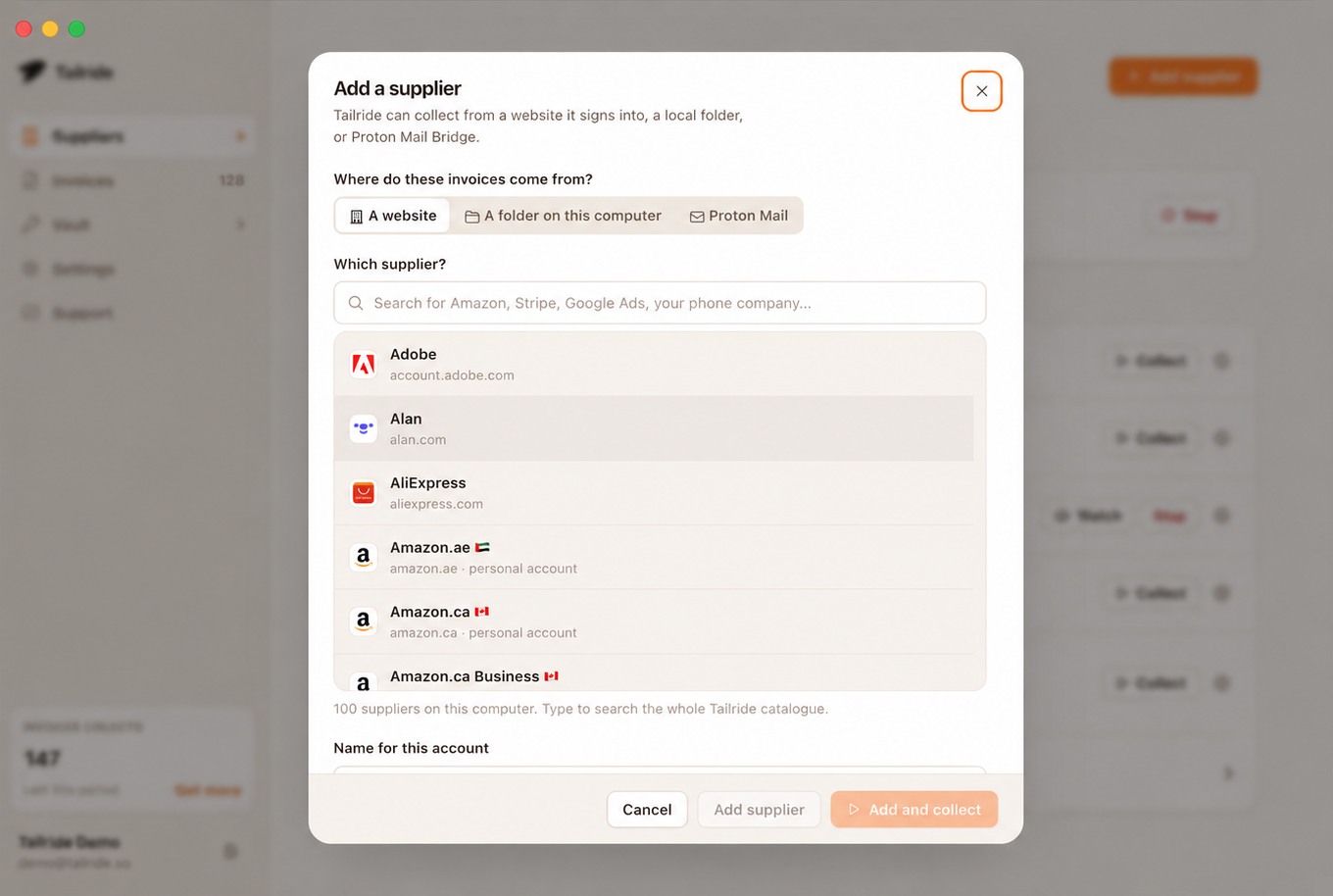
Choose Add supplier and select the source you want to connect.
For a supplier portal, create a separate profile for each account. Give the profile a recognisable name such as Amazon - UK office or Google Ads - Client name. Clear profile names become particularly useful once you have several accounts on the same portal.
For Proton Mail, make sure Proton Mail Bridge is already installed and running. Tailride will ask for the Bridge connection details rather than your normal Proton account password.
For a local folder, select the folder containing the invoices or scans you want Tailride to watch.
Step 4 - Choose how far back to collect
For the first run, choose a start date based on how much invoice history you need.
If you only need documents from the current bookkeeping period, starting at the beginning of the month or quarter keeps the first run short. If you are setting up a new accounting system or filling gaps in your records, select an earlier date.
Later runs include an overlap with the previous successful collection. This helps catch invoices that a supplier published late. Previously collected documents are recognised, so the overlap should not create another copy of the same invoice.
Step 5 - Decide how Tailride should sign in
Saving a portal login is optional.
If you save it, the password is kept in your Mac Keychain rather than in a Tailride password database or a plain text file. The app can then sign in when a scheduled collection starts.
If you prefer not to save the password, you can sign in manually when Tailride opens the portal. The app keeps that portal session for later runs until the website signs it out.
Some portals use a code from an authenticator app. Where supported, Tailride can generate the same TOTP code locally on your Mac using the setup key provided by the portal.
TOTP autofill depends on the portal and is not universal. SMS codes, CAPTCHAs, security questions, or unusual login checks may still require you to complete the sign-in window yourself.
Step 6 - Set the collection schedule
Each source can have its own schedule:
-
Hourly
-
Daily
-
Weekly
-
Monthly
-
Quarterly
-
Manual collection only
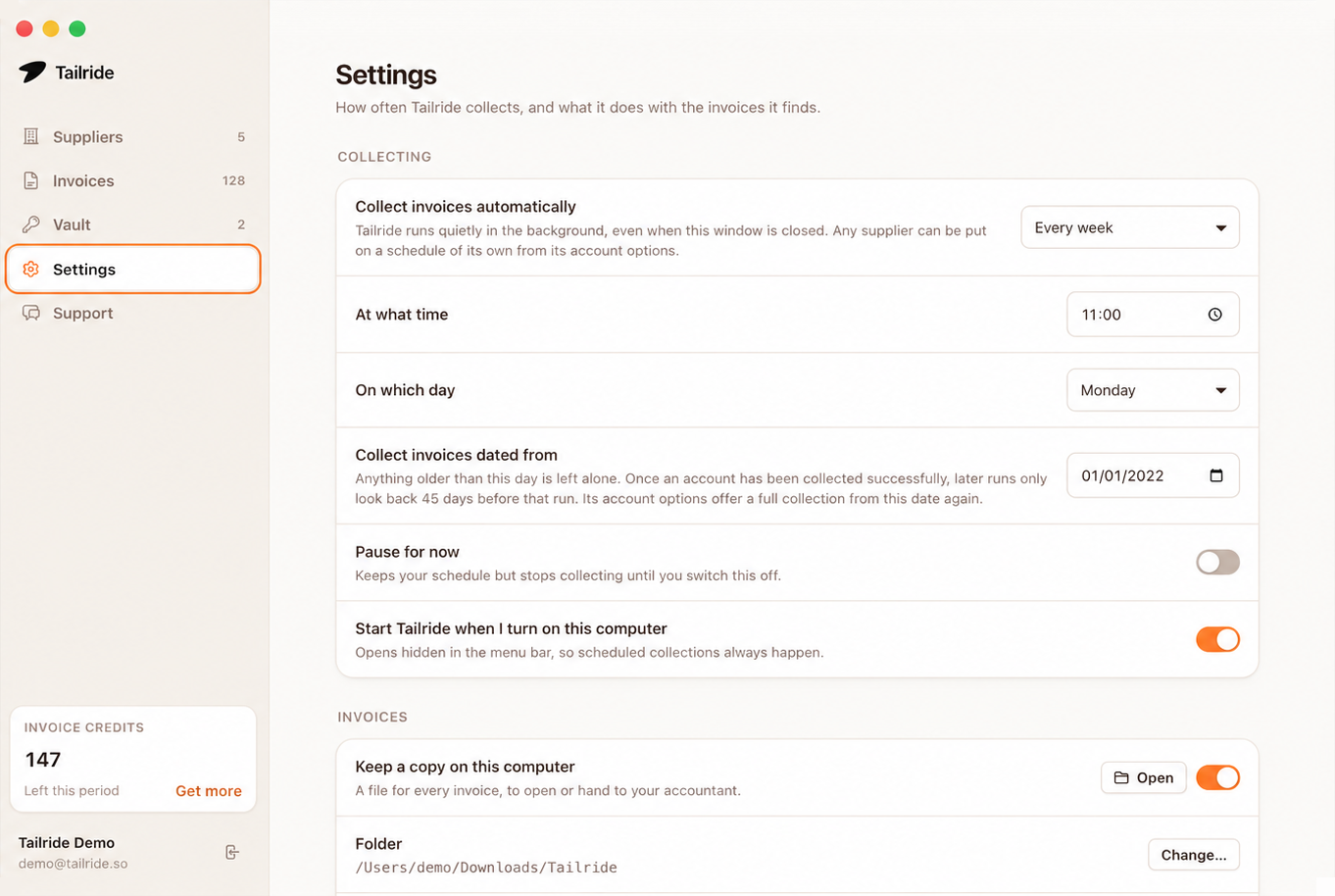
A monthly schedule is usually enough for subscriptions and routine bookkeeping. A daily or weekly schedule makes more sense when invoices need to reach the accounting system quickly.
The app does not need your normal browser to stay open. It uses its own separate portal sessions and runs from the menu bar.
Your Mac does need to be running. If it is asleep when a scheduled collection is due, Tailride starts the missed run after the computer wakes.
Step 7 - Choose where local copies are saved
By default, Tailride saves downloaded files under:
Downloads/Tailride
The files are organised by supplier and account. You can choose another directory in Settings or turn local copies off.
Each collected invoice also appears in your Tailride account, where its fields can be extracted and the document can continue to your connected accounting workflow.
The portal login and saved credentials stay on the Mac. Invoice files selected for processing are uploaded to Tailride so their data can be extracted and synced.
What happens after the first run
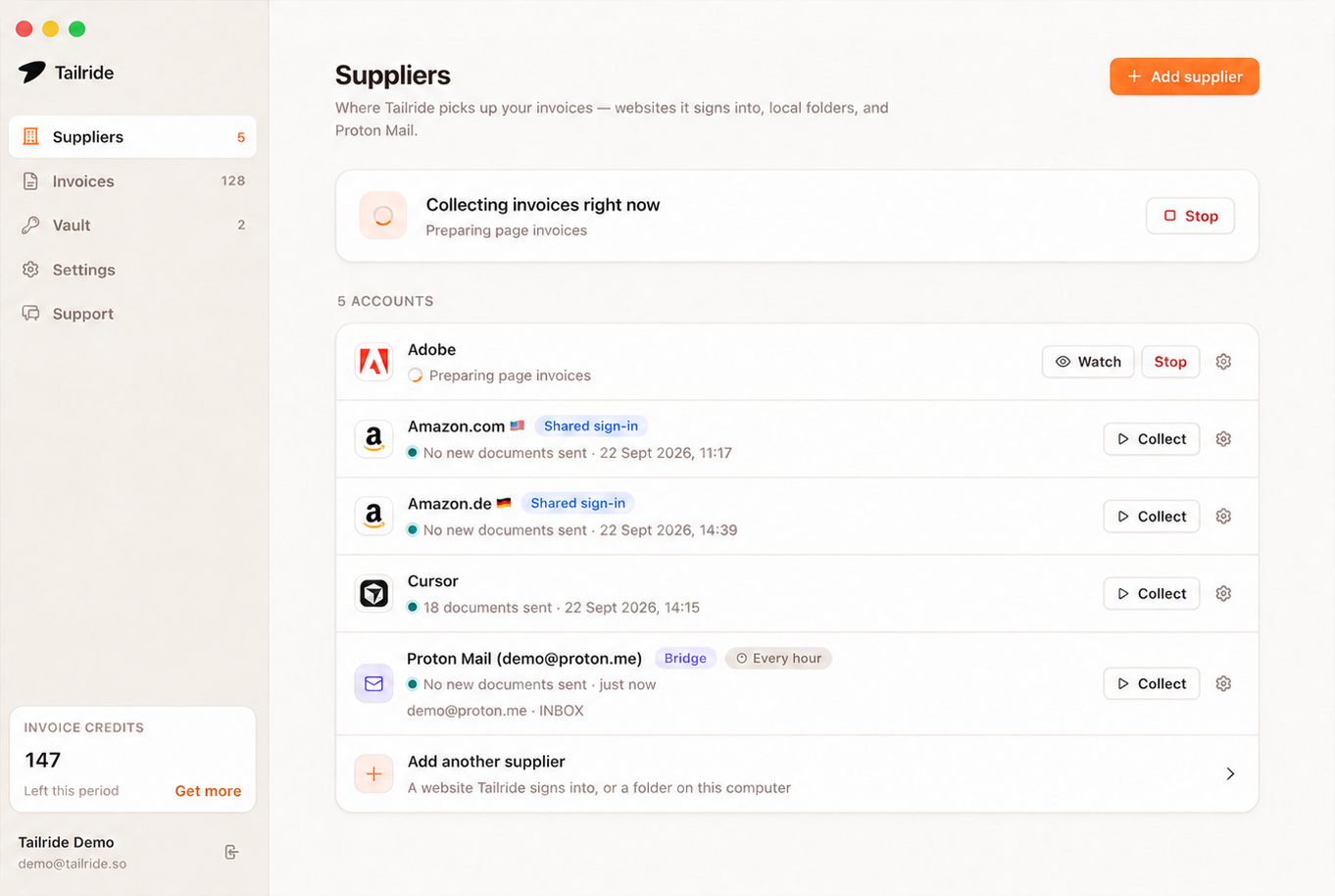
The first collection may take longer because Tailride has to check the full period you selected. Later runs focus on recent activity and are normally shorter.
You can watch a run by enabling Settings → Advanced → Show browser window. This is useful when a portal changes its login page or asks for additional confirmation.
If a login expires, an upload fails, or your account runs out of credits, Tailride shows a notification. Once the issue is fixed, you can run the source again without returning to the portal and finding every invoice manually.
Tailride Desktop is free to download and install. Invoice collection uses the credits included in your Tailride account, with no additional fee per computer.
Common Mac setup problems
Tailride does not run on schedule
Check that Tailride is still visible in the menu bar and that Start at login is enabled. Closing the window keeps it running; choosing Quit from the menu bar stops scheduled collections.
Also remember that scheduled runs cannot start while the Mac is fully shut down. A missed run should begin after the computer starts or wakes.
The portal asks me to sign in again
Supplier websites can expire sessions or request a fresh security check. Open the affected supplier in Tailride and complete the login again.
If repeated sign-outs become a problem, save the login in Keychain. For portals with authenticator-app codes, add the TOTP setup key if the portal is supported.
An invoice was not collected
First check whether the invoice is actually available in the supplier portal. Some services issue invoices several days after the payment or billing date.
Then check:
-
the start date selected for that supplier;
-
whether the correct supplier account was connected;
-
whether the most recent run completed successfully;
-
whether the portal changed its login or document page;
-
whether the Tailride account has available credits.
Use Show browser window during a manual run if you need to see exactly what the portal is displaying.
I cannot find the downloaded PDF
Check Downloads/Tailride unless you selected another destination in Settings. Files are placed in subfolders for the supplier and account.
If the invoice appears in Tailride but no local file was saved, check whether local copies were disabled for that supplier.
Desktop app or browser extension?
Use the desktop app when you want collection to happen on a schedule, need several accounts for one portal, use Proton Mail, or want Tailride to monitor a folder on the Mac.
The browser extension is better for an occasional collection while you are already signed in to a portal. It also works on Linux and Chromebooks, where the desktop app is not currently available.
Both options send collected invoices to the same Tailride account, so you can use the extension for one-off work and leave regular collection to the Mac app.
Frequently asked questions
Can Tailride download invoices while my browser is closed?
Yes. Tailride Desktop uses its own portal sessions, so Safari, Chrome, or another browser does not need to remain open. The Tailride app and the Mac itself still need to be running.
Does Tailride work while my Mac is asleep?
No collection can run during sleep. If a scheduled run was missed, Tailride catches up after the Mac wakes.
Where are portal passwords stored?
Saved portal passwords and authenticator keys are stored in the Mac Keychain. Saving them is optional. They are not kept in a plain text file or stored on Tailride’s servers.
Can I connect two accounts from the same supplier?
Yes. Add each account as a separate supplier profile. Its login session, settings, invoices, and local folder remain separate from the other account.
Can I delete saved logins from the Mac?
Yes. Go to Settings → Advanced → Delete data to sign out, remove saved sessions, and delete the app’s local data. Invoice PDFs already saved in your Downloads folder are kept.
Set it up once, then let it run
Once your suppliers and schedule are set, there is nothing to download manually at month-end. Tailride checks the connected sources whenever your Mac is available and keeps the collected invoices in one place.
Download Tailride for Mac and connect your first invoice source.
