Email Invoices to Pleo: Address and Setup
Find your Pleo invoice email address, collect supplier PDFs with Tailride and configure Email Routing to send them to Pleo for review.

By Tailride · 11 min read · Updated October 2026
To email supplier invoices to Pleo, copy your company's invoice address from Invoices → + New invoice. In Tailride, activate and configure the Email Routing add-on with that destination. You can send a processed invoice manually or enable Automatic Sending. Confirm the PDF appears in Pleo before expanding the workflow.
A supplier invoice and a card receipt can look almost identical in an inbox. Both may be PDFs, both show a merchant and an amount, and both need to reach finance. Their next stop in Pleo can be different, however. A bill awaiting review belongs in the invoice workflow; evidence for an existing card purchase belongs with that expense.
That distinction matters before you automate anything. This guide follows supplier bills into Pleo Invoices, then shows how Tailride can collect the PDFs from your sources and email them there. It is an invoice automation setup for teams that already manage accounts payable in Pleo.
Invoice or receipt: choose the Pleo workflow first
Use the document's purpose to choose its destination. A filename containing “invoice” does not tell you whether someone has already paid it or whether the transaction is already recorded.
| What you are handling | Where to start in Pleo | What to check |
|---|---|---|
| A supplier bill that your team needs to review through accounts payable | Your company's Invoices email address | The company, invoice number and payment status are correct. |
| A receipt supporting an existing Pleo card expense | The expense's receipt workflow | The document is attached to the existing purchase. |
| A document already imported by another route | The existing record | Another send will not create extra work or a second record. |
Pleo's accounts payable product accepts invoice emails into a company inbox and extracts document details for review. Its Fetch feature serves receipt collection: it scans a connected work email and matches receipts to expenses, or places unmatched ones in a private Receipt Inbox.
If Fetch already supplies the receipt for a card purchase, keep that route. Adding a supplier-invoice email destination should solve a specific gap, such as bills in a separate finance inbox or PDFs that must be collected from supplier portals.
Where is your Pleo invoice email address?
An admin or bookkeeper can open Invoices, select + New invoice, and find the option to send by email. Copy the address shown for the company you are working on. Members who cannot find it should ask their Pleo administrator. These are the steps in Pleo's supplier invoice instructions.
Pleo describes a custom address such as yourcompany@invoices.pleo.io on its product page. Treat that as a format example: obtain the full address from your account rather than building one from the company name.
Confirm the copied address and company with your Pleo administrator. The walkthrough below tests that destination by sending one supplier PDF through Tailride. Use a document your finance team can recognise by supplier, invoice number and amount, and check that it has not already arrived through another route.
Our screenshot uses purchase-invoices@example.com, a fictional address reserved for illustration. Replace it with the address copied from Pleo.
Where Tailride helps when bills arrive in different places
A Pleo invoice address is useful once you have the document. Some teams can give that address to every supplier and finish the setup there. Others still have invoices landing in several mailboxes, mixed into old correspondence, or waiting behind a supplier login.
Tailride is an invoice collection and processing tool for those sources. Its inbox scanning finds supplier documents in connected email accounts and extracts details such as the vendor, date, total and line items. You can search the resulting invoice list and inspect the source file alongside those details.
For PDFs available in vendor accounts, Tailride's supplier portal tools collect documents through the browser extension. The desktop app can run portal collection on a schedule from your computer. Check that collection works for each portal you intend to use before relying on automatic onward delivery.
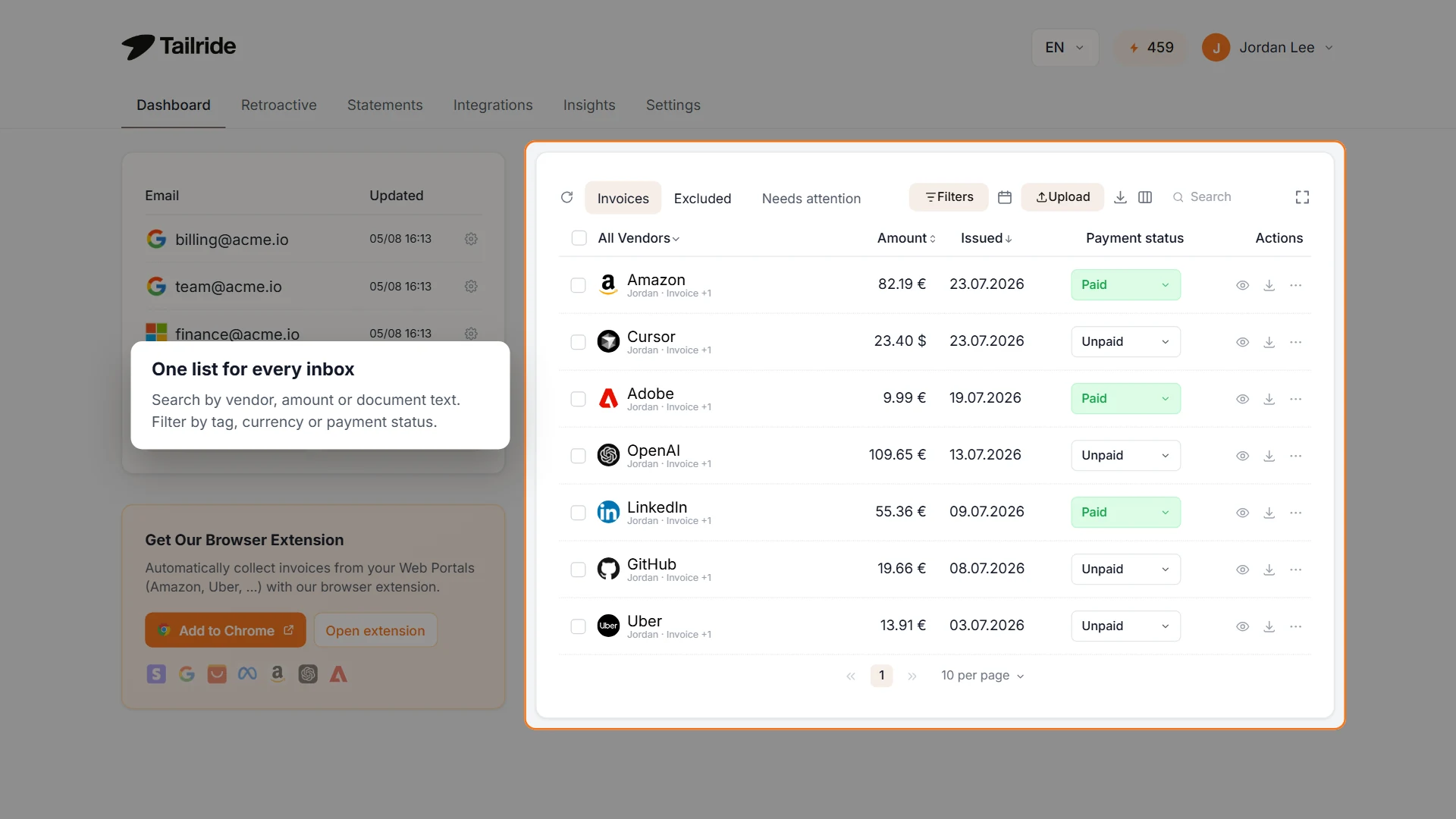
Illustrative Tailride web dashboard with example data. Use the shared list to check collected documents and decide which belong in Pleo Invoices.
The dashboard is a collection view, so its contents can include documents that need different destinations. Seeing a receipt there does not mean it should enter Pleo's supplier-bill workflow. Agree which sources and document types you will send before enabling automation.
For example, a fictional design agency might receive hosting bills in finance@example.com and download an unpaid contractor invoice from a supplier portal. Tailride can bring both into the same list. The agency then sends the eligible PDFs to its Pleo invoice address, where finance reviews them. Card receipts already handled by Fetch stay on their existing route.
Walk one supplier invoice through Tailride and into Pleo
Choose a PDF that has not already reached Pleo. For this first pass, leave automatic sending off so you can inspect the document and confirm the destination before sending it.
Connect the source and check the PDF
Connect the mailbox containing the bill in Tailride, or collect it through the appropriate portal tool. Open the resulting document and compare its supplier, invoice number, amount and company details with the PDF.
The attachment is the useful handoff here. Tailride Email Routing sends available original PDF attachments with the invoice email. If the document you collected has no PDF, resolve that before using it as the test for this route. Do not assume that a thumbnail or extracted text means a PDF will be attached.
Add Pleo as the email destination
In Tailride's web interface, open Integrations → Email Routing and activate the add-on if it is not already active. Open its settings and:
-
Turn on Enable Email Forwarding.
-
Paste your Pleo invoice address into Forwarding Email Address.
-
Leave Automatic Sending off for the first manual test.
-
Keep the subject template, or adjust the wording while preserving any variables you need.
-
Save the settings.
The Email Routing documentation explains the destination controls. A default address is sufficient for a setup where every document sent through that route belongs in the same Pleo invoice inbox. Existing routing rules or account-specific settings can override that default, so check them if the account already has other destinations.
Send once, then find the document in Pleo
Open the test invoice's actions menu in Tailride and choose Forward to email. In Pleo, look for the document using the details you noted earlier. Open the PDF and compare it with the source.
For this test, record three results: Tailride collected the expected file, the email send completed, and the document became visible in the correct Pleo company. The last result confirms the import; an email send alone does not tell you where the receiving platform placed the document.
This connection uses email delivery. Pleo reads the document through its own import workflow. Tailride's extracted categories, accounting codes or other fields are not automatically mapped into corresponding Pleo fields by this method.
Automate invoice forwarding to Pleo
Once the test works, return to the same Tailride settings and enable Automatic Sending. With Email Routing active, forwarding enabled and the destination configured, subsequent processed documents can be sent without opening each invoice's menu.
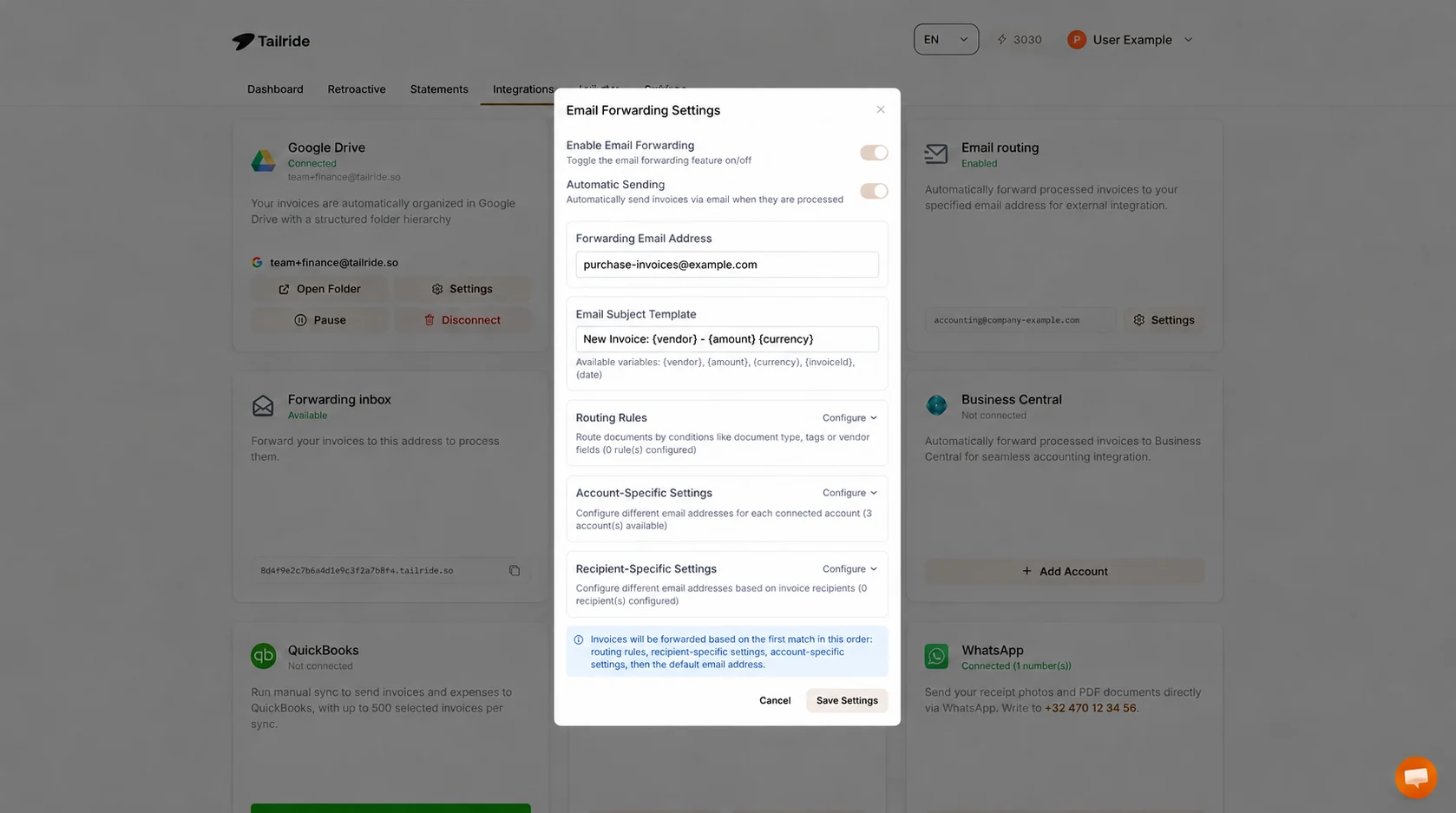
Tailride web settings after the test: forwarding and automatic sending are enabled. The example address is fictional; use the invoice address supplied by your Pleo account.
Automatic sending is appropriate only when the documents reaching that destination belong in Pleo Invoices. If Tailride also collects card receipts or documents for other companies, use its routing controls to express that distinction. For example, an Invoice document-type rule can send matching documents to Pleo while the default destination remains a separate finance review mailbox. Check the classification on representative documents before relying on such a rule.
A document-type rule does not establish that an invoice is unpaid or missing from Pleo. If a card purchase also produces an invoice, use a reviewed tag or source criterion to keep that document on the existing receipt route, or continue sending manually.
Tailride applies the first matching routing rule, then checks recipient-specific settings, account-specific settings and finally the default address. Keep the configuration understandable: one clearly defined route is easier to maintain than several overlapping rules for the same supplier.
Also decide who owns delivery for each source. If a supplier already emails Pleo directly, or another mailbox rule sends the same bill, remove that overlap before adding Tailride to the route. Do not make repeated delivery part of the normal process and depend on a duplicate check to sort it out.
Review, approval and payment continue in Pleo
Once a supplier invoice reaches Pleo, your team still needs to check the document and the information extracted from it. Pleo offers invoice approval workflows and accounting export as part of its accounts payable product. Forwarding supplies the file for that work; it does not approve the supplier, confirm bank details or authorise payment.
Check the invoice number, company, currency, tax and amount against the PDF. If the supplier has already been paid through another method, establish that before placing the document in a payment process. Someone should own this review even when the collection and delivery are automatic.
Payment availability also depends on your Pleo setup and market. Pleo's supplier invoice help notes that US customers cannot pay supplier invoices through Pleo. Use the options available in your own account and keep the collection setup separate from decisions about how a bill will be settled.
For organisations with several legal entities, confirm an invoice destination for each relevant company and test them separately. Tailride can select destinations using document or recipient information, but a broad rule should not decide where every subsidiary's bills go without checking the examples.
Why hasn't your emailed invoice appeared in Pleo?
If a bill does not appear, follow the document through the route rather than sending it several more times.
| What you can see | What to inspect next |
|---|---|
| No document in Tailride | Confirm the connected source contains the invoice and collection has run. For a portal, check sign-in and retrieval first. |
| The document is in Tailride, but it has no PDF | Open the source and obtain the actual invoice PDF for this workflow. |
| The PDF is present, but no automatic email went out | Check that Email Routing is active, forwarding is enabled, Automatic Sending is on, and a destination resolves for the document. |
| Tailride shows an email forwarding error | Read the error in Needs attention, correct its cause and use Retry. |
| Sending completed, but Pleo has no visible invoice | Verify the exact destination and company with the Pleo admin. Search by invoice number and ask them to check the import. |
| The invoice arrived twice | Inspect direct supplier delivery, mailbox rules and manual resends before changing the route. |
For documents you sent manually, confirm that you used the intended email action. Automatic Sending being off is expected in that mode. If an administrator investigates an incoming-email restriction, Tailride's forwarding message normally uses an account-specific sender on fw.tailride.so; verify the actual sender on the test message.
Start with one company, one source and one recognisable supplier PDF. Once finance confirms its arrival and review in Pleo, add the remaining sources through Tailride's integrations and enable repeat sending for the documents that belong on that route.
Pleo invoice forwarding FAQ
Which email address should I use to send invoices to Pleo?
Use the company-specific supplier invoice address shown in Invoices → + New invoice in Pleo. Copy it from your account or ask your administrator. The purchase-invoices@example.com address in our screenshot is fictional.
Does this workflow use a native Tailride–Pleo API integration?
This workflow uses Tailride's Email Routing add-on to email the invoice PDF to Pleo. It does not map Tailride fields into Pleo records. Pleo handles the document through its own invoice import and review process.
Can we recover old supplier invoices and send them to Pleo?
Tailride can scan historical email to recover documents. Review the period and check what Pleo already contains before sending a backlog. Start with a small batch you can reconcile, particularly if another tool previously handled imports.
Can a supplier send invoices to Pleo without Tailride?
Yes. You can share the company invoice address with the supplier. Tailride is useful when your team also needs to gather documents from existing inboxes or portals. Assign one delivery route to each source so the same invoice does not arrive through both.
Does editing an invoice in Tailride update the Pleo record?
This email workflow does not provide record updates between the two platforms. Review and correct the imported invoice in Pleo as needed. Resending a file should not be treated as an update to an existing Pleo record.
