
AP Automation for
Accounting Firms
From a new client’s invoice backlog to a repeatable monthly workflow. Collect documents, prepare coding, review exceptions and find what is missing across your client workspaces.
A practical guide to the client invoice workflow · Free plan: 10 invoices/month
From the first catch-up
to every month-end.
Start with a new client whose quarter of invoices is scattered across inboxes and supplier portals. Recover the backlog, then keep the same collection, coding and handoff workflow running for the months ahead.
Connect the client
Choose the right workspace, sources and accounting destination before collecting.
Set up the workflow ↓Collect the documents
Recover historical emails and add invoices that only live in supplier portals.
Bring the sources together ↓Code and review
Prepare line items against the client’s accounts, then check the result.
Review the detail ↓Find gaps and hand off
Match statement transactions, investigate missing documents and export.
Check what is missing ↓Start with the right client workspace
Before processing a backlog, decide where that client’s documents and data belong. Your firm’s master dashboard gives you access to client accounts; each client keeps their own workspace and accounting context.
- Connect the client’s Gmail, Outlook or IMAP inboxes with their authorisation.
- Choose the accounting destination for that client.
- Use the client’s chart of accounts and supplier rules when preparing coding.
Confirm the client entity, the period you need to cover and who will review the results. A good first run starts with one client and a known set of documents.
 Tailride
Recover the invoices from before they joined
Set the date range for the client’s missing quarter. Tailride searches the available history in connected inboxes for invoice attachments and relevant email content, including receipts sent in the body of a message.
- Choose a quarter, year or custom historical period.
- Read invoices sent inside an email, even without a PDF attachment.
- Add receipt photos and PDFs through WhatsApp, Telegram or manual upload.
- Keep incoming collection running after the initial catch-up.
Check the first batch: look for a few invoices you already know exist. Historical recovery depends on the messages available in the connected source, and processing uses your plan’s allowance or available credits.
Explore retroactive scanning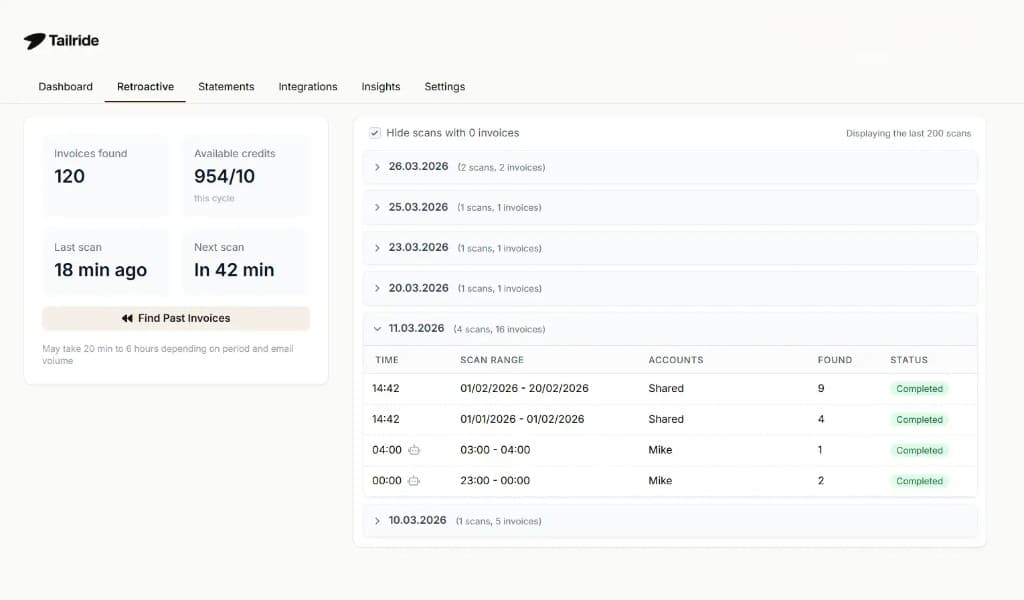
Bundles containing several complete invoices can become separate records. Duplicate detection helps identify documents already processed.
Bring portal-only invoices into the same flow
Some documents are only available inside Amazon Business, Adobe, Meta Ads or another supplier portal. Use the browser extension while signed in, or set up Tailride Desktop on the client’s computer for scheduled collection.
- The extension collects through the user’s browser session.
- The desktop app can collect on a schedule from supported portals.
- Add separate profiles for several accounts on the same portal.
- Saved portal passwords stay in the computer’s protected storage.
- Proton Mail and watched folders provide additional desktop sources.
Agree the setup with the client: scheduled desktop runs need the computer and app available. Supported authenticator codes can be automated; SMS codes, CAPTCHA and other checks can still require their input.
See the desktop collection workflowPrepare each line for the client’s chart of accounts
Reading the invoice total is only the beginning. One bill can include office supplies, repairs and delivery. Tailride prepares account and tax coding at line-item level, using the client’s accounting context.
- Sync a supported chart of accounts and import available coding history.
- Apply supplier defaults and rules for individual line descriptions.
- Review suggestions against the original document and make corrections.
- Keep learning and coding specific to the client or workspace.
For the first export: check the supplier, invoice date, currency, totals and tax treatment. Then confirm the suggested accounts. You are reviewing prepared data, rather than entering every line again.
See how automatic coding works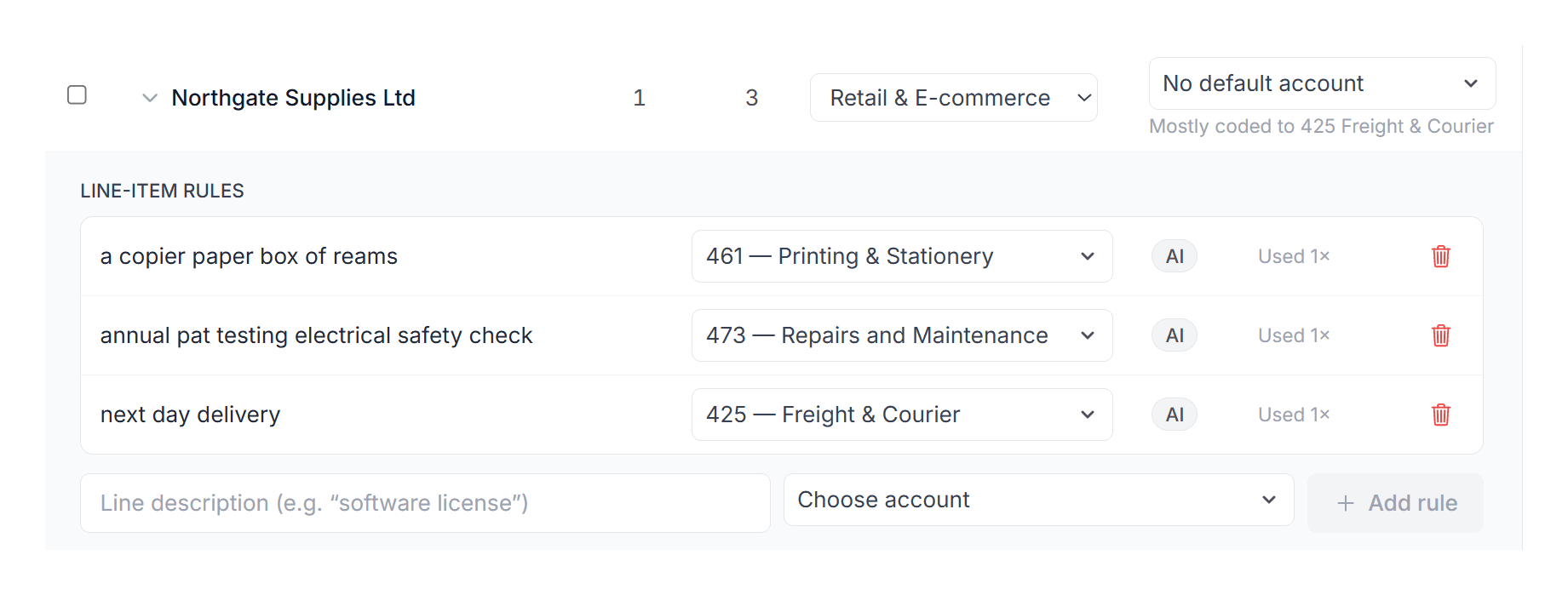
Describe how documents should be classified or handled in plain language. For example, tell Tailride to classify documents titled “Bank Statement” as not an invoice. Explore AI Rules →
Find uncertain values
Needs attention brings low-confidence fields and coding suggestions into view.
Resolve failed delivery
Check sync or forwarding errors and retry failed actions after resolving the issue.
Follow the activity trail
See recorded processing, edits and delivery events alongside the document.
Work on a selected batch. Run line-item coding, send documents to supported destinations or download CSV, ZIP and DATEV packages. Actions depend on the connected integration and document state.
Track costs beyond the account. Use tracking categories, classes, locations or analysis types where the connected system supports them. Explore review and bulk actions →
Handle XML invoices alongside PDFs and receipts
When a client receives a ZUGFeRD, Factur-X or XRechnung invoice, Tailride reads the structured XML data. An XML-only invoice gets a readable PDF representation for review, while the original remains available.
The document joins the same processing workflow as the rest of the client’s invoices. Reading a Peppol-format file does not require treating it as an image.
Explore supported e-invoice formatsFind the transactions that still need a document
A folder of invoices does not tell you whether the quarter is complete. Upload the client’s bank statement and use Tailride’s matching workflow to compare transactions with the collected documents.
- Review suggested invoice-to-transaction matches.
- Investigate differences and transactions without supporting documents.
- Work with multi-currency transactions in the matching workflow.
Use unmatched transactions as a follow-up list. Check another inbox, collect from a portal or ask the client for the specific document that is still missing.
One specific follow-upFind the document for the €126.50 payment.
Send the result where this client needs it
Choose the handoff for the client’s accounting system. Creating a bill, archiving a document and exporting a file are different outcomes, so check what the chosen integration transfers.
| Handoff | What it is for | What to check first |
|---|---|---|
| Accounting integrationsChoose a supported system above | Send prepared invoice data into the supported bill, expense or voucher workflow. | Client entity, field mapping, line items, accounts and tax treatment. |
| Files and reportingGoogle Drive · OneDrive · Google Sheets · CSV | Organise documents and share structured data in the client’s existing process. | Destination folders, exported fields and the period included. |
| Email RoutingDocument delivery by email | Forward processed invoice PDFs to systems with an intake address, such as Pennylane, Qonto or Sage Cloud Demat for BOB 50. | Use the correct client intake address. Email delivery does not transfer coding as a structured API record. |
| DATEV package exportStructured or document-only records | Export eligible invoices as structured records, with document-only fallbacks where enabled. Mixed VAT rates can be split into separate records. | Review blocked items and the fields included. A structured invoice record does not imply full transfer of account assignments, tax codes and cost centres. |
Integration capabilities vary. Test a representative invoice before relying on a new client’s export workflow.
Keep the workflow running each month
Leave inbox monitoring and scheduled portal collection active. Configured rules prepare new documents; eligible invoices can be auto-exported through supported accounting integrations. Review exceptions and match the next statement.
Email Routing can choose the destination by source account, recipient, supplier or tag. For custom workflows, use webhooks with Make, Zapier or n8n.
Practice plans, invoice allowances and firm billing are covered on our dedicated page for accounting firms.
Questions about the client invoice workflow
What to know before using Tailride with a new client.
What part of AP automation does Tailride cover?
Tailride collects invoice documents, extracts data, prepares coding, supports review and export, and matches documents with statement transactions. Payment execution and any formal approval process are handled through the systems your firm uses for those tasks.
Do clients have to forward emails or install an app?
Connected inbox scanning does not require clients to forward each invoice. They do need to authorise the connection. Portal collection uses the browser extension or an optional desktop setup; scheduled desktop collection requires the app and computer to be available.
Can we collect invoices from before the client joined us?
Yes. Select a historical date range to search the available messages in a connected inbox. Recovery depends on access to the source and the documents still available there; processing uses your plan’s invoice allowance or available credits. Portal history depends on what the supplier provides.
Does coding use each client’s own chart of accounts?
Yes. Tailride prepares line-item coding in the client’s context, using the connected chart of accounts and applicable rules. Available fields, cost dimensions and export behaviour depend on the integration. Review the proposed accounts and tax treatment before export.
What happens when a transaction has no matching invoice?
Use it as a specific follow-up item. Review the transaction, check the relevant source or collect the missing document from the client. Statement matching helps identify gaps; a suggested match still needs to be checked.
Can Tailride receive invoices through the Peppol network?
Tailride reads supported Peppol-format UBL invoices received through its document sources. It does not currently act as a Peppol access point. Reading a structured file and receiving it through the network are separate capabilities.
What does the DATEV export include?
Tailride validates the selected documents for a DATEV package: eligible invoices use structured records, document-only items can be included when enabled, and blocked items are identified for review. Structured records do not mean that all account assignments, tax codes and cost centres entered in Tailride transfer as a full accounting entry.
Where can we see plans for accounting firms?
See the accounting firm programme for current Practice plans, invoice allowances and billing terms. You can also start with the free plan to evaluate the workflow, or book a firm demo.
Build a repeatable workflow
for every client
See how Tailride fits the way your firm collects,
reviews and hands off client invoices.
