Expensify Invoice Email: Bills, Receipts and Forwarding
Choose the right Expensify email for bills or receipts. Set up Tailride Email Routing for supplier PDFs using the documented Classic Bill Pay route.

By Tailride · 7 min read · Updated October 2026
Expensify uses different email routes for supplier bills and expense receipts. Its Classic Bill Pay documentation uses domain.com@expensify.cash after a Primary Contact is configured. Receipts go to receipts@expensify.com from an associated account email. For supplier PDFs collected by Tailride, configure the Email Routing add-on with your confirmed Bill Pay destination.
You can send the right PDF to the wrong Expensify address. The file may describe a perfectly valid purchase, but finance needs a supplier payable while the sender has submitted an expense receipt. The distinction is easy to miss when both documents arrive with a subject such as “Your invoice.”
Before connecting an automated collector, decide what you want Expensify to create. This guide explains the addresses and then follows one supplier bill from a portal into the Bill Pay workflow.
“Invoice email” can mean three different things in Expensify
Your company owes a supplier
Use the company's Bill Pay destination when the document should enter the supplier-bill process. Expensify's bill-receiving instructions describe a company-domain address ending in @expensify.cash and a designated Primary Contact.
This is the route used for the Tailride configuration below. The instructions come from Expensify Classic. If your organisation uses New Expensify, confirm the applicable Bill Pay setup with its administrator or Concierge before using that address format.
Someone needs to document a purchase
Use receipts@expensify.com for receipt forwarding into the expense workflow. Expensify documents this as a SmartScan submission method, alongside uploading or photographing a receipt.
Sender identity matters here. Expensify's employee setup guide says to forward from a primary or secondary email associated with the user's account. A company-wide automation sender should not be assumed to identify the employee who made a purchase.
For a travel receipt or a software subscription already charged to a card, first establish whether an expense or transaction already exists and where its supporting document belongs. A PDF called “invoice” may still be evidence of an already-paid purchase.
A customer owes your company
Expensify also has an outbound invoicing feature for asking customers to pay you. Its Send an Invoice guide covers that workflow. Sending customer invoices and receiving supplier bills are separate tasks, even though everyday language calls both documents invoices.
The supplier-bill email route in this article does not create a sales invoice for a customer.
Put a named person behind the Bill Pay address
Have a domain administrator confirm the company domain and Primary Contact. In the Classic instructions, the contact is configured under Settings → Domains → Domain Admins, and incoming bills go to that person's default group workspace for review on Reports.
The published address pattern is: your-company-domain@expensify.cash
Here, your-company-domain means the full domain name, including its suffix, as in domain.com@expensify.cash. It is not the finance mailbox's local part. Have the administrator confirm the exact address for your setup before entering it into another tool.
This domain-based setup is different from having a personal Gmail address. Expensify's Classic domain guide distinguishes private company domains from public email domains. If your organisation has several domains or workspaces, record which destination and contact belong to the bills you intend to send.
The useful agreement is small: one confirmed destination, one person who can find the resulting bill, and a clear answer about which documents should enter it. That gives the first test an owner. It also avoids a situation where a message arrives but the person looking for it is searching a different account.
Follow a bill that starts in a supplier portal
Consider a fictional agency with a contractor invoice for $480. The contractor posts the PDF in a project portal and sends an email saying it is ready. The person who receives the notification would normally sign in, download the file and email it to finance.
Here, the collection work happens before Expensify receives anything. Tailride's supplier portal tools can retrieve invoice documents through the browser extension. For recurring retrieval, the desktop app can collect from portals on a schedule. Check the supplier's sign-in and the resulting PDF before relying on that schedule.
The same agency may receive hosting bills in its finance mailbox. Tailride's inbox scanning brings documents from connected mailboxes into the invoice list, where extracted details and the source document can be inspected together.
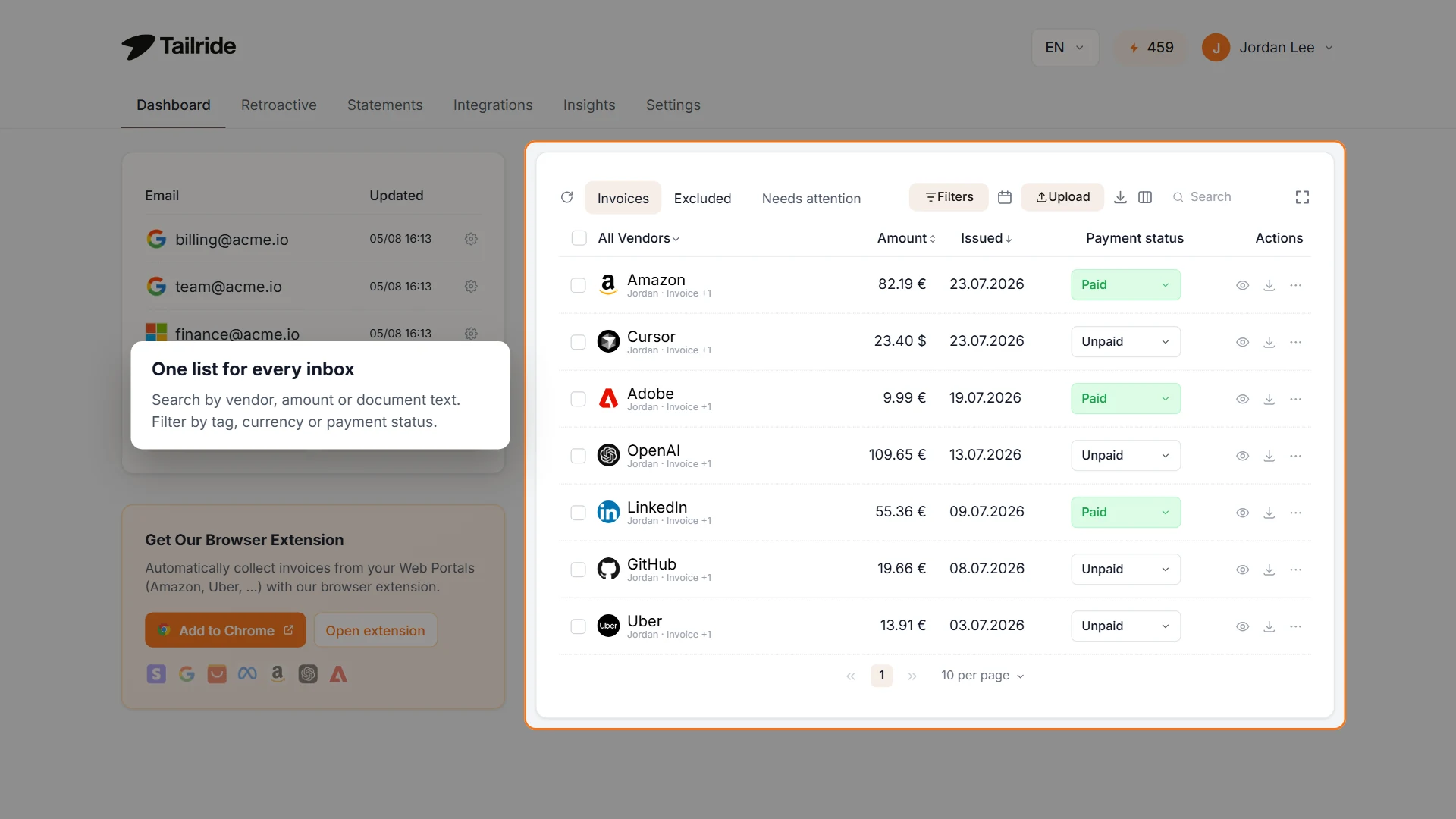
Illustrative Tailride web dashboard with example data. Collection brings documents together; your routing choice determines which supplier bills go to Expensify.
For the $480 example, open the collected PDF and check the supplier, invoice number, amount and company being billed. Confirm that it is still awaiting the intended finance review and has not already entered Expensify through another route. Keep the supplier's invoice number to hand: that is more useful for finding the result than the name of the person who uploaded it.
Tailride can help gather the file and extract its contents. Expensify remains the place where the team handles the resulting bill and its approval process. If you are choosing between the products rather than connecting them, the separate Tailride and Expensify comparison covers that decision. Here, the aim is to use the two tools for the parts of the workflow you already need.
Configure the handoff in Tailride
Activate the Email Routing add-on in Tailride and open Integrations → Email Routing. The settings below describe a single Bill Pay destination. If the account already has routing rules or destination overrides, inspect them before changing the default.
| Tailride control | Setting for this supplier-bill route |
|---|---|
| Enable Email Forwarding | On. The integration must be active and forwarding enabled. |
| Forwarding Email Address | The Bill Pay address confirmed by your Expensify administrator. |
| Automatic Sending | Off for the first manual send; enable it after the result has been checked. |
| Email Subject Template | Keep the existing template unless finance needs a different subject. Preserve any variables you use, such as {vendor} or {amount}. |
Save the configuration. Open the collected invoice's actions and choose Forward to email for the first send. The Email Routing guide covers the destination controls; the invoice guide describes document actions and failed sends.
Email Routing attaches available invoice PDFs. For this test, use one ordinary PDF and confirm that the receiving side can open it. A preview or extracted text in Tailride is not sufficient evidence that the outgoing message contains the expected attachment.
The screenshot shows the later configuration, with Automatic Sending enabled. Its purchase-invoices@example.com destination is fictional; replace it with your confirmed Expensify Bill Pay address.
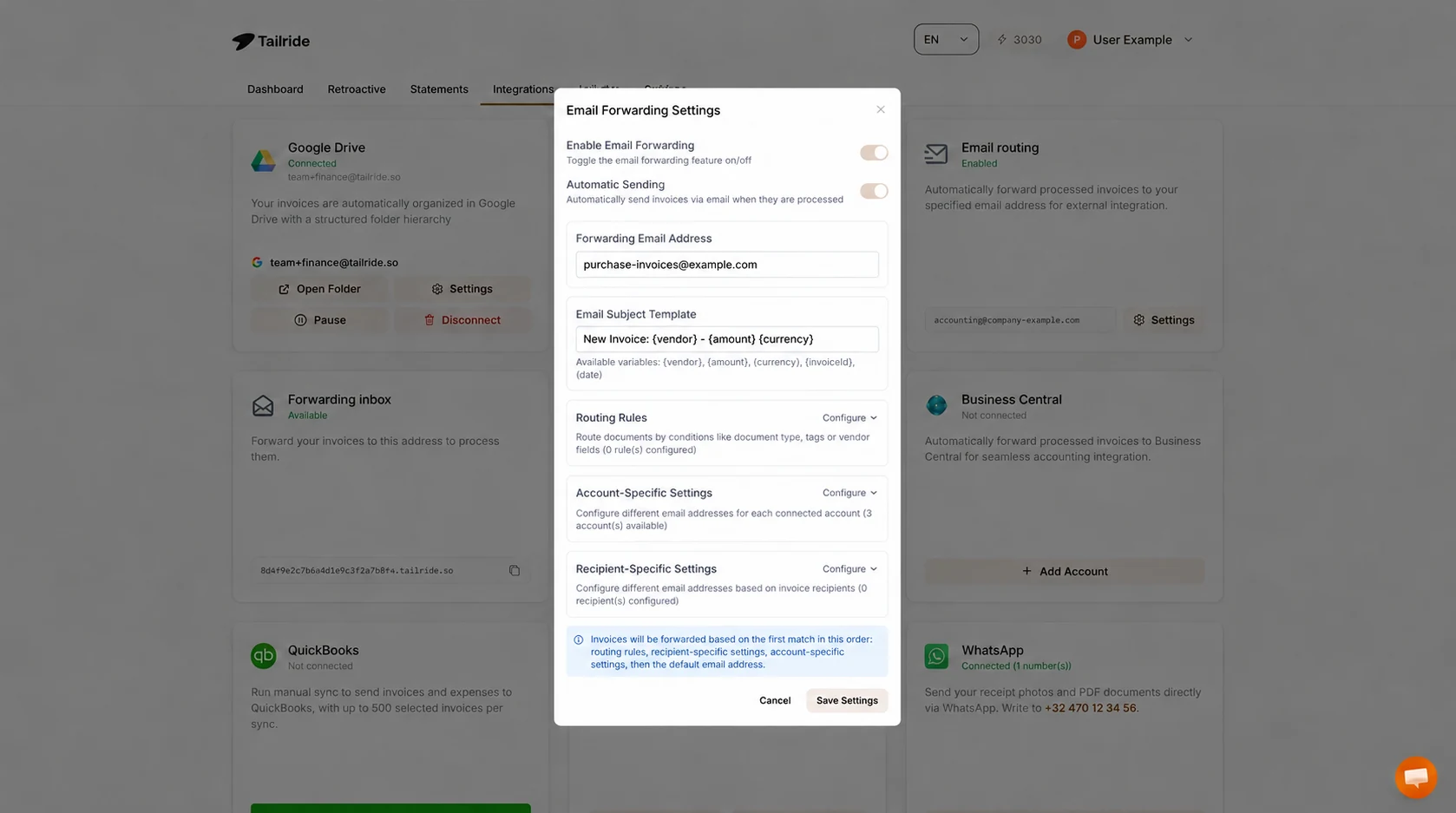
Illustrative Tailride web settings after the first bill has been checked. Use your company's Expensify Bill Pay address in the forwarding field; the address shown is an example.
For an account dedicated to eligible supplier bills, a single default destination can be sufficient. If the same Tailride account also collects card receipts, other companies' documents or files intended for another system, express those differences through routing rules or reviewed tags and sources.
An Invoice document-type rule does not tell you whether a purchase is unpaid or already recorded. Set the route according to the finance process as well as the document classification. The optional rules are especially useful when a mailbox contains both payable bills and invoices documenting card purchases.
What the recipient should check on the first bill
Send the Primary Contact a short reference before the test: supplier name, invoice number, amount and approximate sending time. Ask them to find the bill and compare the PDF with that reference. In the Classic workflow documented by Expensify, the receiving point is the Primary Contact's Reports view.
The result you need is a usable supplier bill in the intended workspace. Expensify's Bill Pay product page describes receiving forwarded documents and routing bills for approval. Check the bill's identity and contents rather than treating the email send as the finish line. If the document arrived in a different person's expenses, revisit the chosen destination and sender route before sending anything else.
Confirm that the attachment is legible, that the supplier and amount are recognised correctly, and that the company shown on the invoice is the one meant to receive it. A supplier bank detail or payment instruction still needs the team's normal review. Email delivery does not establish that the supplier should be paid.
Tailride's extracted categories, tags and accounting codes are not mapped into Expensify fields by this email method. Treat the attachment and the resulting bill as the handoff. Corrections and approvals made in Expensify follow your Expensify process; a later Tailride edit does not update that record.
Once this one bill is found and checked, enable Automatic Sending for the intended repeat workflow. New processing can then trigger delivery through the configured route. Keep already-submitted documents out of manual repeat sends unless finance specifically needs them resent.
A forwarding sender is different from the original purchaser
There is an important limit to applying this setup to employee receipts. Tailride normally sends forwarding messages from an account-specific address on fw.tailride.so. For a document collected from email, the display name may include the original sender, but the actual sending address is still Tailride's forwarding address.
That differs from an employee forwarding a receipt from an email linked to their Expensify account. Preserve the employee's supported receipt-submission method unless you have separately verified how an automated sender will be accepted and attributed. Do not assume that putting an employee name in the subject or display name provides that association.
The Bill Pay walkthrough above therefore uses the confirmed company bill destination. It does not promise that the same configuration will submit receipts into every employee's account, nor that one default address will handle supplier payables, reimbursements and customer invoices correctly.
If the first send does not become a bill
Start with the last result you can verify. If the contractor PDF never appeared in Tailride, inspect the source collection and portal access. If the document is present but the email failed, read the error in Needs attention and correct its cause before using Retry.
If Tailride completed the send, have the receiving contact check the destination, account and relevant bill view. A missing bill may be a setup or visibility issue rather than a reason to process the source invoice again. Give the administrator the same supplier reference and sending time used for the test.
If a duplicate appears, check whether the supplier already sent it directly, whether a mailbox rule also forwarded it, or whether someone manually resent it. Choose one delivery owner for each source. Extending the setup source by source makes that easier than turning on several overlapping collection and forwarding rules at once.
To begin, gather the Bill Pay destination and receiving contact, then choose one supplier PDF. After its arrival is confirmed, connect the remaining sources through Tailride's integrations and automate the handoff that finance has verified.
Expensify bill forwarding FAQ
Do suppliers need an Expensify account to email a bill?
Expensify's Bill Pay instructions say suppliers do not need an Expensify account to send bills. The receiving company's Bill Pay setup and destination still need to be correct.
Can I use receipts@expensify.com for supplier bills?
That address is documented for creating expenses through SmartScan. For a supplier payable, confirm the company's Bill Pay route instead of assuming receipt submission creates the bill your finance team expects.
What if my account has no Settings → Domains menu?
The path in this guide is from Expensify Classic. New Expensify's domain guide puts domain management under Workspaces → Domains, but that alone does not confirm the same Bill Pay flow. Ask your administrator or Concierge which receiving workflow applies to the account.
Will sending a PDF through Tailride pay the supplier?
No. Email Routing delivers the document. The receiving team must complete the applicable Expensify review, approval and payment steps. Check your account's supported payment options separately.
Can I send an old batch of supplier invoices?
You can collect older documents, but first establish which ones are already in Expensify. Keep automatic delivery off while reviewing a backlog and send a small agreed batch. An invoice dated last year may have been paid or entered through an earlier process.
