How to Automate Invoice Downloads with 2FA (TOTP)
Automatically collect invoices from supplier portals with TOTP two-factor authentication. Set up Tailride, test sign-in, and handle SMS or CAPTCHA prompts.

By Tailride · 7 min read · Updated October 2026
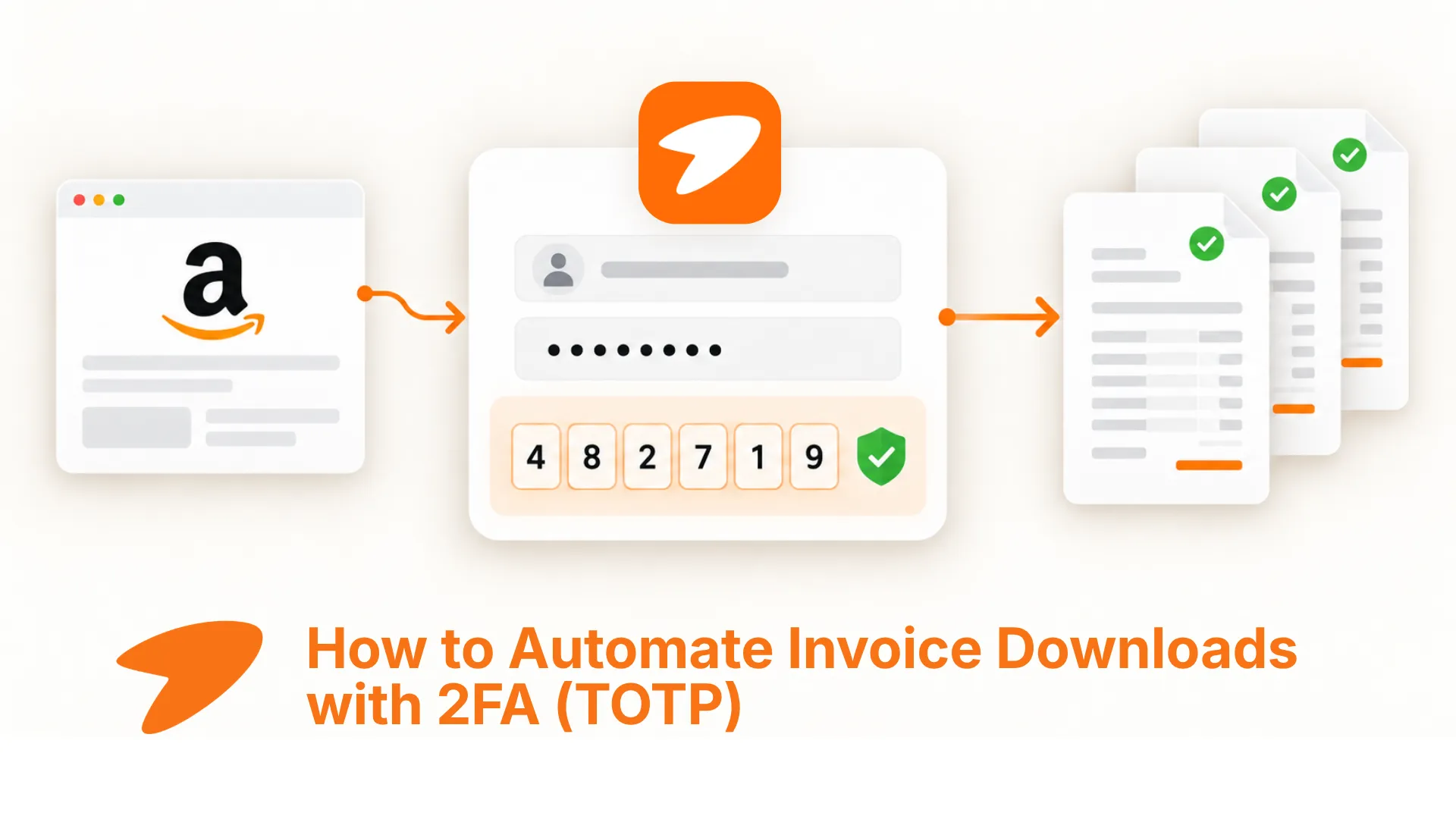
You can automate invoice downloads from supplier portals that use authenticator-app two-factor authentication. With a saved portal login and its TOTP setup key, Tailride Desktop can generate verification codes on your computer and use them during supported sign-in flows.
SMS codes, CAPTCHA challenges and some login forms still require your input. The first step is to identify how your supplier verifies a sign-in.
This guide uses Amazon Business as an example and covers setup, a first collection test, local credential storage and common interruptions. You can download Tailride Desktop to follow along.
The short answer
To set up automatic invoice collection with TOTP:
-
Add the correct supplier account in Tailride Desktop.
-
Save its email or username and password.
-
Add the authenticator setup key for that same account.
-
Enable automatic collection and choose a schedule.
-
Run a manual collection, verify the downloaded documents, then check a scheduled run.
Keep your normal authenticator app available too. A supplier can request a different security check even when the TOTP setup is correct.
Which two-factor authentication methods can be automated?
TOTP stands for Time-based One-Time Password. An authenticator uses a shared secret, called a setup key, and the current time to generate a short-lived verification code. The algorithm is defined in RFC 6238.
For invoice collection, the verification method determines how much of the sign-in can run unattended.
| Sign-in requirement | What to expect |
|---|---|
| Authenticator-app code using TOTP | Tailride can generate the code when the account's setup key is saved and the login flow is supported. |
| SMS or email verification code | Complete the challenge in the portal's interactive window. A TOTP setup key cannot generate a code delivered by SMS or email. |
| CAPTCHA or security question | User input is required. |
| Push approval, passkey or hardware security key | These use their own verification flows; saving a TOTP key does not automate them. |
| An expired portal session | Tailride attempts a fresh sign-in with saved credentials, or asks you to sign in interactively. |
Saving a setup key does not guarantee that every page in a supplier's login flow can be filled automatically. Tailride uses dedicated handling for selected forms, including Amazon and Stripe, plus general form detection. See the passwords and 2FA documentation for the current limits.
If you are comparing collection methods, our desktop app vs browser extension vs cloud fetcher guide explains where each workflow runs.
What you need before starting
Have these ready:
-
Tailride Desktop installed and signed in to your Tailride account.
-
Access to the supplier account that contains the invoices.
-
A supplier profile supported by the app.
-
An authenticator setup key for that account, if you want unattended TOTP verification.
-
A computer that can remain on with Tailride running during collection.
Check the supplier picker in the app before relying on a portal. A supplier's presence in the website directory does not by itself confirm support for automatic collection.
How to set up automatic invoice downloads with TOTP
1. Add the correct supplier profile
Open Suppliers → Add supplier, choose A website, and select the supplier.
For Amazon, choose the marketplace and account type you actually use. An Amazon.com Business account and an Amazon.de account should have their own profiles. Give each entry a recognisable account name, especially if your company has several logins.
Choose the earliest invoice date you need. For an initial test, a recent period with a known available invoice makes the result easier to check.
If you will configure the login in Vault, save the new profile with Add supplier first. You can then select it in the password form.
If the supplier is already connected, use its existing profile. The suppliers and profiles guide explains separate accounts and sessions.
2. Find the authenticator setup key
Open the supplier account's security settings and find the option to add or manage an authenticator app.
During enrolment, the portal usually shows a QR code and an option for manual setup. Copy the long setup key associated with that QR code. A current six-digit verification code expires and cannot serve as the saved setup key.
For Amazon Business, start from Your Account → Login & Security and follow the account's two-step verification settings. Amazon documents the available SMS and authenticator options in its two-step verification guide.
If an existing authenticator's key is no longer visible, follow the supplier's process for enrolling another authenticator or updating the method. Complete enrolment with a valid verification code before testing collection.
Keep the same enrolled authenticator accessible in your regular authenticator app, so you can still sign in independently of Tailride.
3. Save the login and TOTP key in Tailride
You can enter credentials while adding a supplier through Let Tailride sign in for me, or manage them in Vault.
In the Save a password form:
-
Select the correct supplier account.
-
Enter its email or username.
-
Enter its password.
-
Expand This site asks for a code from my phone.
-
Paste the authenticator's setup key into Setup key.
-
Save the entry.
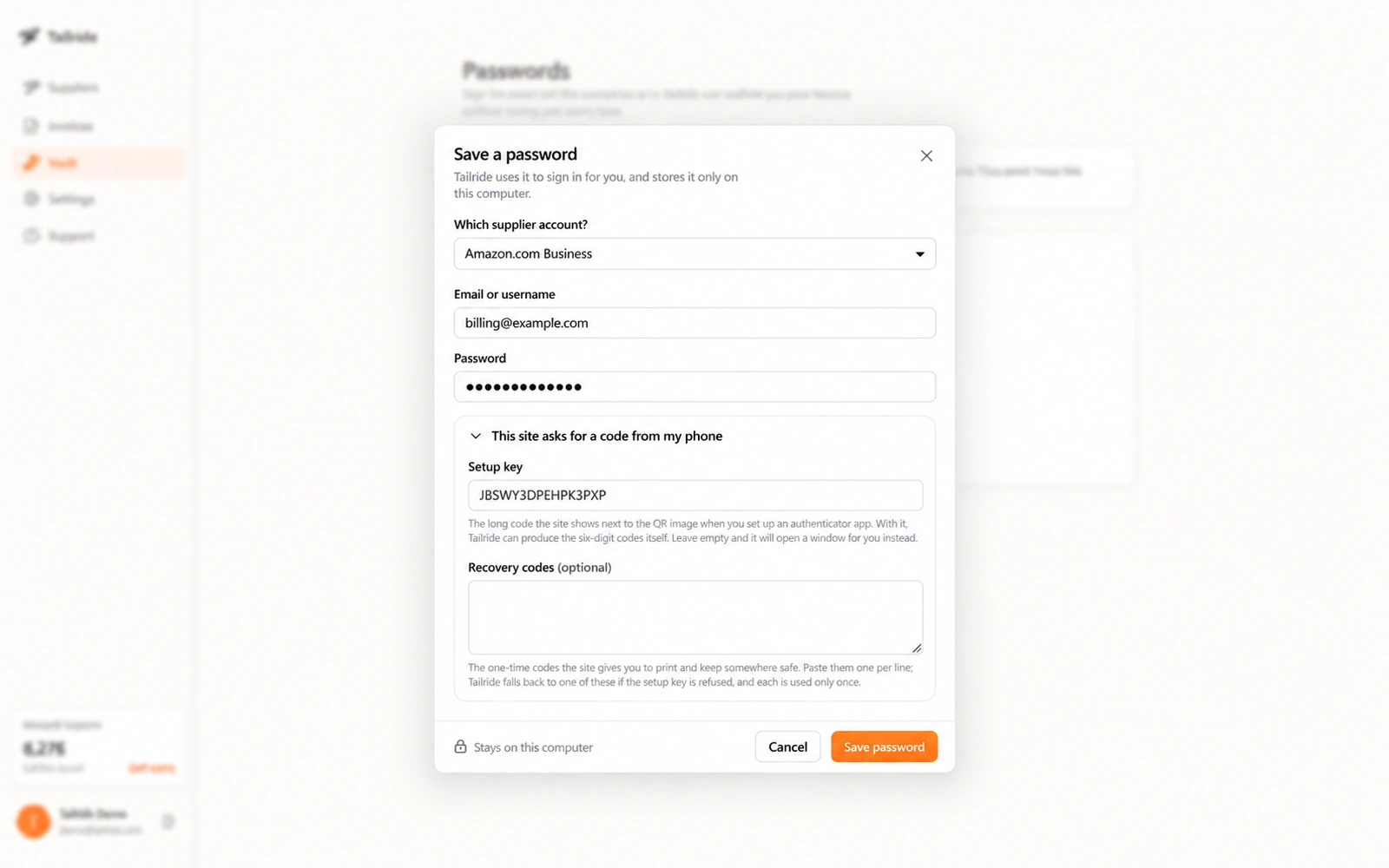
Illustrative setup using an example email, a masked password and a demonstration key. Recovery codes are left empty.
Recovery codes is optional. Use it only when the supplier issues suitable codes and the login flow supports them. It can remain blank for the TOTP setup shown here.
Tailride can use a saved recovery code as a fallback if the setup key is refused. Where available, keep your own recovery method accessible independently of the computer running Tailride.
4. Enable automatic collection
In the supplier's settings, enable Collect automatically.
Choose Follow the app schedule to use the schedule set in Settings, or select a schedule for that supplier. Confirm that Let Tailride sign in for me is enabled and that the correct login is saved.
These options are also available when adding a new supplier:
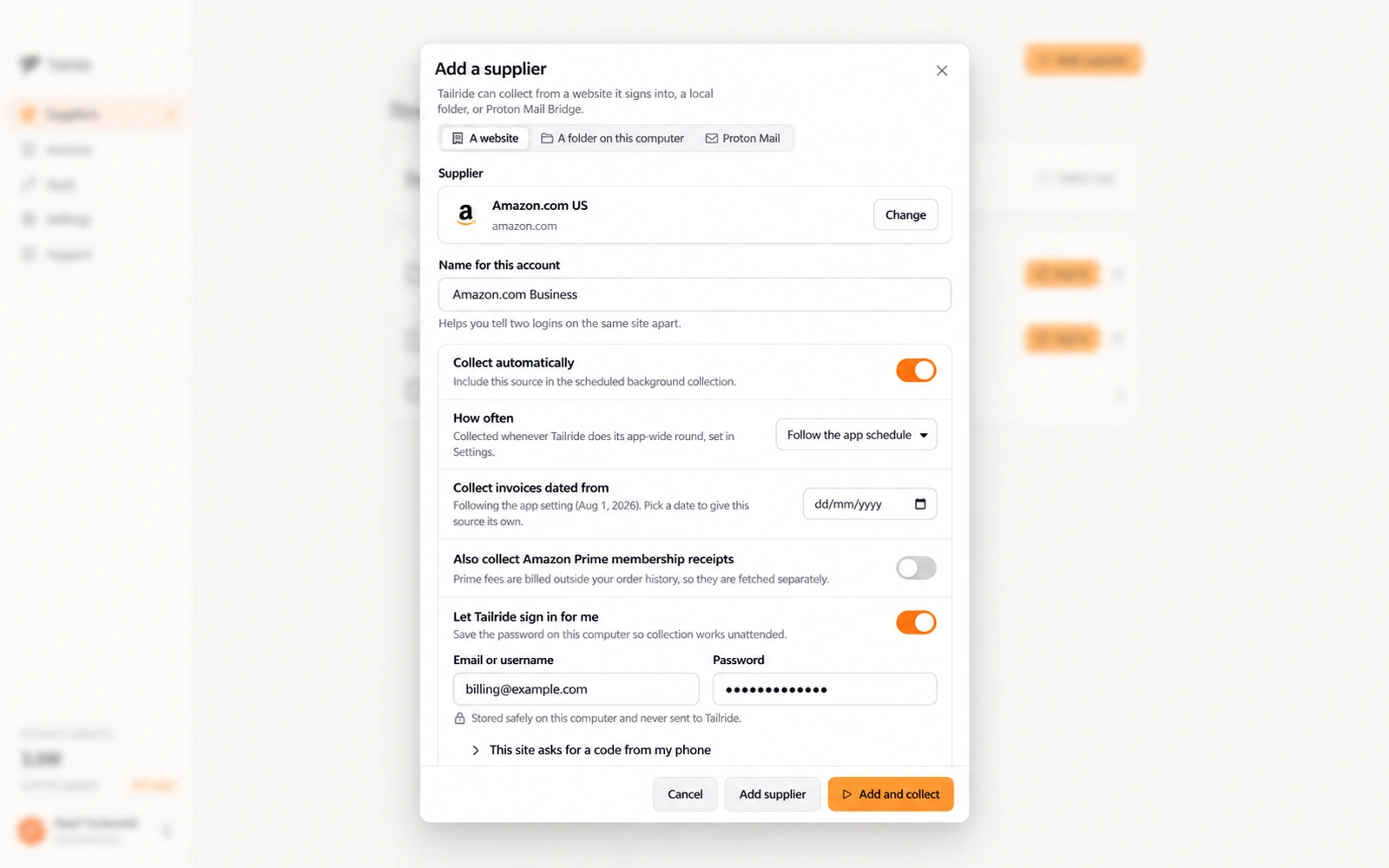
Illustrative Amazon setup. Automatic collection and saved sign-in are enabled; the date follows the app setting.
Choose a frequency that suits your bookkeeping routine. A daily run may suit regular purchases; a monthly run may suit a less active account.
Tailride must be running and the computer must be available. A missed run during sleep or shutdown is caught up the next time the app is running. The collection schedule guide covers background runs and notifications.
5. Test sign-in and invoice collection
Start a manual Collect run for the supplier.
Check the complete sequence:
-
The intended supplier account opens.
-
The login completes, including TOTP when requested.
-
At least one expected invoice in the selected date range is found.
-
Its PDF appears in Tailride, with the upload completed.
If local copies are enabled, check the supplier and account folders under Downloads/Tailride as well.
For troubleshooting, Settings → Advanced → Show browser window lets you observe the portal during collection. Complete any additional challenge the supplier requests.
After the manual test, check the next scheduled run. A remembered session can let a collection succeed without requesting another verification code, so distinguish a successful collection from a test that actually exercised the TOTP step.
For Amazon-specific retrieval and account setup, see our guide to downloading Amazon Business invoices.
Where are the saved passwords and setup keys stored?
Saved portal credentials remain on the computer running Tailride Desktop. The credential vault uses protection tied to your operating-system user account, including macOS Keychain or Windows DPAPI.
Collected invoice documents are uploaded to your Tailride account for processing. Keeping portal credentials local does not mean that the invoice documents stay only on the computer.
There is also a practical security trade-off: the password and authenticator setup key are available to the same desktop workflow. Consider whether that fits your company's access policy, protect the computer and its user account, and keep an independent way to recover access.
Saving credentials is optional. You can complete sign-in yourself and let Tailride reuse the resulting portal session.
Troubleshooting invoice collection with 2FA
| Problem | What to check |
|---|---|
| The authenticator code is rejected | Confirm that the setup key belongs to this account and its current authenticator enrolment. Check that the computer's date and time are synchronised. |
| The supplier sends an SMS or email code | Complete that challenge in the interactive window. If the account offers an authenticator method, configure it through the supplier's own settings. |
| The portal still asks for manual input | Look for CAPTCHA, identity checks or a login form that automatic filling does not handle. Open the browser window to see the actual prompt. |
| Continue with Google fails inside the app | Where the supplier offers its own email/password login, use that route. Google's restrictions on embedded sign-in windows can block the Google option; some Microsoft tenants have similar restrictions. |
| Collection succeeds but an invoice is missing | Check the connected account, start date and whether the document is available in the portal. |
| The PDF downloaded but is absent from the dashboard | Check upload status and available Tailride credits. Treat upload problems separately from sign-in problems. |
If you changed the supplier password or re-enrolled its authenticator, update the saved entry before the next collection. Repeated attempts with old credentials will not fix a changed account configuration.
Connect the collected invoices to bookkeeping
Once collection works, review the documents in Tailride and configure the appropriate accounting destination.
Collection and accounting export have separate settings. For Xero, connect the Xero integration and verify the result before relying on automatic export.
If some documents already arrive as PDFs on your computer, our guide to automatically importing PDF invoices into Xero from a folder covers that intake route. For invoices delivered to a Proton inbox, use the Proton Mail invoice collection guide.
Frequently asked questions
Can I automatically download invoices from a portal with 2FA?
Yes, when the portal uses TOTP authenticator codes and its sign-in flow is supported. Tailride Desktop can use the saved setup key to generate codes locally. Additional challenges may still require your input.
Do I need to disable two-factor authentication?
No. Keep it enabled. The setup described here uses the account's enrolled authenticator key to complete verification.
Can Tailride automatically read an SMS verification code?
This TOTP workflow does not read SMS messages. Complete an SMS challenge in the supplier's interactive window when requested.
Do I have to enter recovery codes?
No. The field is optional. A supported TOTP login can use its setup key with recovery codes left blank.
Will invoice collection run while my computer is asleep?
It cannot run during sleep or shutdown. A missed scheduled collection is caught up when Tailride is running again on an available computer.
Can I keep two Amazon Business accounts separate?
Yes. Create a supplier profile for each account and save the matching credentials against each profile. Separate profiles retain separate portal sessions.
Start with one supplier account
Set up one supported supplier, save the appropriate login and authenticator key, and verify a manual collection. Then check the scheduled result before adding more accounts.
Download Tailride Desktop and use a recent invoice period for your first test.
