Automatically Import PDF Invoices into Xero from a Folder
Automatically import PDF invoices into Xero from a watched folder. Set up Tailride to collect files and create bills with the original PDFs attached.

By Tailride · 6 min read · Updated October 2026
You can automatically import PDF supplier invoices into Xero by connecting a folder in Tailride Desktop and enabling automatic export to your Xero organisation. Tailride collects new files, extracts their data, and creates bills with the original PDFs attached.
Once configured, the workflow is straightforward: save an invoice to the folder, let Tailride process it, and review the bill in Xero.
Explore Tailride’s Xero integration or download the desktop app to set it up.
This guide covers incoming supplier invoices, which Xero calls bills. You can keep those bills in Draft until your team reviews and approves them.
Can Xero import PDF invoices?
Yes. Xero lets you upload PDF supplier invoices directly to create draft bills. When it can read the document, it fills in fields such as the supplier, date, total, due date, and reference, and attaches the uploaded file. See Xero’s guide to uploading bills.
That works well for occasional uploads. A watched folder adds a recurring collection step: new documents saved to a designated folder are picked up without someone opening Xero and uploading each batch.
For example, your scanner could save supplier invoices to a bookkeeping folder. A colleague could drop downloaded PDFs there, or your team could use a folder synced to their computer from a shared drive.
What is a watched folder?
A watched folder is a folder that software checks for new files. With Tailride’s watched folders, the desktop app collects invoice documents from a folder you select and sends them to your Tailride account for processing.
The folder becomes a consistent place for invoices that already exist as files. Your team keeps saving documents there; Tailride handles the collection.
This is useful when your paperwork comes from several places. A scanned paper invoice, a PDF downloaded from a supplier website, and a file received from your bookkeeper can all enter the same workflow.
How to automatically import invoices from a folder into Xero
You’ll need a Tailride business account, a Xero account on a paid plan, permission to authorise the Xero connection, and Tailride Desktop installed on the computer that holds the folder.
1. Install Tailride Desktop
Download Tailride Desktop, install it, and sign in to your Tailride account.
The desktop app collects files on your computer. Processing and the Xero integration happen through your Tailride account, so the computer needs internet access to send documents.
2. Add your invoice folder
In the desktop app, open Suppliers, choose Add supplier, and select the folder source. Pick the folder where your invoice PDFs will be saved.
Use a clear name such as Supplier Invoices. A dedicated folder makes it easier for everyone to know where documents belong and to check a missing file later.
You can also choose a locally synced Dropbox, Google Drive, or OneDrive folder. The files need to be available on the computer running Tailride.
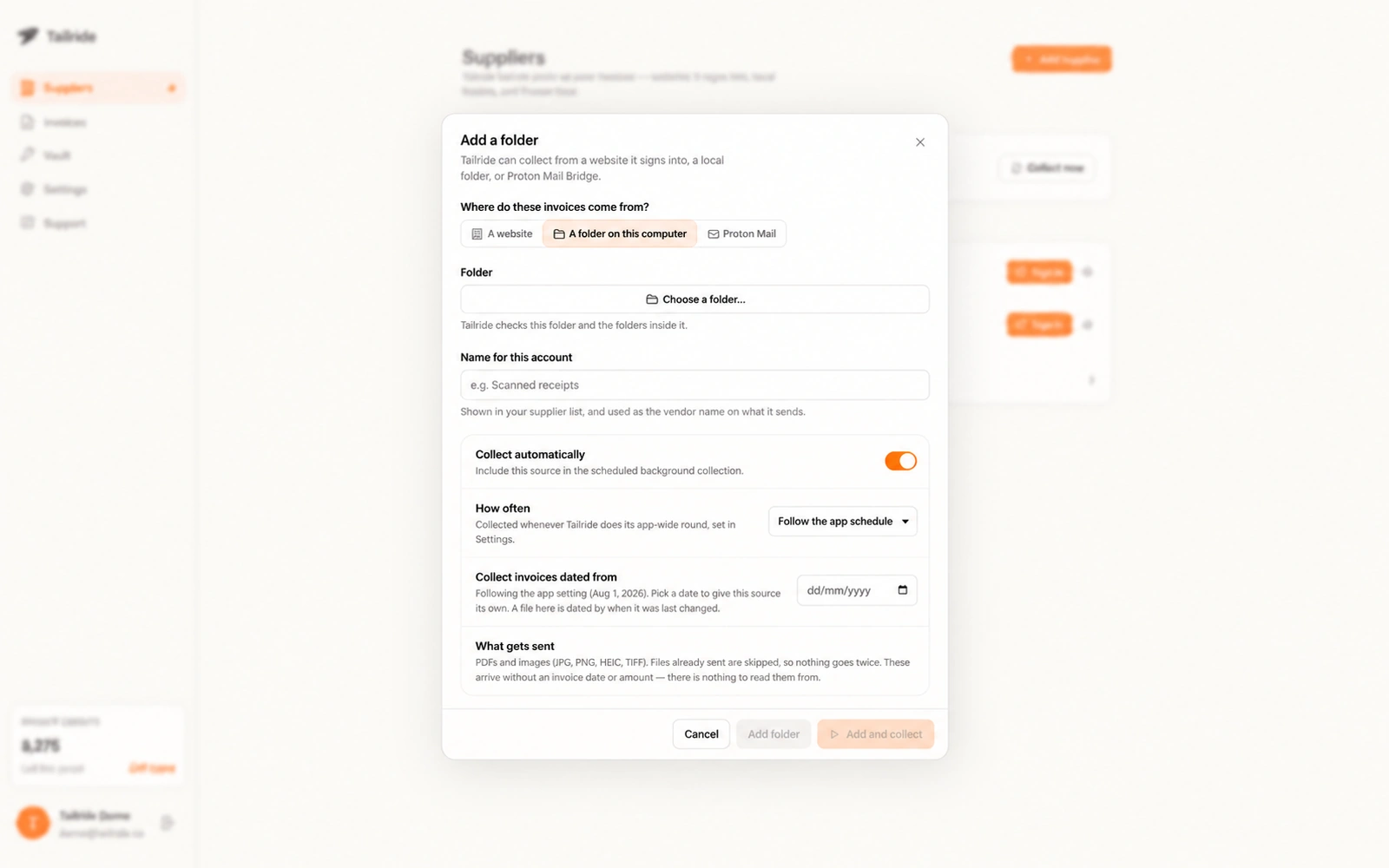
Choose the folder Tailride will check for new invoice files.
3. Set the collection schedule
Enable automatic collection and choose a schedule that matches how often invoices arrive. Hourly collection suits a folder used throughout the day; daily collection may be enough for a smaller batch.
Keep the desktop app running in the background. Closing its main window does not quit it.
Collection pauses while the computer is in sleep mode or switched off. A missed scheduled run is caught up when the app is running again. You can also start collection manually when you want to test the setup. The collection schedule guide explains how background runs work.
4. Connect Xero and enable automatic export
In the Tailride web dashboard, open Integrations, find Xero, and select Connect. Authorise access and choose the correct Xero organisation.
Complete the integration setup, including syncing your chart of accounts and configuring export settings. Enable automatic export to let processed invoices move into Xero without a separate export action.
For the first test, enable Create bills as drafts in Xero. This keeps the imported bill available for review before approval. The Xero setup guide covers the connection and draft settings.
Automatic collection and automatic export are separate settings: the desktop app brings the file into Tailride, while the integration creates the bill in Xero.
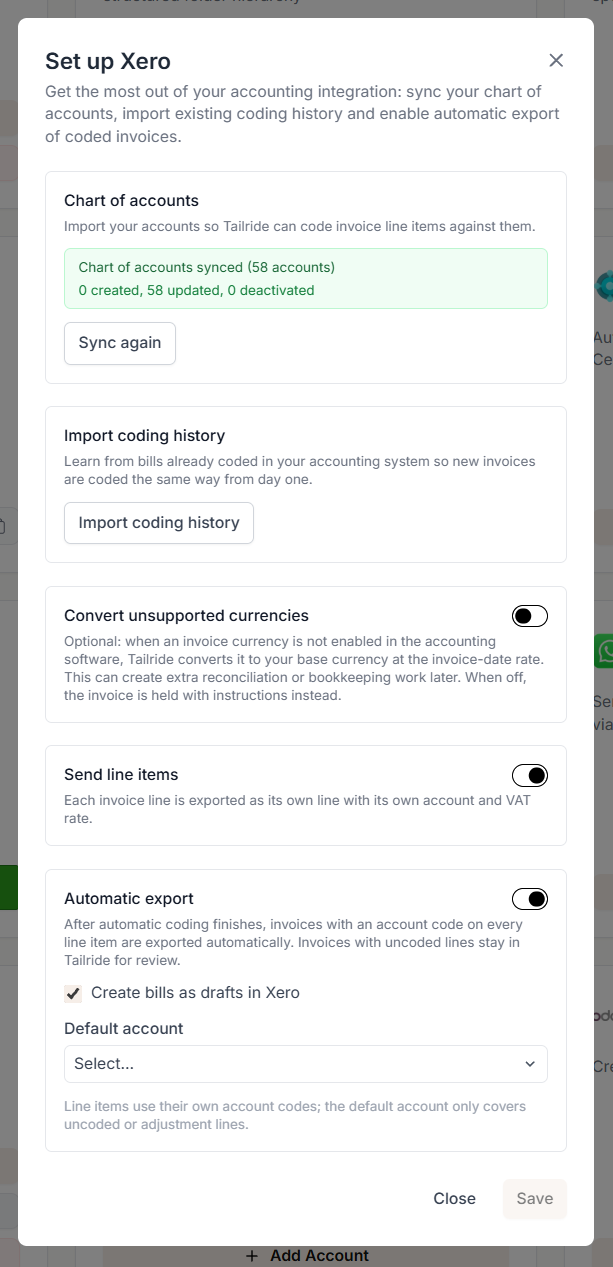
Configure automatic export to Xero and choose draft bills for review.
5. Test with one invoice
Save one clear supplier invoice PDF to the folder and start collection. Choose a document that has not already been entered in your Xero organisation.
After processing, check the invoice in Tailride and confirm that it has exported. Open the corresponding bill in Xero and review the supplier, invoice reference, dates, line items, account coding, tax, and total. Confirm that the original PDF is attached.
Once the test looks correct, use the folder for your regular invoice flow. Keep reviewing new suppliers and unusual documents as they arrive.
What happens between the PDF and the Xero bill?
Tailride reads the invoice and codes its line items against your synced chart of accounts. Automatic export runs once coding is complete and the required export information is present.
If a line is uncoded or a required tracking category is missing, the invoice stays in Tailride for review. A disconnected Xero integration also pauses export while collection can continue. These checks are covered in the accounting integration guide.
That gives you two useful checkpoints when troubleshooting: did the desktop app collect the file, and did the processed invoice export successfully?
For a broader explanation of capture, extraction, and accounting sync, read How to Integrate Invoice Software with Your Accounting System.
Watched folder or email-to-Xero?
Choose the route that fits where your invoices already arrive.
A watched folder works well for scanner output, downloaded PDFs, and documents saved by colleagues. If suppliers send invoices as email attachments, Xero’s email-to-bills workflow may be convenient. Our guide to emailing invoices to Xero explains that option.
You can also combine sources in Tailride. For example, collect scanned documents from a folder and email invoices through a mailbox connection. If your team uses Proton Mail, see How to Download Invoices from Proton Mail Automatically.
The useful habit is to give each source a reliable path into bookkeeping, so an invoice does not depend on someone remembering it at month-end.
Frequently asked questions
Can I use a Google Drive, Dropbox, or OneDrive folder?
Yes, if it is synced to the computer running Tailride Desktop and its files are available locally. Selecting a folder on your disk is the desktop collection route.
Does Tailride collect the same file again if I rename it?
The folder collector recognises files by their contents, so renaming or moving an unchanged file does not make it a new document. Check existing entries in Xero before importing a historical backlog.
Can I collect scans and receipt photos too?
Yes. Watched folders support PDF, JPG, PNG, and HEIC files. Files larger than 25 MB are skipped. Subfolders are checked up to four levels deep. Full details are on the watched folders page.
Does Tailride change the files in my folder?
No. Folder collection reads the files and leaves the originals in place.
Will bills appear in Xero as drafts?
Yes, when Create bills as drafts in Xero is enabled. Configure this setting before your first automatic export.
Does this workflow automatically pay invoices?
No. Importing creates the bill and attaches its document. Review, approval, and payment remain part of your Xero workflow.
Turn your invoice folder into a repeatable workflow
Start with one folder and one test invoice. Connect Xero, enable draft bills, and confirm that the data and original PDF arrive correctly.
From there, your team has a simple routine: save the document to the folder and review the result in Xero.
Set up Tailride for Xero, download the desktop app, or check pricing before rolling it out.
