Desktop App vs Browser Extension vs Cloud Fetcher: Where Should Invoice Collection Run?
Compare desktop apps, browser extensions and cloud fetchers for automated invoice collection, including scheduling, 2FA, security and multiple accounts.

By Tailride · 7 min read · Updated September 2026
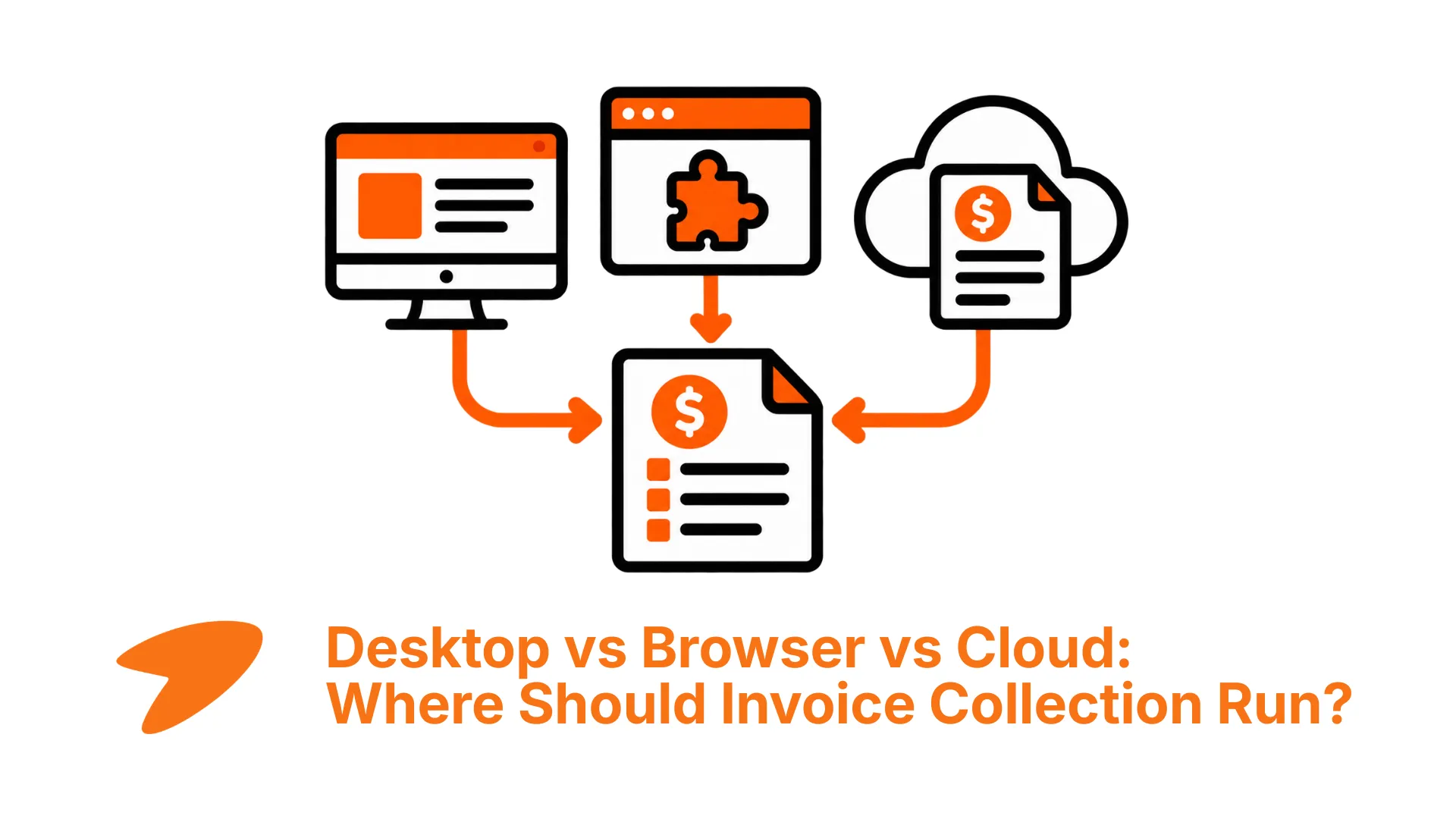
Automated invoice collection can run in three places: inside your browser, on your computer or in the cloud. Each approach can download invoices from supplier portals, but the differences become significant when you consider scheduling, passwords, two-factor authentication and multiple accounts.
The short answer is simple:
A browser extension is usually the easiest option if you already stay signed in to supplier portals. A desktop app is better when you need scheduled collection, local credential storage or several accounts on the same website. A cloud fetcher can continue running while your devices are off, but it may require more authentication data to leave your computer.
See how Tailride collects invoices automatically.
Browser extension, desktop app or cloud fetcher?
| Method | Runs where | Can collect on a schedule? | Authentication | Best suited to |
|---|---|---|---|---|
| Browser extension | Your existing browser | Yes, while the browser is running | Uses your active browser session | Simple setup and regular portal collection |
| Desktop app | Your Mac or Windows PC | Yes, while the computer is available | Browser sessions or credentials protected on the computer | Multiple accounts, unattended collection and local control |
| Cloud fetcher | Provider infrastructure | Yes, even when your devices are off | Usually requires credentials, tokens or a remote session | Always-on workflows with minimal dependence on local devices |
All three approaches can reduce manual invoice downloads. The right choice depends on where you want portal access to happen and how much control you need over authentication.
How a browser extension collects invoices
An invoice downloader extension works inside the browser you already use. It can access supported supplier portals through your current signed-in session, find the relevant billing documents and send them to your invoice workflow.
This makes setup straightforward. You sign in to Amazon, Adobe, Google Ads or another portal as usual. The extension uses that session, so you do not need to provide the portal password separately.
With the Tailride browser extension, you can collect invoices from more than 100 online portals. Scheduled collection is also available: the extension can check selected portals automatically while the browser is running.
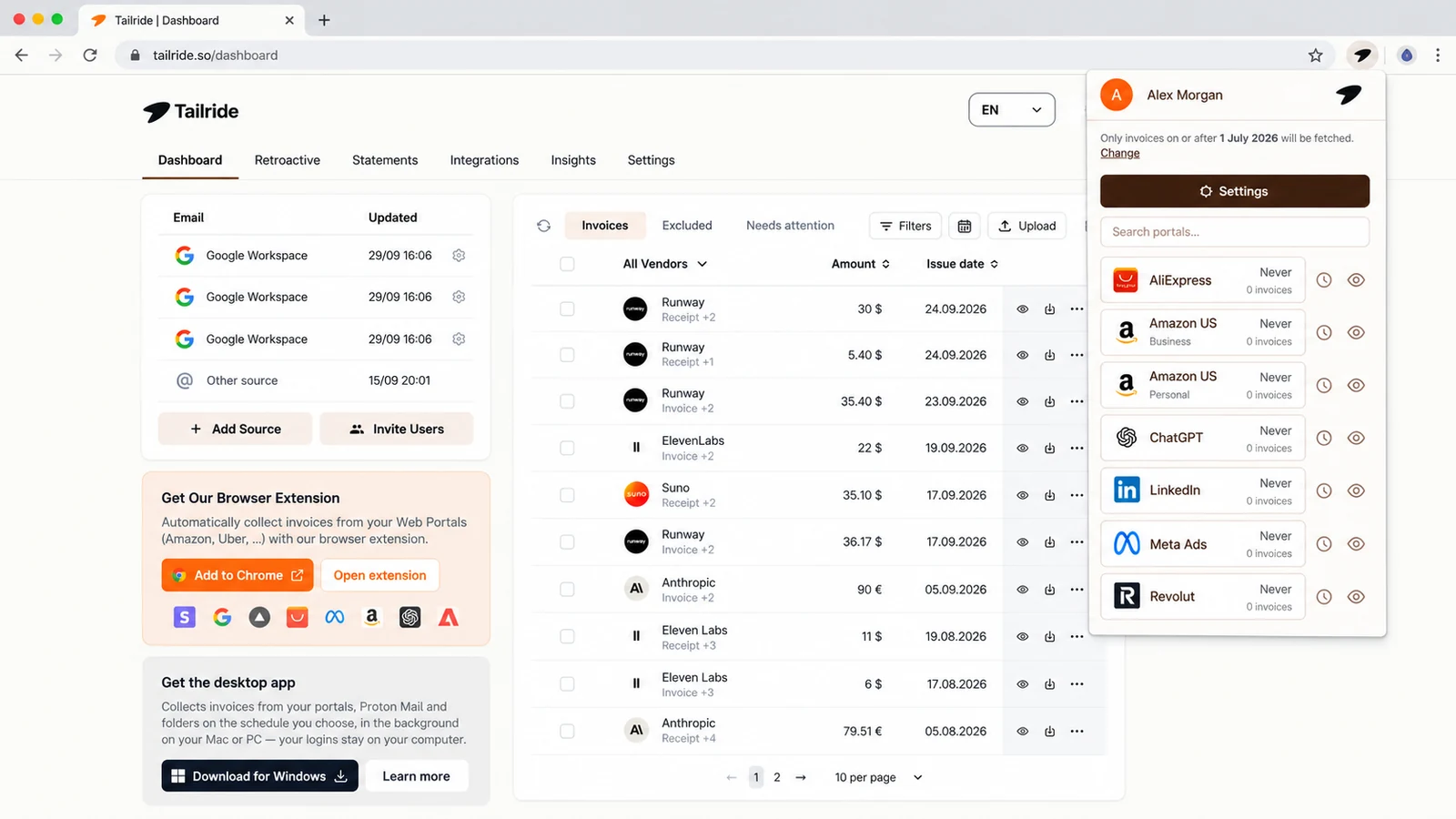
A browser extension works especially well when you use one account per portal and keep your browser open during the working day. It is also a practical option on Linux and ChromeOS, where a native desktop invoice downloader may not be available.
The main limitation is that the extension depends on your browser session. If the browser is closed, signed out or waiting for a security check, collection cannot continue until the session becomes available again.
If you are comparing browser-based collection tools, see our guide to the best Chrome extensions for invoices.
How a desktop invoice downloader works
A desktop app runs directly on your Mac or Windows computer. It can open supplier portals, download invoices in the background and send the files into the same processing workflow as invoices received by email.
The Tailride Desktop App can collect invoices hourly, daily, weekly, monthly or quarterly. Your normal browser can be closed during collection, although the computer must be switched on.
If the computer is in sleep mode at the scheduled time, Tailride runs the missed collection after the computer wakes up.
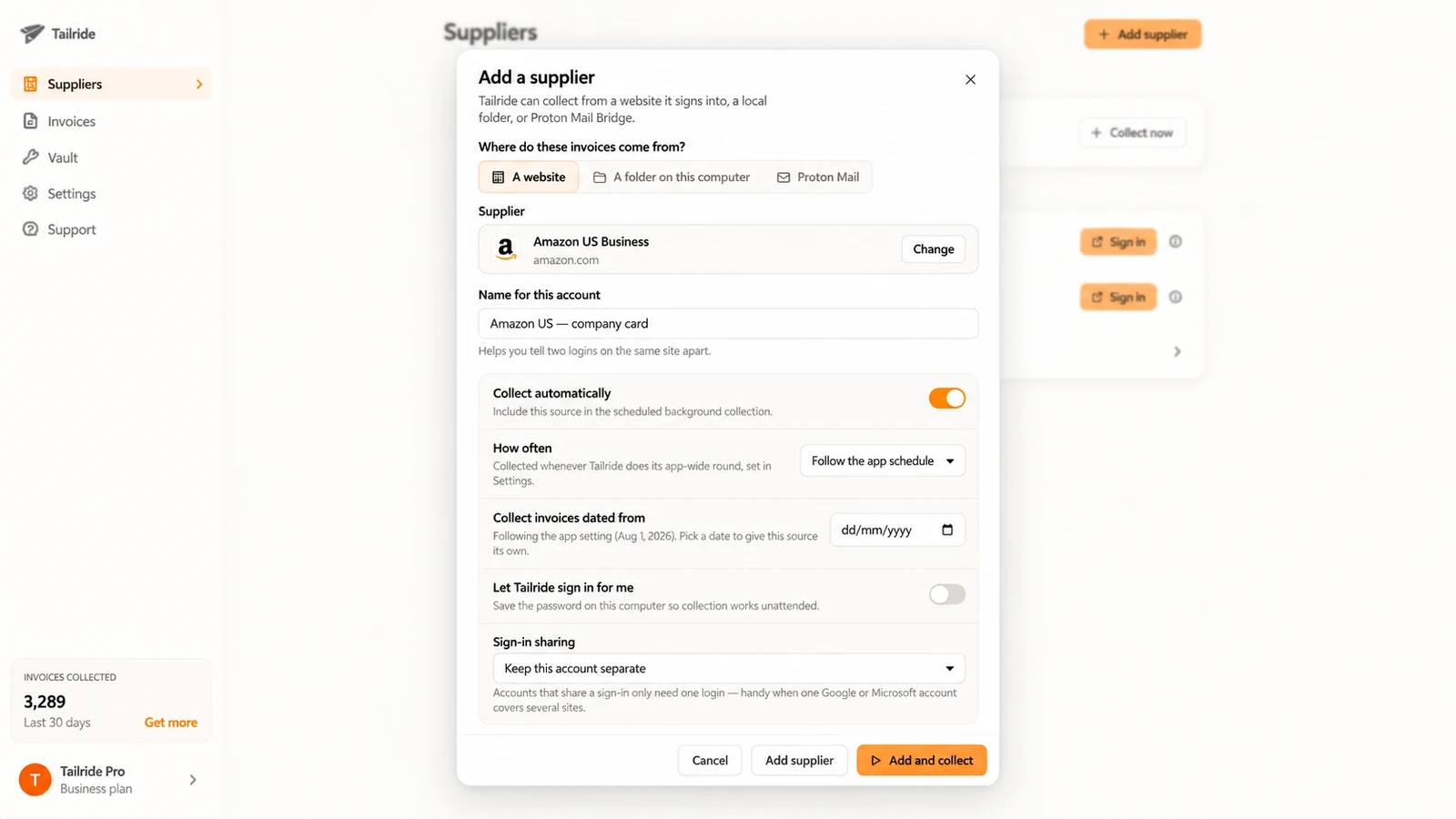
This approach gives you more control over authentication. Portal credentials can remain protected on the computer using macOS Keychain or Windows protected storage. Tailride can also maintain isolated sessions for several accounts on the same supplier website.
For example, a company may have separate Amazon accounts for different entities, countries or payment cards. Each account can be added as an individual source with its own name, schedule and session.
If Amazon is your main invoice source, follow our guide to downloading Amazon Business invoices automatically.
For a complete operating-system-specific setup, see How to Automatically Download Your Invoices on a Mac.
The desktop app is also useful for sources outside ordinary web portals. It can collect invoices from Proton Mail through Proton Mail Bridge and watch a local folder for new PDFs and images.
Its main dependency is the computer itself. The app can run quietly in the menu bar or system tray, but scheduled collection waits if the machine is shut down or in sleep mode.
How a cloud invoice fetcher works
A cloud fetcher signs in to supplier portals from infrastructure operated by the service provider. Because collection does not run on your computer, it can continue while your laptop is closed, in sleep mode or switched off.
That convenience comes with a different authentication model. Depending on the provider and portal, the service may need an encrypted password, access token, cookie or remote browser session. Supplier websites can also react differently when a login comes from a data centre or an unfamiliar location.
Cloud collection can be a good fit for teams that need jobs to run continuously and do not want the process to depend on an employee’s computer. It requires careful evaluation of how the service stores credentials, handles session data and responds to additional security checks.
This is also where two similarly named workflows should be separated. Connecting a business inbox through OAuth or IMAP is a cloud workflow, but it does not necessarily involve signing in to supplier portals.
For invoices delivered by email, automatic inbox scanning is usually the more direct option. For a practical workflow covering AWS, Notion, OpenAI and other SaaS suppliers, see how to extract invoices from email automatically.
If you want to compare specific products rather than the three operating models, see our side-by-side comparison of invoice collection tools.
Which method is safest for supplier logins?
There is no single authentication model that is best for every company.
A browser extension can use an existing signed-in session, which means the user signs in directly with the supplier. This is often the simplest setup when employees already access those portals in their daily work.
A desktop app can keep portal access on a specific company computer. If a password must be saved for unattended collection, it can remain in the protected credential storage provided by the operating system.
A cloud fetcher removes the dependency on a local device, but some form of authentication must be available to the remote service. Before choosing one, check what is stored, where it is stored, who can access it and how it can be revoked.
The practical security question is therefore not just whether a product uses encryption. It is also where the supplier session exists and who controls the device that runs it.
What happens with two-factor authentication?
Two-factor authentication affects every type of automated invoice collection.
A browser extension benefits from the session you already authenticated. If the portal asks for a new code, approval or CAPTCHA, you can complete it directly in the browser.
The Tailride Desktop App can automatically enter supported time-based one-time passwords, or TOTP codes, when that option is configured. Security steps that require an SMS message, mobile approval or CAPTCHA may still need your attention.
Cloud fetchers vary. Some support TOTP, some ask users to refresh a connection periodically, and others pause when the supplier requests additional verification.
No collection method can guarantee that every authentication challenge will be completed without user input. Supplier portals ultimately control when sessions expire and when extra verification is required.
What about multiple accounts on the same supplier portal?
Multiple accounts are one of the clearest differences between these approaches.
A browser usually has one active session for a website at a time. Switching between two Amazon or Google accounts can therefore require signing out, changing the active account or using separate browser profiles.
The Tailride Desktop App can maintain isolated sessions for separate supplier accounts. Each source can have its own label, making it easier to distinguish a company account, regional account or separate legal entity.
Cloud systems may support multiple connections, but the implementation varies by provider. Check whether each account receives a genuinely separate session and whether users can see which entity produced each invoice.
Choosing the right place to run invoice collection
Choose a browser extension when you want the quickest setup and already stay signed in to the portals you use. It is a strong fit for freelancers, small businesses and teams that work primarily in the browser.
Choose a desktop app when scheduled collection, several portal accounts or local credential control matter more. It is particularly useful for finance teams and accountants who need invoices to arrive regularly without repeating the same portal visits every month.
Choose a cloud fetcher when collection must continue while all employee devices are off. Before connecting sensitive supplier accounts, review its authentication and credential-storage model.
Many companies do not need to choose only one. A mixed setup often works better: inbox scanning for invoices received by email, a browser extension for active portal sessions and a desktop app for scheduled or account-specific collection.
A practical Tailride setup
Tailride lets you combine several invoice sources in one workflow.
Invoices delivered by email can be collected through inbox scanning. Portals you regularly use in your browser can be handled by the browser extension. Portals that need isolated accounts, local credentials or a dedicated schedule can run through the desktop app.
The collected documents arrive in Tailride, where they can be checked for duplicates, organised and forwarded to the rest of your bookkeeping workflow. If documents ultimately need to reach an external bookkeeper or accounting firm, see how to forward invoices to your accountant automatically.
This means the collection method can match the source instead of forcing every invoice through the same technical route.
Frequently asked questions
Can a browser extension collect invoices automatically?
Yes. The Tailride browser extension supports scheduled portal collection while the browser is running and the required sessions remain available.
Can a desktop app collect invoices when the browser is closed?
Yes. The Tailride Desktop App runs independently of your regular browser. The computer still needs to be switched on and available.
Does the desktop app work when the computer is in sleep mode?
A scheduled collection cannot run while the computer is in sleep mode. If the scheduled time is missed, Tailride catches up after the computer wakes up.
Can invoice collection work when my computer is off?
A cloud fetcher can run while your computer is off because it operates on remote infrastructure. A browser extension or desktop app needs its local browser or computer to be available.
Which option is best for two-factor authentication?
A browser extension is convenient when you already have an authenticated session. A desktop app can support unattended TOTP entry while keeping the configuration on the computer. SMS approvals, CAPTCHAs and mobile prompts may still require manual action.
Which option is best for several accounts on the same website?
A desktop app with isolated portal sessions is generally the most convenient option. It can keep each supplier account separate and give every source its own name and collection settings.
Start collecting invoices automatically
If you want scheduled collection, multiple supplier accounts and local control over portal credentials, download the Tailride Desktop App.
If you prefer to collect through the browser session you already use, install the Tailride browser extension.
Both options send the collected invoices into the same Tailride workflow, so you can use the method that fits each source.
