ZUGFeRD, Factur-X and XRechnung: How to Read and Process E-Invoices
Learn the difference between ZUGFeRD, Factur-X and XRechnung, then see how to open XML invoices, review extracted fields and process them in Tailride.

By Tailride · 7 min read · Updated October 2026
A supplier sends a PDF that looks like an ordinary invoice. Another sends an XML file that opens as a wall of code. Both may contain structured invoice data, but you handle them differently: ZUGFeRD and Factur-X place XML inside a readable PDF, while XRechnung is usually delivered as an XML file.
Before converting or retyping either file, check what you received. Tailride can read the structured data in these formats and show the invoice in a reviewable form. Here is how to identify the file, bring it into Tailride and check the result before it reaches bookkeeping.
ZUGFeRD, Factur-X and XRechnung: what is the difference?
| Format | File you commonly receive | What a person can read | Where the structured data lives |
|---|---|---|---|
| ZUGFeRD | PDF/A-3 | The invoice page in the PDF | XML embedded in that PDF |
| Factur-X | PDF/A-3 | The invoice page in the PDF | XML embedded in that PDF |
| XRechnung | XML | A software-generated view, if your reader provides one | The XML file itself, in UBL or CII syntax |
ZUGFeRD and Factur-X are the German and French names for the jointly developed hybrid format. The PDF gives someone a familiar invoice to inspect; the embedded XML gives software defined fields to process. The two names refer to the same standard in current releases, according to the German Forum for Electronic Invoicing (FeRD) and the French FNFE-MPE.
XRechnung is a German electronic invoicing standard based on EN 16931. Its supported XML syntaxes include UBL and UN/CEFACT CII. You normally need a viewer or processing application to see an XML invoice as a readable document. The KoSIT test suite includes examples in both syntaxes.
A PDF is not automatically a structured e-invoice, and a file ending in .xml is not automatically a valid XRechnung. The content and applicable format rules matter more than the filename.
How can you tell which e-invoice you received?
Start with the file itself:
-
For a PDF, check its attachments. Open the attachments or embedded-files panel in a PDF reader. A ZUGFeRD or Factur-X invoice should contain invoice XML, often named factur-x.xml. A normal-looking invoice page alone cannot confirm that the XML is present.
-
For an XML file, use an invoice-aware viewer. The opening tags can hint at UBL or CII, but a viewer makes the invoice usable for review. An XML extension alone cannot establish XRechnung conformity.
-
Keep the file as received. Printing a hybrid PDF to a new PDF or converting an XML file into a picture can strip out the structured data that makes it useful.
Finding XML identifies something worth processing. It does not replace a check against the format's schema and business rules. Parsing, visualising and validating an e-invoice are separate jobs.
How to process a ZUGFeRD or Factur-X PDF in Tailride
Upload the original PDF to Tailride, or collect it through a connected source. Tailride's e-invoice workflow checks for embedded XML and uses those structured fields rather than trying to read the visible page with OCR. The PDF remains useful as the human-readable view.
Once the invoice appears, compare the extracted supplier, invoice number, dates, currency, totals, tax and line items with what you expected from the supplier. Where the PDF view and embedded XML disagree, Tailride uses the XML data. Investigate a material difference with the issuer before booking the invoice.
For PDFs already saved on your computer, watched folders are an intake option: choose a folder and Tailride Desktop sends new supported PDFs for processing, including ZUGFeRD and Factur-X PDFs. Our guide to automatically importing PDF invoices from a folder into Xero shows the folder setup and the separate accounting-export step.
The screenshots below show an XRechnung XML example, not a processed hybrid PDF. The review steps are similar, but the incoming file is different.
How to open an XRechnung XML file in Tailride
For a standalone XRechnung file, upload the original XML in Tailride's web interface. The example here comes from the official KoSIT XRechnung test suite and uses UBL. Tailride reads the fields and creates a readable PDF representation for the XML-only invoice. That view helps you inspect the invoice; it does not turn the original XML into a different source document.
In the first screenshot, (1) is the readable PDF representation created from the XML, and (2) is Tailride's panel of extracted invoice fields. Compare the invoice ID, issue date, supplier, currency and amount on the right with the document view on the left. In this sample, the visible invoice ID is 123456XX and the total is 336.90 EUR.
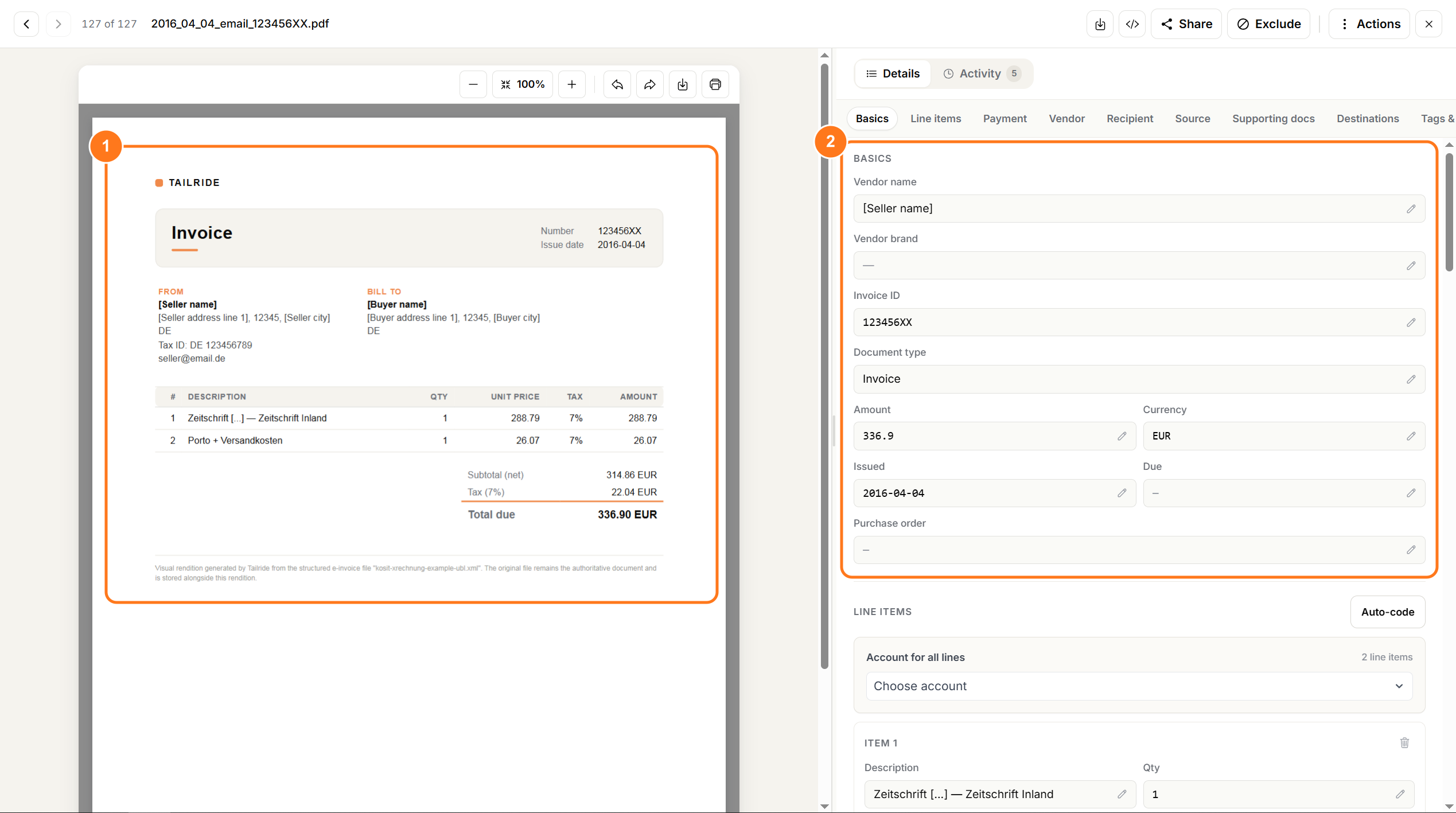
A KoSIT XRechnung UBL example opened in Tailride: (1) its readable PDF representation and (2) the extracted invoice fields. The screenshot shows Tailride's web interface.
Next, inspect the line items. The highlighted panel in the second screenshot shows both imported descriptions, quantities, unit prices, VAT rates and amounts, and gross line totals. Here the two gross lines, 309.01 EUR and 27.89 EUR, add up to the 336.90 EUR invoice total. The suggested bookkeeping accounts are a separate review decision: the visible “AI · 95%” badge refers to account-coding confidence, not to the accuracy of XML extraction.
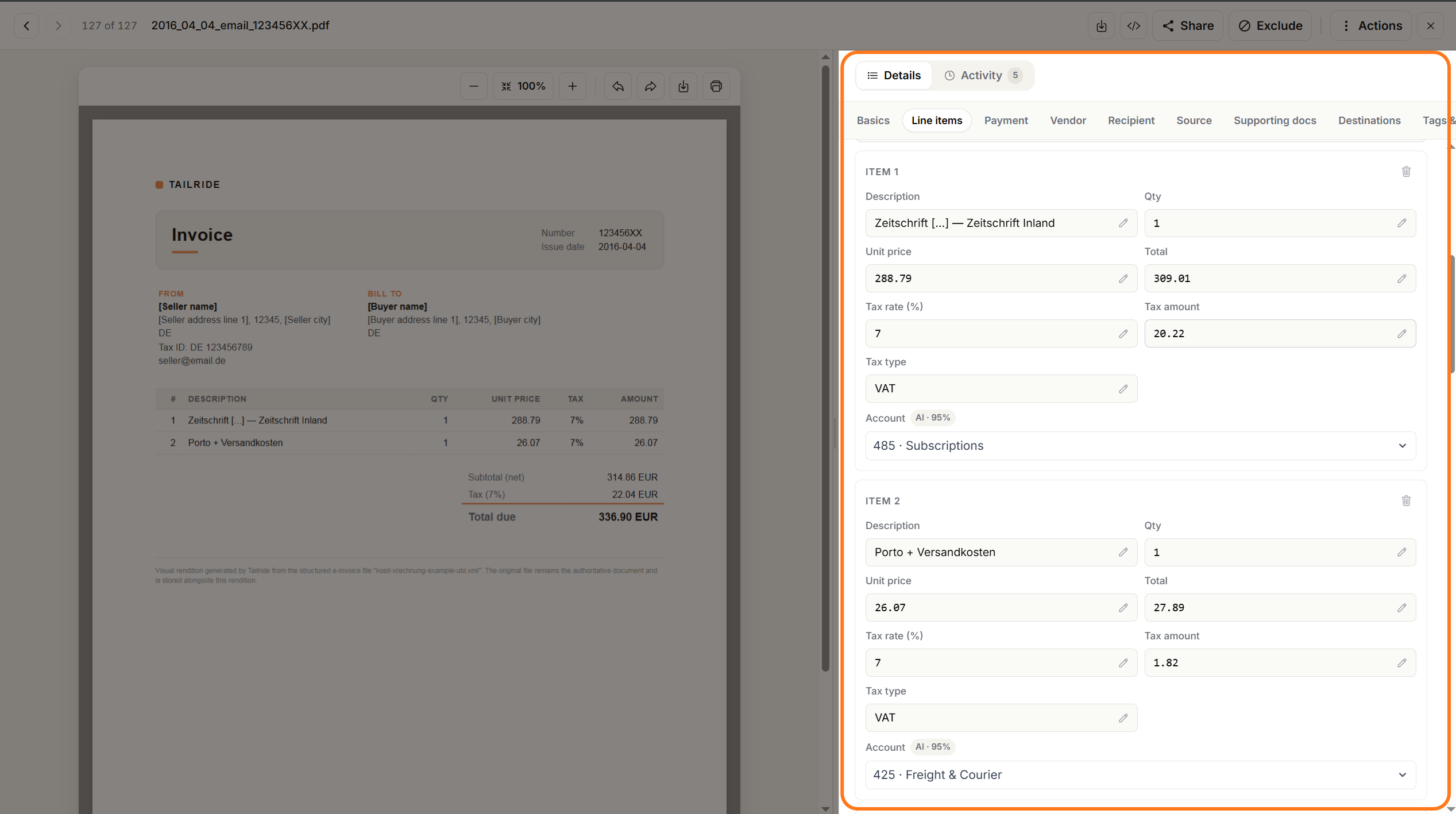
The same XRechnung example with both imported line items visible in Tailride, including prices, VAT and suggested bookkeeping accounts.
The example demonstrates how one UBL test invoice appears in Tailride. It is not a benchmark for every XRechnung version or a validation report for this file.
What should you check before sending an e-invoice to bookkeeping?
Structured data reduces manual transcription, but it still deserves a review. Work through the fields that would affect your books:
-
Identity: supplier, buyer, invoice number and any credit-note or order reference.
-
Dates and currency: issue date, due date when present, and the currency used for the total.
-
Amounts: net amount, VAT by rate and gross total; confirm that the line totals reconcile.
-
Line items: descriptions, quantities, prices and tax treatment.
-
Coding and destination: the proposed account, VAT treatment and the connected bookkeeping system.
-
Original file: retain access to the PDF with embedded XML or to the standalone XML you received.
If the visible PDF and XML disagree, or a supplier reference is missing, resolve that with the issuer instead of correcting only the preview. Reading fields successfully does not prove that an invoice passes every XRechnung or ZUGFeRD validation rule. Use a validator suitable for the format and jurisdiction when you need a conformity check; KoSIT publishes a validator and XRechnung configuration for its standard.
After review, choose the appropriate Tailride accounting integration and verify the first export in the destination. Check the data and attachment that actually arrive there; integration behaviour can vary by destination.
Where does Tailride Desktop fit?
The desktop app helps collect invoices that already sit in a supplier portal, a local folder or Proton Mail Bridge. A hybrid ZUGFeRD or Factur-X PDF saved to a watched folder can enter the same review workflow as other invoices. For a standalone XRechnung XML file, the manual web upload above is the route shown in our example; watched-folder documentation currently lists PDF and image files, not standalone XML.
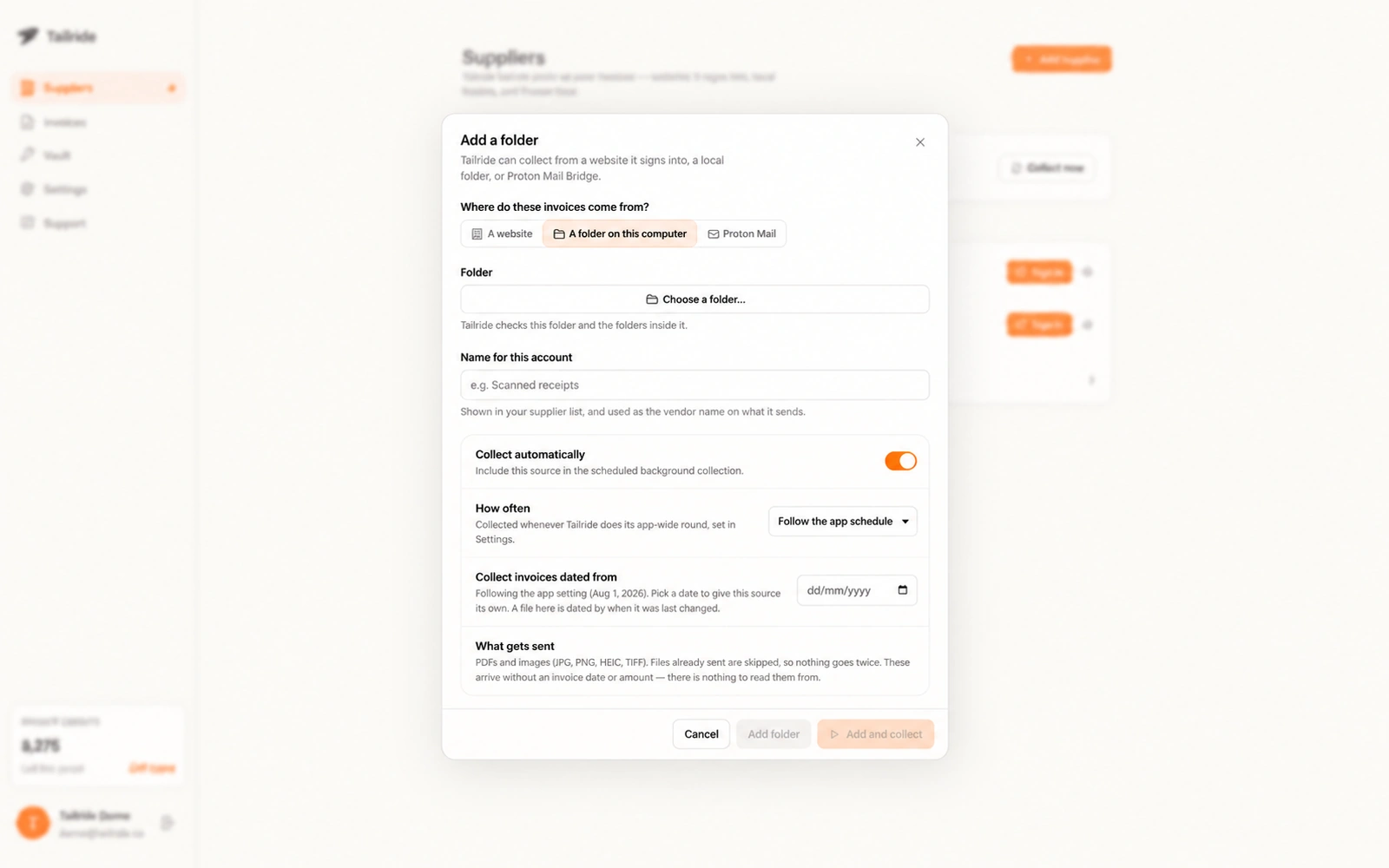
Illustrative Tailride Desktop folder setup. The image shows the collection source, not the processing of a ZUGFeRD or Factur-X invoice.
If your invoices arrive through Proton Mail, see how to collect invoices from Proton Mail with Tailride. Desktop collection is the intake step; the structured invoice data is read in Tailride after the document is sent for processing.
Frequently asked questions
Is a PDF invoice the same as an e-invoice?
No. A plain PDF may only display invoice text. A ZUGFeRD or Factur-X PDF contains embedded, structured invoice XML as well. Check the file rather than judging by its appearance.
What is the difference between ZUGFeRD and Factur-X?
They are the German and French names for a jointly developed hybrid PDF-and-XML format. In current releases, the standards align. The invoice's data profile still matters when checking what structured information it contains.
How do I open an XRechnung XML file?
Use an invoice-aware viewer or upload the original XML to Tailride. Tailride creates a readable PDF representation and shows the extracted fields for review. Keep the source XML.
Does Tailride use OCR for ZUGFeRD and Factur-X?
When a supported hybrid PDF contains invoice XML, Tailride reads that structured data rather than relying on OCR of the visible page. A PDF without embedded XML follows a different document-reading path.
Can I put XRechnung XML files in a watched folder?
Do not rely on that route for standalone XML: Tailride's watched-folder documentation lists PDFs and images. Upload a standalone XRechnung XML file in the web interface. A hybrid PDF with embedded XML can go through a watched folder.
Does reading an e-invoice prove that it is valid?
No. Showing the invoice and extracting its fields are different from validating it against a schema and the format's business rules. Use an appropriate validator when conformity needs to be established.
Should I keep the original XML invoice?
Yes. Keep the file you received, whether it is standalone XML or embedded in a hybrid PDF. A generated reading view helps people inspect the invoice, but does not replace the source file.
Start with one invoice you can verify
Take one supplier file you already recognise. Check whether it is a hybrid PDF or standalone XML, send the original to Tailride, and compare the imported fields and line items with the source. Once that looks right, choose the collection source and bookkeeping destination that fit your routine.
