How to Send Invoices and Receipts to Payhawk
Send invoices and receipts to Payhawk with Tailride Email Routing. Learn to collect supplier PDFs, configure forwarding and verify the first delivery.

By Tailride · 13 min read · Updated October 2026
A subscription invoice arrives in a founder's inbox. A contractor sends a bill to finance. The receipt for an advertising purchase is still inside the supplier's portal. All three belong in Payhawk, but getting hold of them is a different job from reviewing the expense.
You can email invoices and receipts to the Payhawk Mailbox using the destination generated for your company. For documents scattered across several sources, Tailride's Email Routing add-on provides a way to collect and process them, then forward the available original PDFs to that destination. The receiving sender settings must accept Tailride's outgoing email.
This guide follows that workflow from collection to the result in Payhawk. It also explains when Payhawk's own tools may already cover the job, and how to introduce Tailride without creating a second delivery route for the same documents.
Three documents, three different jobs for finance
Consider a fictional company, Northstar Studio, preparing its monthly expenses. Its finance manager has three documents to deal with:
| Document | Where it starts | What finance needs to establish |
|---|---|---|
| A software subscription invoice | A team member's email inbox | Whether it belongs to an existing card expense. |
| A contractor's unpaid invoice | The shared finance mailbox | Whether the supplier, company and payable amount are correct. |
| An advertising receipt | An online billing account | Whether the receipt has already been collected and attached elsewhere. |
These are illustrative examples, not results from a customer account. They show why “send everything by email” is only part of the answer. Before sending, someone needs to know which documents are missing, where to find them and which business they belong to.
Payhawk describes two main Mailbox outcomes: a paid document can match an existing card expense, while an unpaid invoice can create a new bill for review. An unsuccessful match can require action in the Payhawk Inbox. The distinction matters because a document's arrival should not be mistaken for a payment instruction. How Payhawk processes Mailbox documents.
For Northstar, success is therefore specific. The subscription invoice should provide evidence for the right purchase. The contractor bill should enter the appropriate review process. The advertising receipt should fill the actual gap rather than simply become another copy in a mailbox.
Start with those outcomes when deciding what to automate. A smaller, reliable flow is easier to expand than a broad forwarding rule whose results nobody checks.
Where Tailride fits alongside Payhawk's own tools
There is no reason to add another collection step if the documents already reach the right expenses reliably.
Payhawk supports direct document upload in its web portal, including PDF, JPG and PNG files. That can be enough for an occasional invoice you already have on your computer. Payhawk document upload.
For recurring emails in one place, a mailbox rule may do the work. Payhawk's Outlook instructions specifically use Forward as attachment when configuring the rule; use the documented recipe rather than assuming every forwarding action behaves identically. Payhawk's Outlook instructions.
Payhawk also has Agent Fetch, which retrieves documents from supported vendor websites for card expenses. Its documentation describes matching by amount and date, with user assistance when a login or verification is needed. Portal collection is therefore not exclusive to Tailride. Payhawk Agent Fetch.
Tailride is useful when you want to manage collection across several inboxes and supported supplier portals before deciding where the documents go. Your team may already use Tailride for that purpose, or need one collection workflow serving different accounting destinations.
For Northstar, the reason to use Tailride is practical: finance wants the contractor bills, subscription PDFs and advertising receipts together, with an onward route for the documents that belong in Payhawk. It does not need to persuade every supplier to change the address on its billing account first.
Choose a collection owner for each source. If Agent Fetch already retrieves a particular supplier's receipts successfully, keep that arrangement or deliberately replace it. Running both collectors for the same period makes it harder to tell whether a new arrival fills a gap.
Bring the supplier documents together in Tailride
Connect the inboxes that actually receive billing documents. Tailride's email invoice scanning supports Gmail, Outlook, Yahoo and IMAP sources, and detects invoices and receipts in incoming mail. This moves collection away from an employee remembering to forward each message.
For sources that keep invoices behind a login, use the appropriate Tailride supplier portal tools. Check the supplier and collection method you intend to use rather than assuming that every website has the same access requirements.
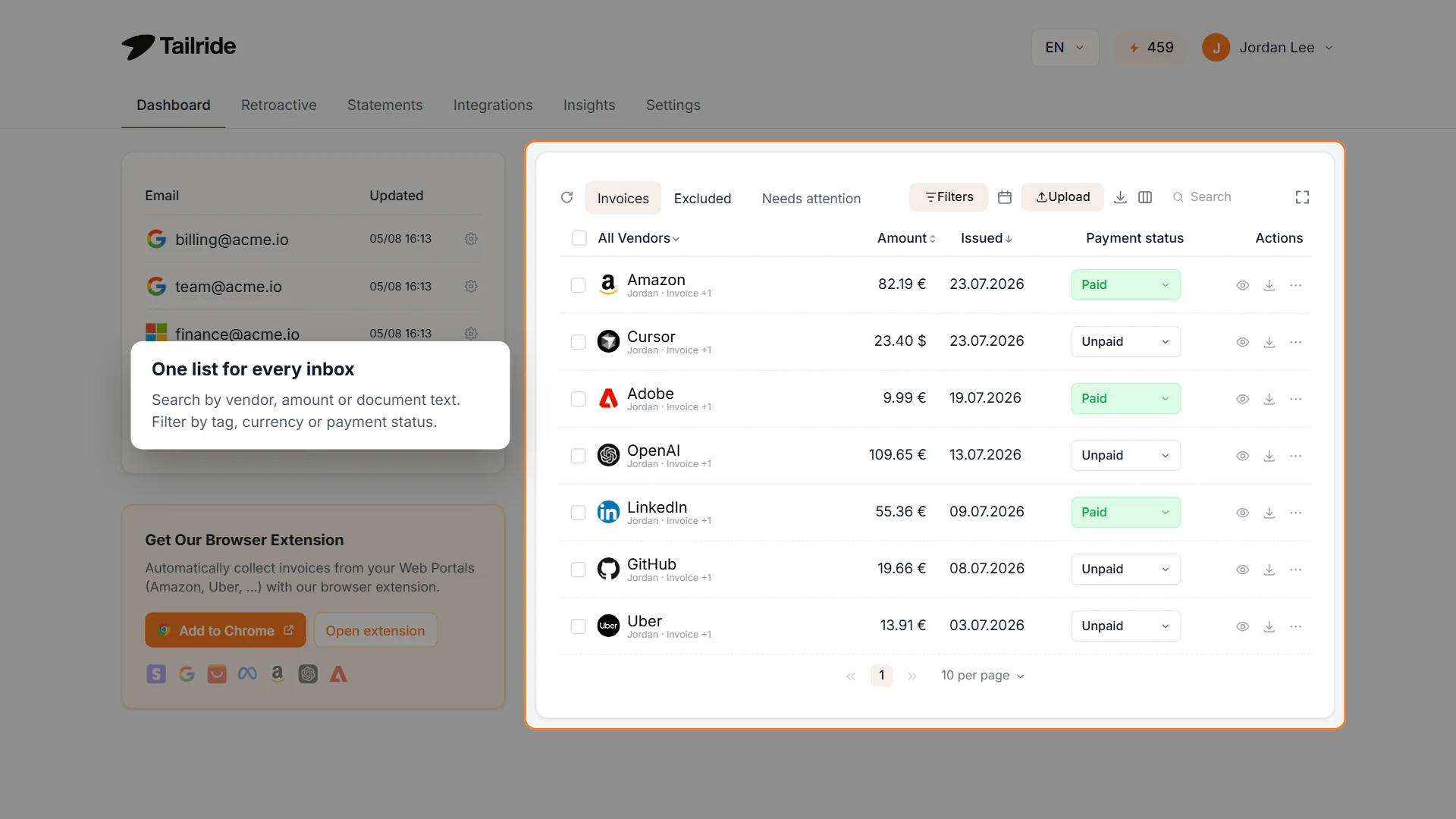
Illustrative Tailride web dashboard with example data. Review the collected documents before choosing which ones to forward to Payhawk.
At this stage, inspect the document itself. Open a representative invoice and check that its supplier, invoice number, total and company details are readable. For the email workflow described here, make sure the original PDF is available.
The distinction between extracted data and the underlying file matters. A useful invoice list can help you find a document quickly, but a total displayed in that list is not a substitute for the supplier's invoice. The PDF is what you want the receiving workflow to have available for review.
Keep the first scope manageable: one company, a few recurring suppliers and a short date range. If an old billing inbox contains years of correspondence, you do not need to send its entire history to Payhawk to demonstrate that the connection works.
For historical gaps, Tailride's retroactive invoice scanning can help retrieve older email documents. Treat that as a separate collection exercise. Compare the recovered invoices with what is already present in Payhawk before sending a backlog.
Connect Email Routing to the Payhawk Mailbox
The email connection has two addresses with different roles: Payhawk's destination and Tailride's sender. Keep a note of both while setting up the first test.
Copy the destination from Payhawk
Ask the Payhawk administrator to open Settings → Mailbox from the Group dashboard and provide the generated receiving address. Use the actual value in your account; do not construct it from a company name or copy a demonstration address.
In the same Mailbox setup, the administrator adds the address that will send documents and selects the people responsible for handling them. Pick recipients who will actually review the arrivals, rather than notifying a broad role unnecessarily. Configure the Payhawk Mailbox.
If your organisation uses an entity-specific Mailbox, use that entity's destination. Payhawk says the group address no longer routes documents to an entity once it has its own Mailbox. Payhawk Mailbox destinations.
Identify the sender that Tailride will use
Email Routing sends from an address associated with your Tailride account on fw.tailride.so. The display name can show the original supplier, but that does not make the supplier's address the actual sender. Replies are directed to your Tailride account email. Tailride Email Routing documentation.
For a dependable setup, inspect the From address on a controlled test email delivered to an inbox you manage, or ask Tailride support to confirm it. Do not substitute the address shown on Tailride's inbound Forwarding inbox card: receiving documents into Tailride and sending them out are separate functions.
Ask your Payhawk administrator to register the actual Tailride sender in the Mailbox settings. Payhawk supports adding external sending addresses, including suppliers. Then send one document and check the result before enabling automatic delivery. External senders in Payhawk.
Configure a controlled first send in Tailride
With the Email Routing add-on activated, open Integrations → Email routing → Settings in Tailride.
-
Turn on Enable Email Forwarding.
-
Leave Automatic Sending off while testing.
-
Enter the confirmed Payhawk destination under Forwarding Email Address for this initial, deliberately limited setup.
-
Review any existing routing rules, recipient settings and account settings that could select a different destination.
-
Save the settings, open the selected invoice's actions and choose Forward to email.
Use a distinctive invoice number to trace the test. A subject template such as Invoice {invoiceId}: {vendor} - {amount} {currency} is useful for recognising messages. The variables must retain their exact spelling and braces.
Tailride prepares a formatted email with invoice details and attaches available original PDFs. The subject and summary make the message easier to identify; they do not constitute a field-mapping API into Payhawk. This email workflow does not synchronise Payhawk's approval or payment status back into Tailride.
Enable recurring delivery after the result is correct
Once the test has reached the intended Payhawk record and the person responsible can find it, return to the settings and enable Automatic Sending for the collection flow you have agreed to use.
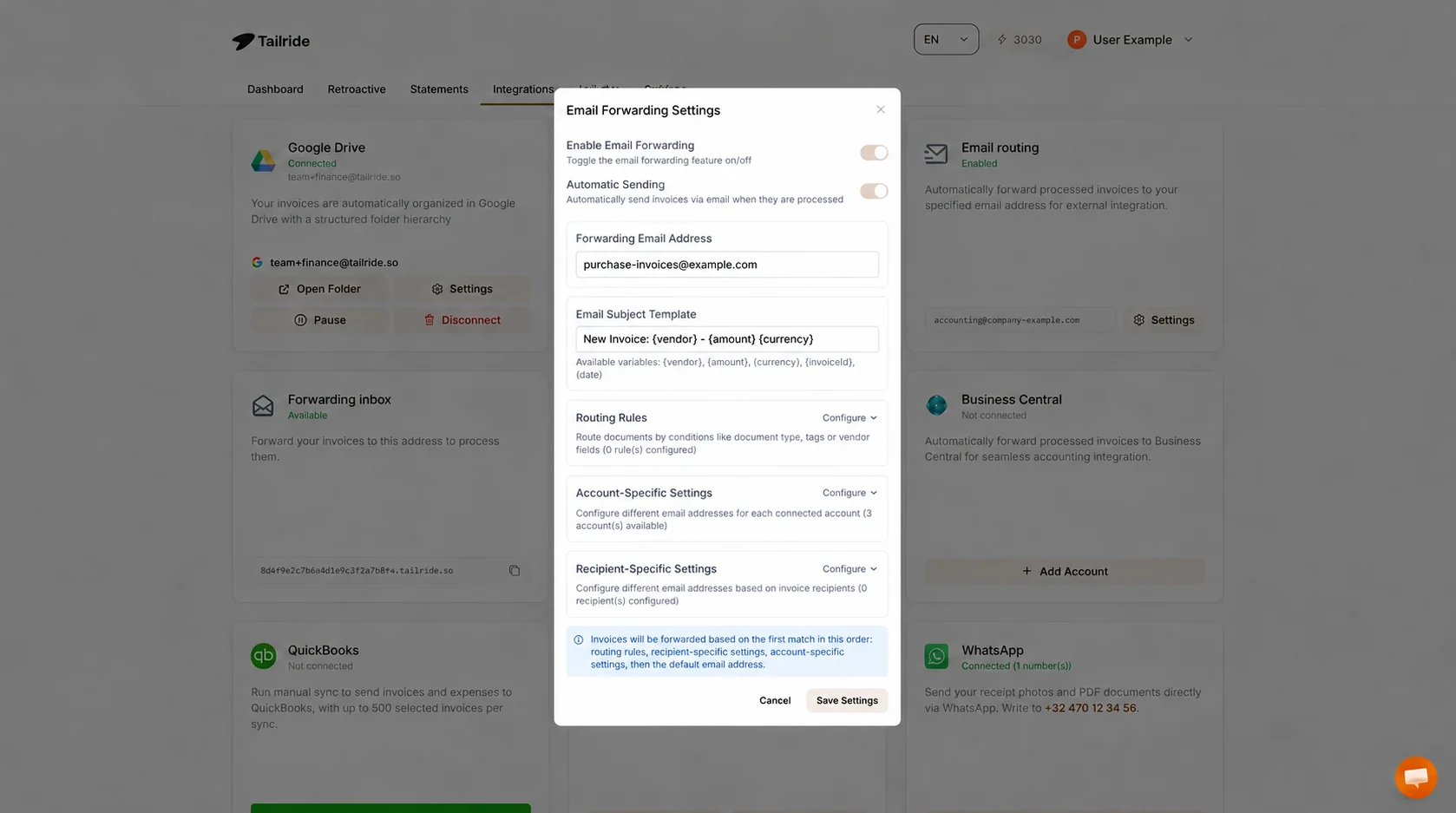
Illustrative Tailride settings showing the automatic-delivery stage. Replace purchase-invoices@example.com with the Mailbox address copied from Payhawk. Keep Automatic Sending off during the initial test.
The screenshot shows Tailride's web interface, not a Payhawk screen or proof of a successful import. Its purpose is to locate the forwarding controls. Your own destination and routing choices determine where a document is sent.
Check the result, not just the outgoing email
Keep the first test invoice open in Tailride while reviewing the result in Payhawk. Follow the same invoice number through both sides.
Check the supplier, receiving company, currency and total. For an already-paid purchase, confirm that the document ended up with the relevant existing expense. For a new bill, make sure the record represents the correct obligation and has an owner who can review it.
Payhawk provides processing notifications and Mailbox requests in its Inbox. Establish which person will see those requests in your setup. Do not assume a notification sent back to an automated address will appear in the same mailbox that your finance team normally monitors. Payhawk processing confirmations.
If a document needs manual association, Payhawk's FAQ describes opening the Mailbox request, choosing Attach to expense, selecting the entity and linking an existing expense or creating a new one as appropriate. Handle an unmatched Mailbox document.
There are two separate checks here. Tailride can report a forwarding failure, but a successful outgoing send is not confirmation that Payhawk has interpreted and assigned the document correctly. Treat the first completed receiving record as the milestone for your rollout.
If the document is missing, avoid repeatedly clicking send while someone else searches for it. First establish whether there was a sending error, a receiving rejection or a pending request. That gives the next action a purpose and avoids adding unnecessary copies.
Payhawk's published Mailbox limits include no more than 40 attachments, a combined size of at most 20 MB and individual files below 10 MB. Its error guide also covers SPF and DKIM failures. Use the actual rejection message when asking for help; a sender-authentication problem will not be solved by changing the invoice subject. Payhawk Mailbox error messages.
Keep routing understandable as you add sources
After a successful pilot, document the intended destination for each collection source. A simple internal register can be enough:
| Source | Business covered | Agreed delivery route | Person checking exceptions |
|---|---|---|---|
| Shared finance inbox | Northstar Studio | Tailride to its confirmed Payhawk Mailbox | Finance manager |
| Advertising billing account | Northstar Studio | Tailride to the same destination | Marketing operations |
| Another subsidiary's inbox | Separate business | Its own agreed destination | Subsidiary finance lead |
This example is a planning aid, not a claim about automatic company recognition. It prevents a common operational mistake: connecting another source while forgetting that the existing default destination also applies to its documents.
Tailride evaluates routing rules first, followed by recipient-specific, account-specific and default settings. A rule that selects one document type does not automatically block every other type; unmatched documents can continue to a fallback destination. Tailride routing priority.
Choose routing criteria you can explain to the next person maintaining the account. If each connected mailbox belongs to one business, account-based routing may be easier to maintain than several overlapping supplier rules. If one inbox serves multiple companies, review the actual recipient and document information before designing the route.
Payhawk also performs entity matching using information on the document. Its multi-entity guidance gives particular weight to the billing tax ID, alongside company information. Correcting supplier billing details and entity records can therefore matter more than adding another word to the email subject. Payhawk multi-entity matching.
Agree a start date for automatic delivery. Before that date, reconcile historical documents deliberately; after it, monitor the recurring flow. This makes it possible to answer “Has this month's invoice arrived?” without confusing an old recovery exercise with the current process.
For a practical rollout, add one source at a time and check a sample of its first documents. Record exceptions by cause: unavailable original PDF, wrong destination, unmatched purchase or sender rejection. A short list of specific causes is more actionable than a generic queue labelled “integration issues”.
FAQ
What email address should I use to send invoices to Payhawk?
Use the company or entity Mailbox destination provided by your Payhawk administrator. Current addresses are generated for the account on invoices.payhawk.com. Do not use the fictional address in the Tailride screenshot. Payhawk Mailbox.
Can Tailride send documents to Payhawk automatically?
Tailride's Email Routing add-on can automatically email processed documents and available PDFs to a configured destination. Register the Tailride sender in Payhawk, enter your Mailbox address in Tailride and check the first document. Then enable Automatic Sending for recurring delivery.
Do I need Tailride if I already use Payhawk Agent Fetch?
Not necessarily. Keep the collection method that covers your sources reliably. Tailride is worth evaluating when you want documents from several inboxes and portals collected together, or need routing to different destinations. Avoid collecting the same supplier documents twice without a clear reason.
Does forwarding an invoice also approve or pay it?
No. This connection delivers documents by email. Approval, ownership and payment remain part of the receiving Payhawk workflow and your company's controls. It does not grant Tailride authority to approve or execute a Payhawk payment.
Can I forward several companies' invoices from one Tailride account?
Plan the destinations separately and test each company's route. Review both explicit routing choices and the fallback address. One successful test for the first business does not establish correct routing for a second business.
Can I send old invoices I have recovered from email?
Yes, but compare the recovered documents with existing Payhawk records before sending them. Start with the gaps you are trying to fill, use a defined historical period and keep that exercise separate from ongoing automatic collection.
Start with one supplier whose documents your team regularly has to chase. Connect its sources to Tailride, confirm the Payhawk destination and sender, and follow a single PDF through the workflow. Once the result is correct, extend that same collection-and-delivery process to the next source.
