Como enviar faturas para o Xero por email (2026)
Saiba como enviar faturas para o Xero por email. Descubra os limites do endereço nativo e a melhor forma de automatizar as faturas de fornecedores.

Adicione despesas de fornecedores ao Xero sem ter de as digitar - conheça a opção nativa e a alternativa totalmente automática.
O Xero atribui a cada organização um endereço de email exclusivo para despesas. Reencaminhe o PDF, JPG ou PNG de um fornecedor e o Xero cria um rascunho da despesa com o ficheiro anexado e os campos principais preenchidos. É a forma nativa mais rápida de enviar faturas para o Xero, mas apenas aceita anexos (ignora faturas no corpo do email), funciona exclusivamente por email e obriga a reencaminhar cada documento manualmente. Para importar todas as faturas de forma automática - incluindo recibos no corpo do email e documentos alojados em portais de fornecedores - o ideal é ligar uma ferramenta de captura de dados.
O Tailride extrai faturas da sua caixa de correio, de portais e de aplicações de mensagens, enviando-as diretamente para o Xero como despesas totalmente categorizadas.
Ninguém abre uma empresa para passar horas a introduzir despesas de fornecedores no Xero, campo a campo. A boa notícia é que não tem de o fazer: o Xero consegue transformar uma fatura recebida por email num rascunho de despesa de forma autónoma e, com a configuração certa, pode deixar de lidar manualmente com este processo. Explicamos como funciona a funcionalidade nativa, quais as suas limitações e como resolver o resto.
Três formas de introduzir faturas no Xero
Na prática, existem três vias principais, e a maioria das empresas utiliza mais do que uma:
| Método | Esforço | O que processa |
|---|---|---|
| Inserção manual | Elevado, fatura a fatura | Apenas o que introduzir manualmente |
| Email para despesas do Xero | Médio - requer reencaminhamento | Apenas anexos de email |
| Ferramenta de captura | Configuração única | Todas as fontes, automaticamente |
A inserção manual é o ponto de partida de que ninguém tem saudades. O email de despesas nativo do Xero já é uma excelente melhoria para PDF recebidos. Por fim, uma ferramenta de captura integrada no Xero elimina a necessidade de reencaminhar emails e alcança as faturas que nunca chegam à sua caixa de correio. Este guia explora primeiro a via nativa e, de seguida, mostra como automatizar todo o fluxo.
A opção nativa: o endereço de email para despesas do Xero
Cada organização no Xero possui um endereço de email único que transforma qualquer envio num rascunho de despesa. Veja como encontrá-lo e utilizá-lo.
-
No Xero, vá a Business → Bills to pay (ou Purchases → Bills).
-
Clique em Create bill from email (ou New bill) e, em seguida, clique em Copy junto ao seu endereço de email exclusivo para despesas.
-
Envie ou reencaminhe a fatura de um fornecedor - como anexo PDF, JPG ou PNG - para esse endereço.
-
A despesa aparecerá em Bills to pay como um rascunho (draft), com o ficheiro original anexado.
-
Reveja os detalhes, categorize e aprove.
Se o Xero conseguir ler o documento, preencherá automaticamente o Contacto, Data, Total, Data de Vencimento e Referência. Assim, o registo de uma despesa que antes demorava cinco minutos passa a exigir apenas uma rápida verificação.
Um conselho importante do próprio Xero: trate este endereço como se fosse uma palavra-passe. Qualquer pessoa que o tenha pode criar despesas na sua organização, pelo que não o deve publicar nem partilhar fora do círculo de pessoas (e ferramentas) que realmente precisam dele.
Dicas para uma gestão de despesas impecável
Alguns hábitos tornam a funcionalidade nativa muito mais fiável:
-
Uma fatura por email. Envie cada despesa em separado para que o Xero crie um rascunho limpo, evitando confusões.
-
O formato PDF é preferível a fotografias. Um PDF digital é lido com muito mais precisão do que a fotografia de um documento impresso. Sempre que o fornecedor enviar um PDF, prefira esse formato.
-
Digitalize em superfícies planas e com boa luz. Se tiver mesmo de fotografar uma fatura em papel, coloque-a na horizontal, preencha o enquadramento e evite reflexos - o Xero processa muito melhor documentos nítidos.
-
Mantenha o endereço de despesas confidencial. Trata-se, na prática, de uma chave de acesso à sua lista de despesas; partilhe-a apenas com quem precisa.
-
Automatize os fornecedores recorrentes. Para despesas mensais fixas, definir uma regra (no Xero ou na sua ferramenta de captura) poupa-lhe o trabalho de as categorizar sempre à mão.
Limitações do envio por email do Xero
A funcionalidade nativa é útil, mas tem limites estritos - e conhecê-los dita a diferença entre uma lista de despesas organizada e um amontoado de faturas que ficaram por registar.
Apenas aceita anexos. A despesa tem de ser um PDF, JPG ou PNG anexado ao email. Faturas coladas no corpo do email - como os recibos em HTML ou texto simples enviados pela Stripe, Shopify ou PayPal - não são aceites. Simplesmente não darão origem a nenhuma despesa.
Apenas processa emails. Muitas faturas nunca chegam por email. Ficam alojadas em portais que exigem login, como a Amazon Business, o Meta Ads ou a Adobe, à espera de serem descarregadas. O email do Xero não consegue lá chegar.
O reencaminhamento continua a ser manual. Cada fatura tem de ser reencaminhada por si, uma a uma. Isto pode funcionar numa semana tranquila, mas torna-se impraticável no fecho de mês com dezenas de fornecedores - e a fatura de que se esquecer será aquela que o seu contabilista vai reclamar.
Existe um limite de tamanho. Os emails estão limitados a 25 MB no total. Um lote de digitalizações pesadas pode ser rejeitado.
Isto não significa que a funcionalidade seja inútil - para um PDF simples de um fornecedor habitual, é perfeita. Significa apenas que o envio por email resolve uma parte do problema e deixa o resto nas suas mãos.
Porque é que a sua fatura não apareceu no Xero?
Se reencaminhou uma fatura e o rascunho não apareceu, o motivo será quase sempre um destes:
-
Estava no corpo do email e não em anexo. O Xero apenas processa anexos. Um recibo em HTML ou texto simples não cria qualquer registo - teria de o guardar primeiro em PDF ou usar uma ferramenta que consiga ler o corpo do email.
-
O formato do ficheiro não é suportado. O Xero aceita PDF, JPG e PNG. Outros formatos, como documentos Word ou fotografias HEIC, são ignorados.
-
O email ultrapassou os 25 MB. O envio de várias digitalizações grandes pode exceder o limite e ser devolvido; envie menos ficheiros de cada vez.
-
Os campos não foram preenchidos. O Xero cria o rascunho, mas se a digitalização for pouco nítida ou estiver torta, terá de preencher o Contacto, Data e Total manualmente. Documentos nítidos são lidos sem problemas.
-
Utilizou o endereço errado. O email de despesas é único para cada organização. Confirme que copiou o endereço atual e correto.
Quando os mesmos problemas se repetem constantemente, é sinal de que o envio por email atingiu o seu limite para a realidade do seu negócio.
A solução completa: como enviar faturas para o Xero automaticamente
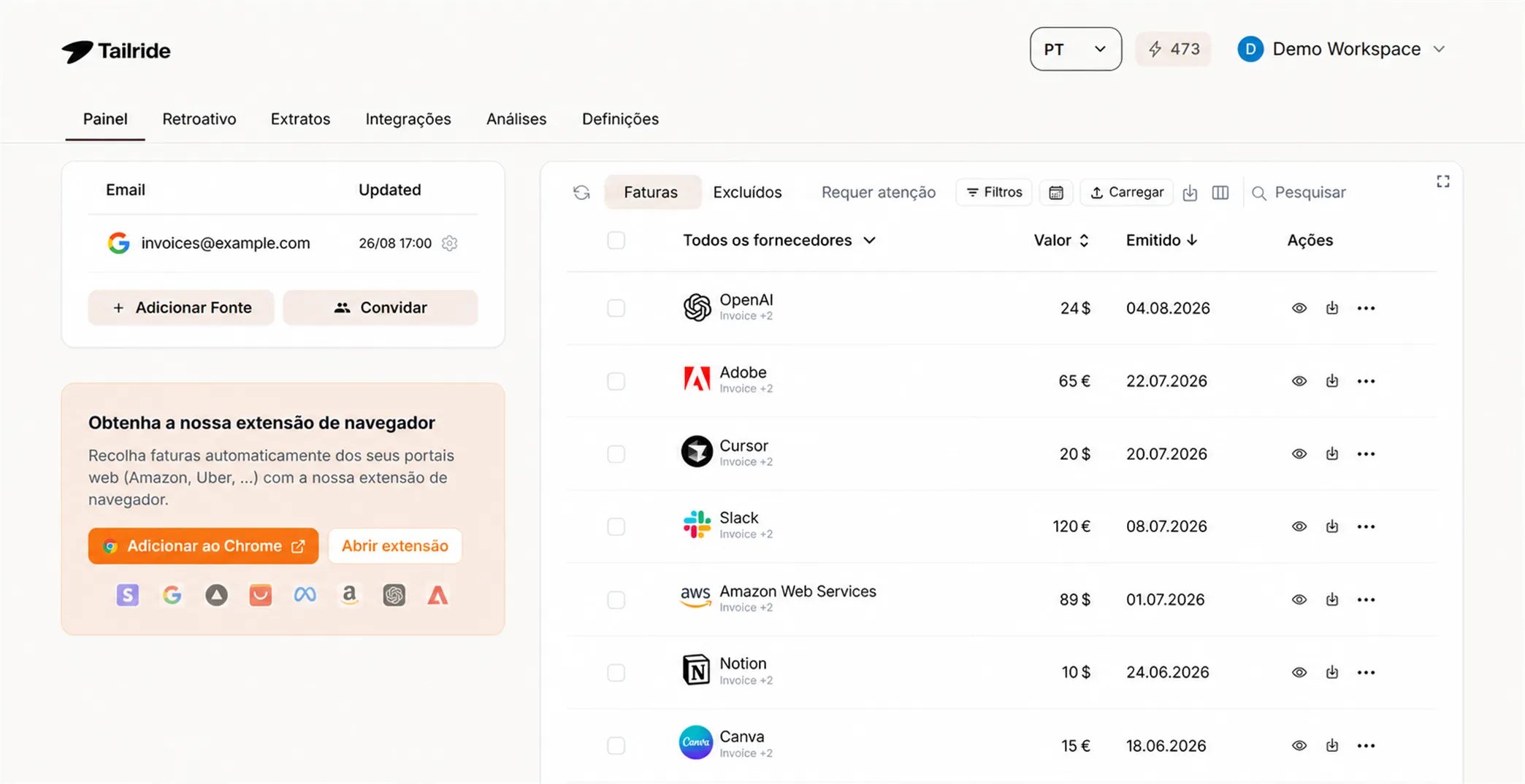
Para colmatar estas falhas, o ideal é ligar uma ferramenta que recolha as faturas onde quer que elas estejam e as entregue no Xero por si. É exatamente para isso que o Tailride foi criado, funcionando como uma integração nativa do Xero e não apenas como um truque de reencaminhamento.
-
Capta tudo, não apenas anexos. O Tailride lê faturas da sua caixa de correio - incluindo os recibos em HTML e texto simples que o Xero rejeita - , extrai documentos alojados em portais de fornecedores como a Amazon e o Meta Ads através de uma extensão de browser, e processa até recibos fotografados e enviados para o seu bot de WhatsApp ou Telegram.
-
Extrai mais do que o básico. A Inteligência Artificial analisa todo o documento - fornecedor, data, total, impostos e detalhes de cada linha - e aplica as suas próprias regras, garantindo que a informação chega ao Xero já categorizada e não apenas como um rascunho vazio.
-
Exporta diretamente para o Xero. As despesas concluídas entram na sua organização Xero com o documento de origem anexado. Sem reencaminhamentos, sem o limite de 25 MB e sem passos manuais.
Enquanto o email de despesas do Xero abrange apenas as faturas que por acaso chegam em anexo, o Tailride processa também tudo o resto, arquivando a informação da mesma forma.
Registe todas as faturas no Xero de forma automática. Ligue o Tailride gratuitamente - oferecemos o processamento das primeiras 10 faturas por mês.
Como configurar, passo a passo
-
Ligar ao Xero. No Tailride, abra as Integrações e ligue a sua organização Xero através de um início de sessão único e seguro.
-
Ligar as fontes de origem. Adicione a sua caixa de correio, os portais dos seus fornecedores e ligue o WhatsApp ou o Telegram, caso os utilize - este é o passo que garante que não escapa nada.
-
Definir as suas regras (opcional). Diga ao Tailride como deve categorizar os documentos usando linguagem natural ("etiquetar todos os recibos da Uber como Transporte"), para que as despesas cheguem ao Xero já processadas.
-
Rever no Xero. As faturas processadas entram como despesas detalhadas, prontas a ser aprovadas. Os novos documentos fluem automaticamente, e pode até analisar o histórico do seu email para limpar o trabalho acumulado.
O que ganha com a automatização
Passar do reencaminhamento para a captura automática muda várias coisas de uma só vez:
-
Fim do reencaminhamento manual. Cada fatura chega ao Xero de forma autónoma, independentemente da origem.
-
Nenhuma despesa perdida. Os recibos no corpo do email e as faturas em portais deixam de ficar esquecidos - e costumam ser esses que lhe custam caro na altura de pagar impostos.
-
Dados mais precisos. A informação é importada de acordo com as suas regras, com o detalhe de cada linha e o documento original anexado, o que torna a revisão muito rápida.
-
Fecho de mês mais tranquilo. Como as despesas foram entrando no Xero ao longo do mês, o fecho passa a ser um momento de revisão e não de reconstrução do passado.
Quando usar cada um dos métodos
Não tem de escolher apenas uma opção para sempre:
-
Recebe poucos PDF de fornecedores habituais? O email de despesas nativo do Xero é rápido e gratuito - aproveite-o.
-
Tem faturas dispersas por emails, portais e mensagens, ou um volume elevado de documentos? Ligue uma ferramenta de extração de dados para não ficar dependente de se lembrar de reencaminhar tudo.
A maioria das empresas acaba por preferir a segunda opção, porque as faturas que se perdem raramente são os PDF fáceis de tratar - são os recibos no corpo do email e os acessos a portais que toda a gente esquece.
Como funciona na prática
Imagine uma pequena agência. A fatura do alojamento web chega em PDF e é reencaminhada para o Xero; o recibo da Stripe vem no corpo do email, por isso uma ferramenta de captura encarrega-se dele, uma vez que o Xero não consegue; a fatura do Meta Ads exige login e é extraída pela extensão de browser; e o recibo de um táxi é fotografado e enviado para um bot de chat. Quando o contabilista abre o Xero, os quatro documentos estão à sua espera como rascunhos de despesas categorizados, com os respetivos ficheiros anexados. Nada foi reencaminhado à mão, nada ficou esquecido. O fecho de mês passa a ser uma verificação em vez de uma caça ao tesouro.
Perguntas Frequentes (FAQ)
Onde encontro o meu endereço de email de faturas do Xero?
No Xero, vá a Business → Bills to pay (ou Purchases → Bills), clique em Create bill from email (ou New bill) e copie o endereço de email exclusivo apresentado. Mantenha-o confidencial, pois qualquer pessoa com este endereço pode criar despesas na sua organização.
Que tipos de ficheiro posso enviar para o Xero?
Anexos em PDF, JPG e PNG, até um total de 25 MB por email. A fatura tem de ser um anexo - documentos colados ou escritos diretamente no corpo do email não são aceites.
O Xero lê os dados de uma fatura recebida por email?
Sim. Se o documento for legível, o Xero preenche automaticamente o Contacto, a Data, o Total, a Data de Vencimento e a Referência no rascunho da despesa. Contudo, continua a ter de rever e categorizar a despesa antes de a aprovar.
O Xero consegue extrair faturas incluídas no corpo do email?
Não. O email de faturas do Xero apenas aceita anexos. Recibos em HTML ou texto simples (como muitos da Stripe, Shopify e PayPal) não criarão qualquer registo. Para isso, é necessária uma ferramenta de extração, como o Tailride, que consiga ler o corpo do email e enviar o resultado para o Xero.
Como importo faturas da Amazon ou de outros portais para o Xero?
Como essas faturas não são enviadas por email, a funcionalidade do Xero não consegue alcançá-las. A solução é usar uma ferramenta com extensão de browser que extraia as faturas dos portais e as sincronize com o Xero. O Tailride faz isto para a Amazon, Meta Ads e mais de 20 outras plataformas.
Como enviar faturas para o Xero de forma automática, em vez de as reencaminhar uma a uma?
Ligue uma ferramenta de captura ao Xero. Esta tecnologia monitoriza a sua caixa de correio, portais e aplicações de mensagens, extrai cada fatura e regista-a no Xero como uma despesa categorizada, já com o ficheiro anexado - sem qualquer reencaminhamento manual.
Porque é que a fatura que enviei não apareceu no Xero?
As causas mais comuns são: a fatura estar no corpo do email e não em anexo, um tipo de ficheiro não suportado, um email com mais de 25 MB ou a utilização do endereço errado. O Xero apenas cria um registo a partir de um anexo PDF, JPG ou PNG enviado para o endereço atual e exclusivo da sua organização.
Várias pessoas da equipa podem enviar despesas para o Xero?
Sim - qualquer pessoa que saiba o endereço de faturas da organização pode reencaminhar documentos para lá, razão pela qual o Xero recomenda mantê-lo confidencial. Para uma captura à escala de toda a equipa, com monitorização de quem enviou o quê, uma ferramenta como o Tailride permite ligar o email e chat de cada pessoa e centralizar o envio para o Xero a partir de um único local.
