How to Download Invoices from Proton Mail Automatically
Learn how to automatically download invoices and receipts from Proton Mail using Proton Mail Bridge and Tailride Desktop on Windows or Mac.

By Tailride · 7 min read · Updated October 2026
You can automatically download invoices and receipts from Proton Mail by connecting Proton Mail Bridge to the Tailride Desktop App.
Tailride checks the folders you select, identifies likely financial documents, converts receipts contained only in the email body into PDF files, and sends the relevant documents to your Tailride dashboard. Everything runs locally on your Windows PC or Mac.
Set up automatic Proton Mail invoice collection with Tailride.
The short answer
To collect invoices from Proton Mail automatically:
-
Install and start Proton Mail Bridge.
-
Add Proton Mail as a source in Tailride Desktop.
-
Enter the mailbox password generated by Proton Mail Bridge.
-
Choose the folders and start date Tailride should scan.
-
Select how often the collection should run.
Once configured, Tailride checks Proton Mail on schedule and downloads new invoices and receipts without requiring you to search the inbox manually.
Looking for an invoice for your Proton subscription? You can download it directly from your Proton account under Settings → Subscription → Invoices. Proton explains the process in its official invoice guide.
Why Proton Mail requires a desktop invoice collector
Proton Mail protects mailbox contents with end-to-end and zero-access encryption. Because of this, conventional cloud invoice collectors cannot connect directly to a Proton inbox through standard cloud IMAP access.
Proton Mail Bridge solves this by decrypting messages locally and exposing a local IMAP connection that applications on the same computer can use.
Tailride connects to that local mailbox. Your regular Proton password is not shared with Tailride, and the Bridge password remains protected on your computer.
This local workflow is one reason a desktop app can be a better option for privacy-focused mailboxes. Our desktop app vs browser extension vs cloud fetcher comparison explains when each approach makes sense.
What you need
Before starting, make sure you have:
-
A paid Proton Mail plan that supports Proton Mail Bridge
-
Proton Mail Bridge installed on your computer
-
The Tailride Desktop App for Windows or Mac
-
Access to the Proton mailbox containing your invoices
Proton Mail Bridge must be running when Tailride checks the mailbox. Tailride can remain in the system tray on Windows or the menu bar on macOS.
How to download invoices from Proton Mail automatically
1. Install Proton Mail Bridge
Download Proton Mail Bridge, install it, and sign in with your Proton account.
Bridge synchronizes your encrypted mailbox to the computer and creates local connection details for email applications. The first synchronization may take some time if the mailbox contains many messages.
Keep Bridge running after the initial setup.
2. Find your Proton Mail Bridge password
Open Proton Mail Bridge and select the mailbox you want to connect.
Bridge displays local IMAP credentials for that mailbox. Copy the generated mailbox password. This is a separate password created by Bridge and is different from your normal Proton account password.
Tailride only needs the Bridge credentials required to read the local mailbox.
3. Add Proton Mail to Tailride
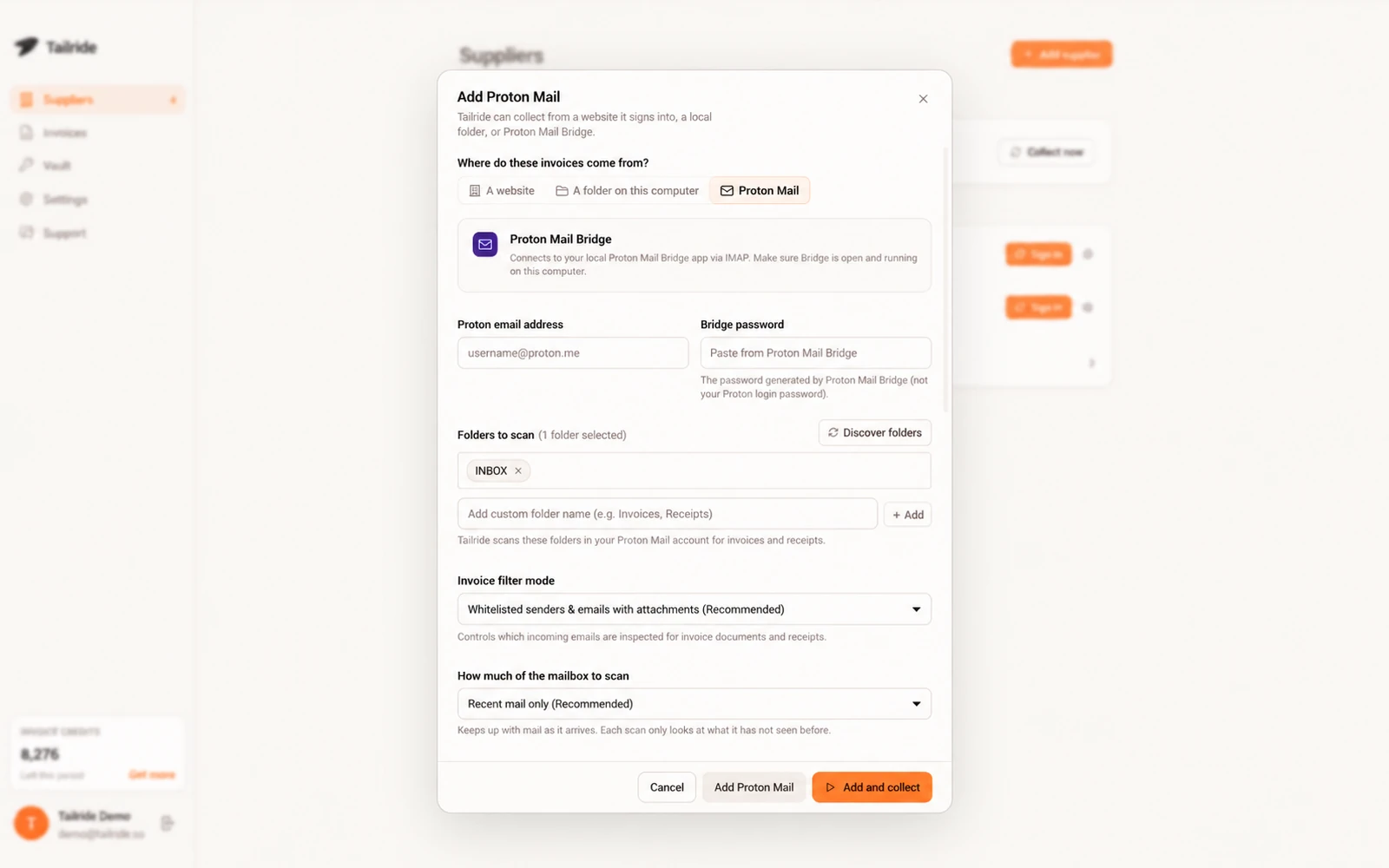
Open Tailride Desktop and go to Suppliers.
Select Add supplier, then choose Proton Mail as the invoice source.
Enter:
-
Your Proton Mail address
-
The password generated by Proton Mail Bridge
-
The local host and port displayed by Bridge
The default connection normally uses 127.0.0.1, port 1143, and STARTTLS. Leave these values unchanged unless you have modified the Bridge configuration.
Select Test connection before continuing.
4. Choose which folders Tailride should check
You can collect invoices from the entire inbox or limit the search to specific folders.
For example, you could create a Proton Mail folder called Invoices and use a Proton filter to place messages from suppliers there. Tailride can then scan that folder without processing the rest of the mailbox.
By default, Tailride checks the inbox and excludes folders such as Trash, Sent, Drafts and Spam.
5. Set a start date and filtering mode
Choose the earliest invoice date Tailride should consider. This prevents an initial collection from pulling years of old attachments into your accounting workflow.
You can also control how Tailride identifies financial documents. The available options include collecting attachments from recognized financial senders, checking PDF and image attachments more broadly, or limiting collection to selected senders.
The recommended setting provides a useful balance: it finds invoices from likely financial senders while filtering out unrelated attachments.
Tailride identifies duplicate files by their content, so an invoice forwarded between folders should not be uploaded twice.
6. Choose a collection schedule
Proton Mail sources can have their own collection schedule. Hourly collection is useful for active finance teams, while a daily or weekly schedule is often enough for small businesses.
Tailride Desktop also supports scheduled collection from supplier portals and watched folders. You can manage all three source types from the same desktop app.
The computer needs to be switched on, with Tailride and Proton Mail Bridge running, at the scheduled time. If the computer is in sleep mode, Tailride catches up after it wakes.
7. Review the collected invoices
After the first run, open the Invoices section in Tailride Desktop or visit your Tailride dashboard.
Tailride can collect:
-
PDF invoice attachments
-
Scanned invoice images
-
Receipts attached to messages
-
Receipts contained in the email body
When a receipt exists only as email content, Tailride can turn it into a PDF so it can move through the same workflow as an attached invoice.
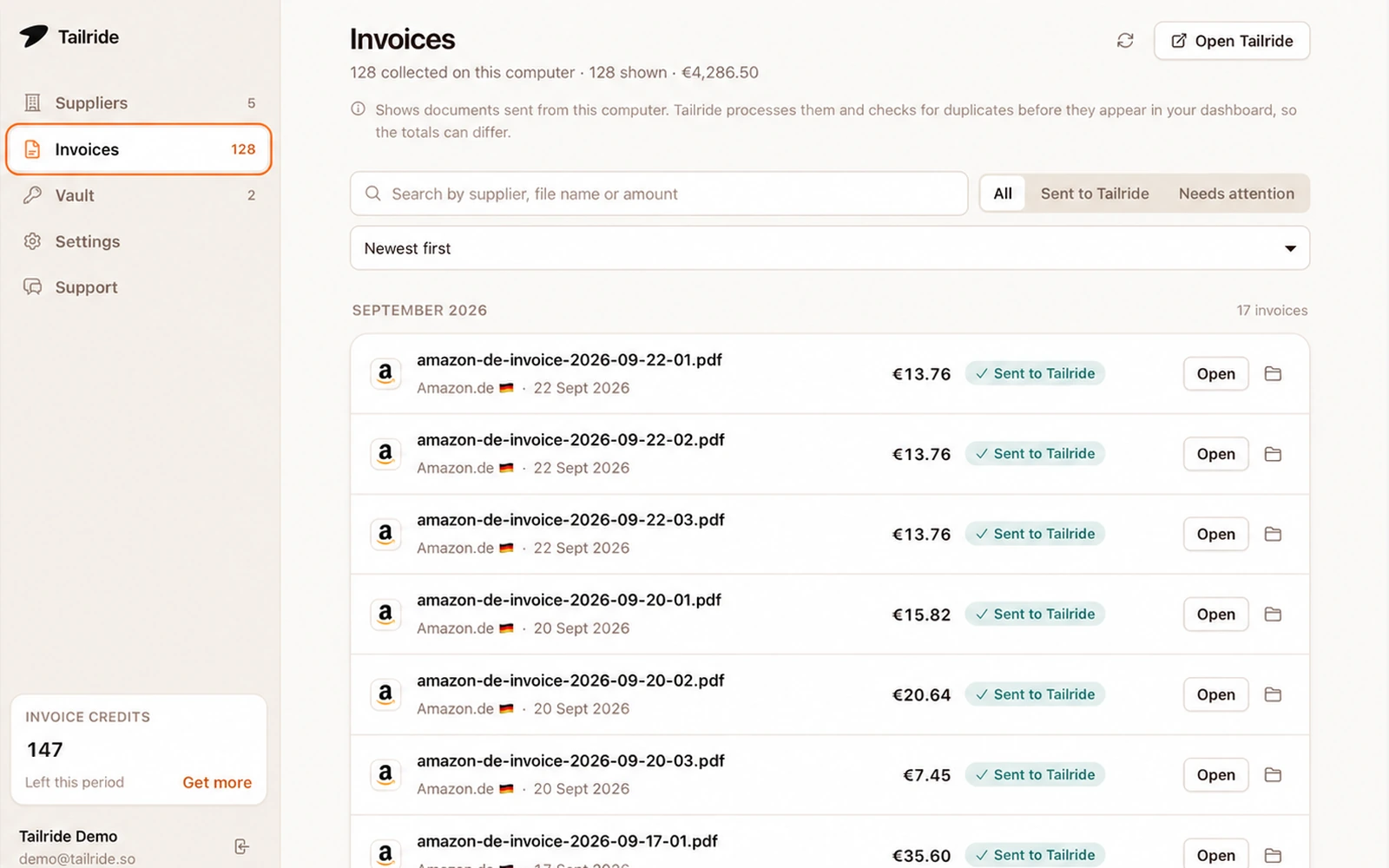
Collected invoices appear together in Tailride, regardless of whether they came from email, a supplier portal or a watched folder.
From Tailride, the documents can be reviewed and forwarded to your existing accounting workflow.
What stays on your computer?
The connection to Proton Mail Bridge is local. Tailride does not need your main Proton account password.
The generated Bridge password is protected using the credential storage provided by your operating system:
-
Windows Data Protection API on Windows
-
Keychain on macOS
Tailride examines messages locally and uploads documents that match the selected invoice detection rules. Local prechecks can be adjusted if you want broader or stricter filtering.
For the full product explanation, see Tailride’s Proton Mail invoice collector.
Can the Tailride browser extension collect Proton Mail invoices?
No. Proton Mail collection requires the Tailride Desktop App because Proton Mail Bridge runs locally on your computer.
The Tailride browser extension is intended for invoices stored inside online supplier portals. The desktop app can handle those portals as well, while also supporting Proton Mail and watched folders.
If you are deciding which collector to use, read our guide to the best invoice downloader apps for Windows and Mac.
Manual alternative: download Proton Mail attachments individually
For occasional invoices, you can open the message in Proton Mail and download its attachment manually.
This works when you only receive a few documents. It becomes less practical when invoices arrive across multiple folders, supplier names and email accounts. Email-only receipts also need to be converted or printed to PDF separately.
Scheduled collection removes those repeated steps and gives you one place to review the results.
Troubleshooting Proton Mail invoice collection
Tailride cannot connect to Proton Mail Bridge
Check that Proton Mail Bridge is running and that you copied the password generated by Bridge rather than your normal Proton password.
Also verify the local host, IMAP port and encryption setting. Tailride normally uses 127.0.0.1, port 1143, and STARTTLS.
The first collection does not find anything
Bridge may still be synchronizing the mailbox. Wait for its initial sync to finish and run the collection again.
Also check the selected folder, start date and filtering mode. A recent start date or strict sender filter can exclude older invoices.
Some receipts are skipped
Review the local precheck and sender filter settings. A stricter mode reduces unrelated uploads but may exclude unusual receipts.
You can broaden the filter or add the sender to the approved list without scanning every message in the mailbox.
Collection did not run overnight
Both Tailride and Proton Mail Bridge need to be running, and the computer must be available. When the computer is in sleep mode during a scheduled collection, Tailride runs the missed collection after it wakes.
Frequently asked questions
Can Proton Mail invoices be downloaded automatically?
Yes. Proton Mail Bridge makes the encrypted mailbox available locally, and Tailride Desktop can check selected folders for invoices and receipts on a schedule.
Do I need a paid Proton Mail plan?
Yes. According to Proton’s Bridge documentation, Proton Mail Bridge requires a paid Proton Mail plan.
Does Tailride need my Proton password?
No. Tailride uses the separate mailbox password generated by Proton Mail Bridge. Your regular Proton account password is not entered into Tailride.
Does automatic collection work when the computer is in sleep mode?
A collection cannot run while the computer is in sleep mode. Tailride catches up after the computer wakes, provided that Tailride and Proton Mail Bridge are running.
Can Tailride scan only one Proton Mail folder?
Yes. You can select the folders Tailride should scan. This is useful if Proton filters already sort invoices into a dedicated folder.
Can Tailride collect receipts without PDF attachments?
Yes. When a financial document is contained in the email body, Tailride can convert the content into a PDF for processing.
Can I use the same app for supplier portals?
Yes. Tailride Desktop can collect documents from Proton Mail, supplier portals and watched folders. Our guide to automatically downloading invoices on a Mac shows how these sources can be combined in one workflow.
Automatically organize invoices from Proton Mail
Proton Mail gives businesses strong privacy, but its encryption makes conventional cloud inbox scanning difficult. Proton Mail Bridge and Tailride Desktop provide a local way to automate invoice collection without sharing the primary mailbox password.
Once the connection is configured, Tailride can check the appropriate folders, find new financial documents, convert email receipts into PDFs and place the results in one invoice workflow.
Download Tailride Desktop and automate your Proton Mail invoices.
