How to Send Supplier Invoices to Qonto Automatically
Use Qonto's dedicated supplier-invoice address with Tailride Email Routing. This guide shows the correct address, setup, first test and duplicate checks.

By Tailride · 7 min read · Updated October 2026
Qonto gives your company two document-forwarding addresses. One sends supplier invoices that still need payment into Supplier invoices; the other sends receipts and expense documents toward transaction matching. To send invoices collected by Tailride to Qonto, copy the address beginning with pay-, enter it in Tailride’s Email Routing settings, and enable automatic sending.
The distinction matters. A supplier bill sent to the receipts address enters a different review flow instead of the list where your team prepares payments. This guide shows where to find the right address, how Tailride fits into collection, and how to check the first delivery.
Find Qonto’s address for supplier invoices
In the Qonto web app, open Settings → Document forwarding. Qonto lists two company-specific addresses there. The invoice address is also available from Invoices → Supplier invoices:
| Qonto address format | Send this | Where Qonto puts it |
|---|---|---|
| pay-xxx-xxx@inbox.qonto.com | Supplier invoices that need to be paid | Supplier invoices, ready for review and payment |
| receipts-xxx-xxx@inbox.qonto.com | Receipts and expense documents to match to transactions | A transaction match when possible, or Document review |
The xxx characters show the format only. Copy your full pay- address from Qonto; do not copy the fictional address in our screenshot. Qonto explains both destinations in its document-forwarding guide.
For a bill you intend to pay from Qonto, use pay-. For a card receipt or another expense document that should be matched to an existing transaction, use receipts-. This article focuses on the first route. If you need both, configure and test them separately rather than sending every document to one address.
Decide whether to forward directly or collect with Tailride
Qonto can receive documents through its own forwarding addresses and offers other collection methods, including upload and connected sources. If most supplier invoices already reach one mailbox, a rule that forwards them straight to Qonto may be the simplest arrangement.
Tailride is useful when you collect invoices from several email accounts, team members and supported supplier portals in one place. Its inbox scanning and supplier portal collection gather documents first. Email Routing then sends each processed invoice as a PDF attachment to the Qonto address you chose. The handoff here is email delivery, not a native Tailride–Qonto API sync.
The roles stay clear: Tailride finds and organizes the document before sending it. Qonto imports the attachment, extracts payment details and lets your team review the result. This setup does not transfer Tailride’s extracted accounting fields into Qonto as a structured API record.
What Tailride does before sending to Qonto
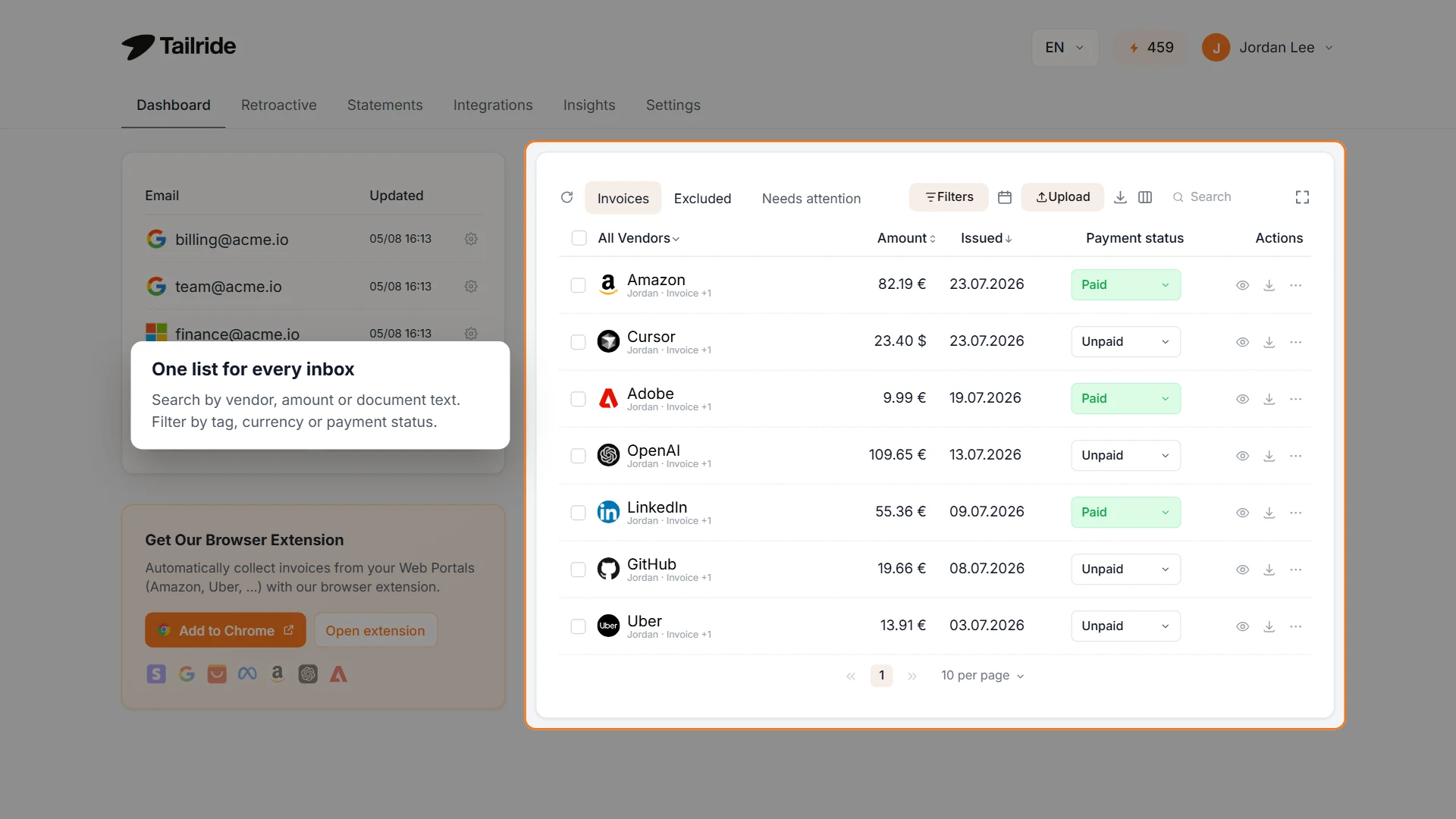
Illustrative Tailride dashboard: invoices from connected sources are gathered in one list before email delivery to Qonto.
Imagine a software invoice in an operations inbox and a second bill available only in an advertising portal. A mailbox rule handles the first but cannot reach into the portal on its own. Connect the relevant sources to Tailride, confirm it has collected the invoices, then deliver the processed PDFs to Qonto using the same pay- destination.
The dashboard image shows the collection side of that process. It uses example data; it is not a Qonto screen. The view lets a team inspect what was found across sources before relying on the onward route. If Qonto already collects invoices from a particular source, adding Tailride to that same source can create duplicate documents. Set a clear boundary for which tool collects each source.
Set up Tailride Email Routing for Qonto
-
Copy the Qonto address. Under Settings → Document forwarding, copy your company’s full pay-…@inbox.qonto.com address for supplier invoices to pay.
-
Connect an invoice source in Tailride. Email Routing requires a connected inbox. Connect one, then add supported portals if they hold other invoices. Check that a test invoice appears in Tailride.
-
Open Integrations → Email Routing. Activate the Email Routing add-on if needed, then open its settings.
-
Turn on delivery. Enable Email Forwarding and Automatic Sending. Paste your Qonto pay- address into Forwarding Email Address. You can keep the existing subject template. For one Qonto destination, the default address is enough; routing rules are optional.
-
Save and test one invoice. Once Tailride processes the document, open Invoices → Supplier invoices in Qonto. Check that it arrived and review the supplier, amount, due date, payment details and attached PDF before using the setup at scale.
The screenshot shows step 4 in Tailride’s web interface. The visible Qonto address is fictional and must be replaced with your company’s address.
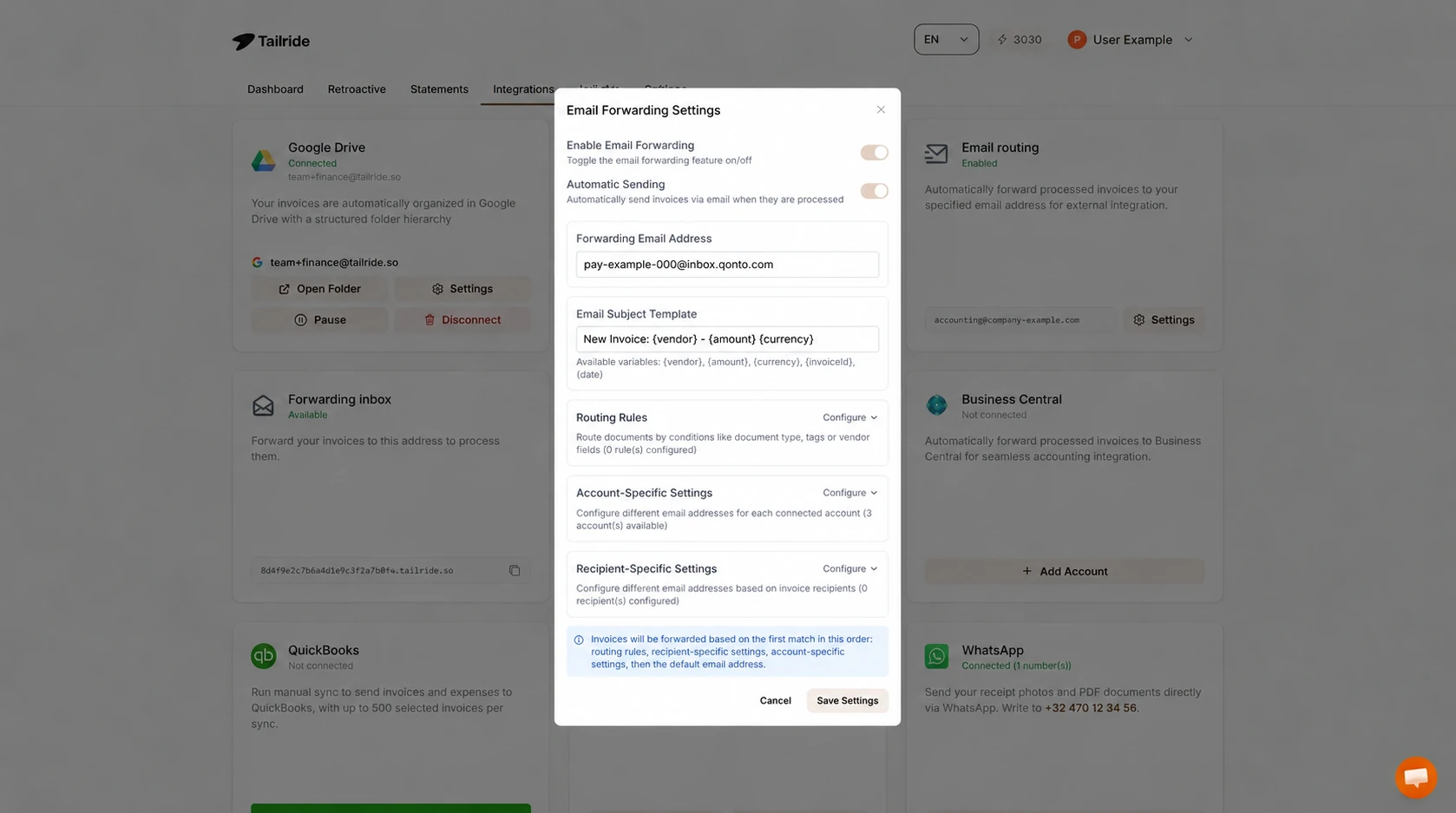
Example Tailride Email Routing setup for supplier invoices to pay in Qonto. The address shown is fictional.
If a mailbox rule or Qonto integration already imports the same invoices, start with one test and check for duplicates. Qonto may flag potential duplicates, but maintaining one primary route per source is simpler than cleaning up repeated imports.
What happens after Qonto receives the PDF?
Tailride sends an email containing the invoice PDF to the configured destination. According to Qonto’s forwarding guide, a document sent to pay- appears in Supplier invoices. Qonto extracts payment information such as supplier, amount and due date. Your team can then review the prefilled details, pay immediately, schedule payment or request approval according to its Qonto workflow.
Delivery is not proof that the invoice is correct or paid. Compare the document with its extracted fields and payment details, especially bank information and currency. Qonto’s Supplier invoices guide recommends checking those details before proceeding.
If a supplier bill is already paid, Qonto can let you mark it as paid and match it to a transaction. That is different from using receipts- for receipts and other expense documents. Choose the destination according to the workflow you want in Qonto and test a representative document before automating a mixed backlog.
When you need both Qonto addresses
Tailride Email Routing can use rules to send different documents to different addresses based on document type, tags, vendor or other conditions. For example, a reliably categorized set of supplier bills could go to pay-, while receipts go to receipts-. Rule order matters: the first matching rule wins, followed by recipient-specific, account-specific and default settings.
For a first setup, keep one pay- destination and test it. Add a second route only after you have confirmed how your receipts are classified and where Qonto places them. Sending everything to one address makes later review harder.
If an invoice does not appear in Qonto
-
Check the full destination. Your pay- address is company-specific. The screenshot’s example cannot receive your invoices. A receipts- address leads to a different workflow.
-
Check Tailride’s switches. Email Forwarding and Automatic Sending must both be on, and Email Routing must be active.
-
Check processing in Tailride. A failed forwarding attempt appears in Needs attention and can be retried.
-
Look in Qonto’s Supplier invoices section. Remove restrictive filters and check documents awaiting review.
-
Check for competing imports. A supplier CC, mailbox rule, Qonto connection and Tailride might all deliver the same file. Simplify the path before sending historical invoices.
Frequently asked questions
Can I email supplier invoices to Qonto without Tailride?
Yes. Qonto gives your company a dedicated pay- address. You can forward bills yourself or create a mailbox rule. Tailride is useful when it is already gathering invoices from several sources.
Which Qonto email address should I enter in Tailride?
For supplier invoices to pay, use your own pay-…@inbox.qonto.com address. The receipts-…@inbox.qonto.com address is for receipts and documents to match with transactions.
Will Tailride automatically pay invoices in Qonto?
No. Tailride sends a PDF by email. Qonto imports it into the supplier-invoice workflow, where your team reviews the details and decides whether and when to pay.
Is this a native API integration with Qonto?
No. This guide uses Tailride Email Routing and Qonto’s document-forwarding address. Tailride’s extracted fields are not sent as a structured accounting record through this route.
Do I need routing rules for one Qonto company?
No. Use the pay- address as the default forwarding destination. Add rules only for genuinely different document destinations and test each rule.
What if Qonto already imports invoices from Gmail or another source?
Avoid sending the same document through two routes. Test one invoice, check Qonto for duplicates and decide which system will collect each source.
If your supplier invoices are spread across inboxes and portals, connect those sources to Tailride, send one test PDF to your Qonto pay- address, and review it in Supplier invoices before enabling repeat delivery.
