How to Send Supplier Invoices to Pennylane Automatically
Find your Pennylane supplier invoice email address and set up Tailride Email Routing to collect and send invoices automatically.

By Tailride · 7 min read · Updated October 2026
Pennylane gives each company a dedicated email address for supplier invoices. You can forward a bill to that address yourself, ask a supplier to copy it, or use an email rule. To send invoices that Tailride collects, turn on Tailride's Email Routing add-on, paste your Pennylane supplier-invoice address into the forwarding field, and enable automatic sending.
That setup is useful when invoices arrive across several inboxes or sit in supplier portals. The handoff to Pennylane happens by email, not through a native Tailride–Pennylane API connection. Here's where to find the right address, how to connect the flow, and what to check after the first invoice arrives.
Find the right invoice address in Pennylane
In Pennylane, open Settings → Invoice transmission → Email addresses and activate the addresses if you have not already. Pennylane generates two distinct addresses: one ending in @suppliers.pennylane.com for purchase invoices and another ending in @customers.pennylane.com for sales invoices. For bills from your suppliers, copy the suppliers address. It is unique to your Pennylane company; the address shown in our screenshot is only a demonstration.
Pennylane's email-import guide says you can send an invoice as a PDF or image attachment or in the body of an email. It can import multiple invoices from one message. The email address is already a practical way to collect documents that reach your inbox.
Keep that address private. Anyone who sends a document to it can add a document to your Pennylane space.
Choose how invoices reach Pennylane
| Route | What you do | Best fit |
|---|---|---|
| Forward to Pennylane yourself | Send each supplier invoice to your unique @suppliers.pennylane.com address | A small number of bills already in your inbox |
| Ask suppliers to copy Pennylane or set an email rule | Let incoming supplier emails reach Pennylane without a manual forward | Regular suppliers that consistently email the invoice |
| Collect with Tailride, then email to Pennylane | Connect invoice sources in Tailride and send processed invoices to the Pennylane address | Several inboxes, supplier portals, or a team collecting bills from different places |
Pennylane's own forwarding address handles email well. The gap appears when the invoice never reaches the mailbox behind your forwarding rule. A portal invoice, for example, has to be collected before any email rule can deliver it. Tailride's inbox scanning and supplier portal collection help with that first step; Email Routing handles the delivery step.
What Tailride does before sending to Pennylane
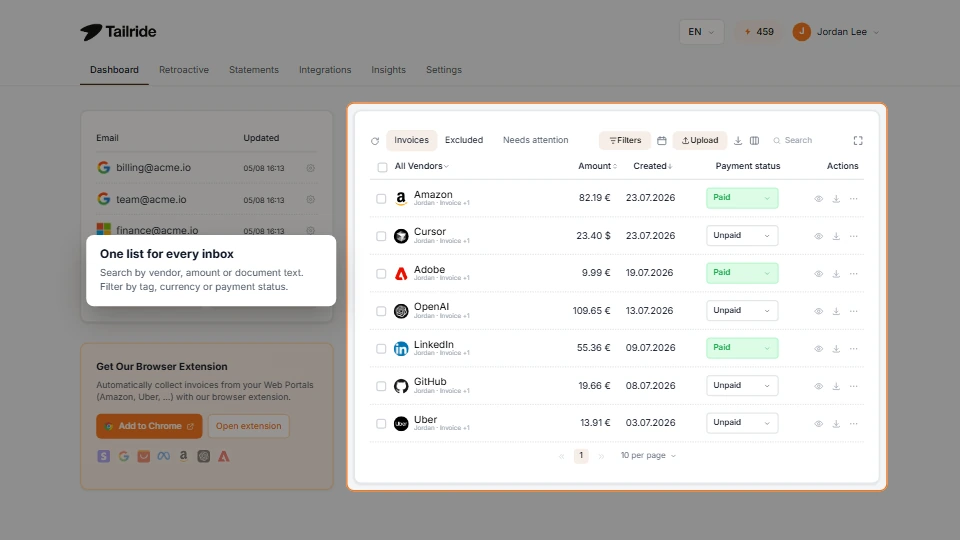
Illustrative Tailride dashboard: connected inboxes and collected invoices appear in one view before delivery to Pennylane.
Email delivery is the last step in Tailride's part of the workflow. Tailride first brings supplier invoices together from the places where they actually arrive. You can connect an inbox so it can find bills in incoming mail, and add supported supplier portals for documents that never appeared in that inbox. That matters when a company pays for software, advertising and other services through different accounts: a forwarding rule in one mailbox cannot collect a PDF that is waiting behind a portal login.
Tailride then keeps the collected documents in one place for you to review. You can check the invoice and its extracted details before relying on the onward delivery. Once an invoice has been processed, Email Routing sends its PDF to the address configured for Pennylane. Pennylane takes over from there: its own import and review workflow determines what becomes a supplier invoice in your accounts.
For example, imagine a software bill that arrives by email and an advertising invoice available only in a vendor portal. Connect both sources in Tailride, verify that the documents are collected, and use the same Pennylane supplier address as their destination. Your team no longer has to download one PDF from a portal and forward the other from an inbox every month. If all your suppliers already email their invoices to one place and your mailbox rule reliably delivers them to Pennylane, the simpler direct route may be enough.
Set up Tailride to send invoices to Pennylane
-
Copy your purchase-invoice address from Pennylane. Use the address ending in @suppliers.pennylane.com, not the one for customer invoices.
-
Connect the sources you want Tailride to collect. Add the relevant email accounts and supplier portals. Start with one source you can use for a test invoice.
-
Open Integrations → Email Routing in Tailride. Activate the Email Routing add-on if it is not active, then open its settings.
-
Set the destination. Turn on Enable Email Forwarding and Automatic Sending, then paste your company's Pennylane supplier-invoice address into Forwarding Email Address. The subject template can stay as it is. Routing rules are optional for a single destination; you do not need to create one for this setup.
-
Save and test with one invoice. Let Tailride process a supplier invoice, then check Purchases → Supplier invoices in Pennylane. Review the supplier, amount, date and document before relying on the automated flow.
The screenshot shows step 4 in Tailride's web interface. The visible Pennylane address is fictional and must be replaced with the address generated in your own account.
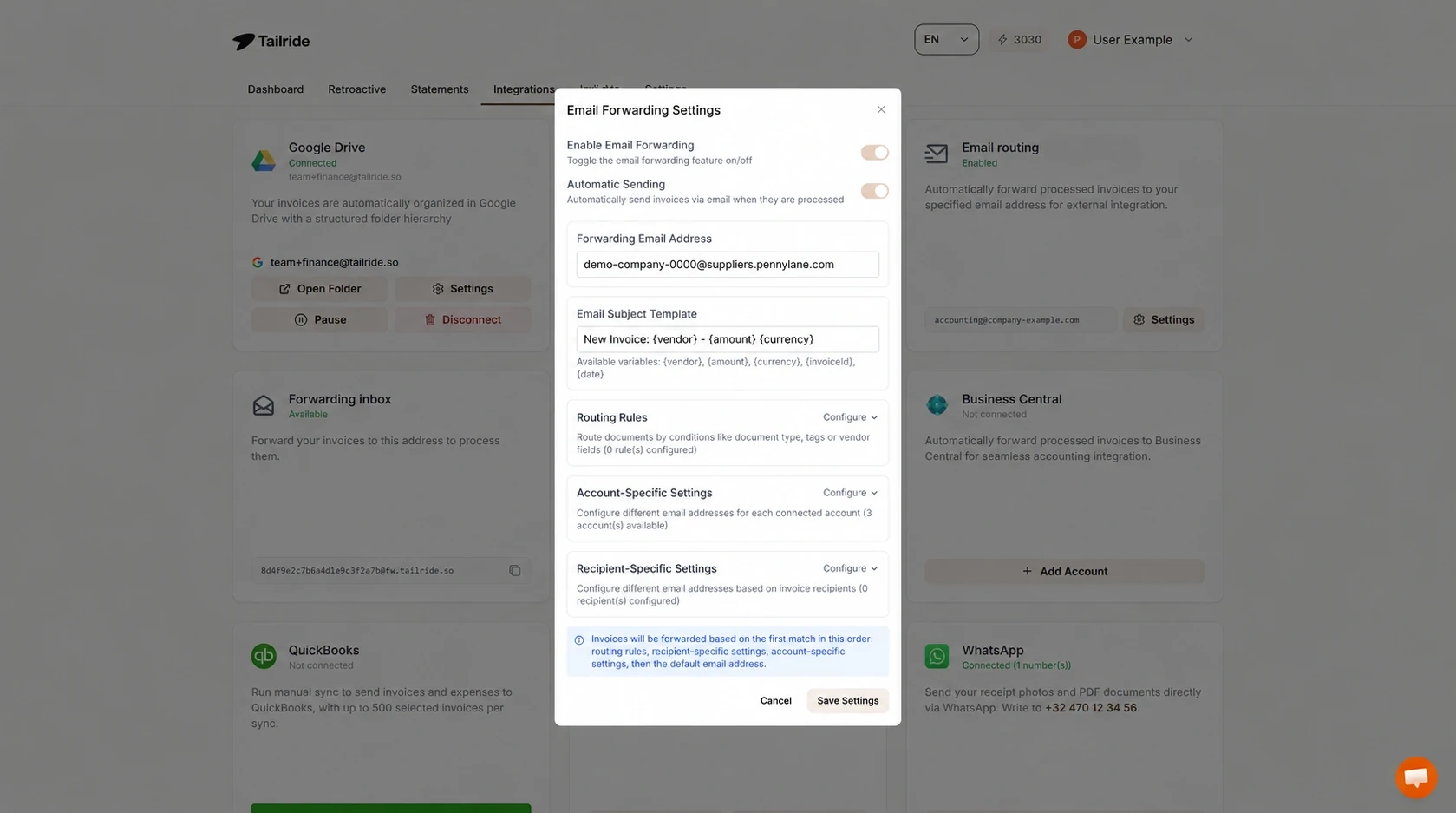
Tailride Email Routing configured to send processed supplier invoices to Pennylane. The address is illustrative; copy your own from Pennylane.
If Tailride is already collecting invoices that Pennylane also receives through a Gmail or Outlook rule, test for duplicate imports before you switch on automatic sending for every source. Choose one delivery route for each supplier or mailbox where possible.
What arrives in Pennylane?
Tailride's Email Routing sends a message with the processed invoice PDF attached to the configured destination. Pennylane imports documents sent to its supplier address into Purchases for review. You can then complete any missing information and continue your normal Pennylane workflow.
This is an email import, not a direct accounting sync. It does not promise that Tailride's extracted fields, account codes or approval decisions become Pennylane fields. Nor does sending a PDF to the supplier address replace France's regulated e-invoicing reception route: Pennylane says emailed documents enter as ordinary supporting documents, while invoices received through its approved platform follow a separate process.
For a straightforward supplier PDF already in your inbox, direct forwarding may be all you need. Tailride is most useful when the collection work is spread across people, mailboxes and vendor sites. Our guide to automatically forwarding invoices to an accountant explains the same collect-then-deliver pattern beyond Pennylane.
If an invoice does not appear
-
Check the address. The purchase address ends in @suppliers.pennylane.com. The @customers.pennylane.com address is for sales invoices.
-
Check both Tailride switches. Email forwarding and automatic sending must both be on. Also confirm that the Email Routing add-on is active.
-
Check that Tailride processed the invoice. A forwarding failure appears in Tailride's Needs attention view, where the send can be retried.
-
Check the right place in Pennylane. Look in Purchases → Supplier invoices and remove restrictive filters. Pennylane may still need you to review or complete the imported document.
-
Check for a second delivery route. A supplier CC, mailbox forwarding rule and Tailride could all send the same invoice. If you see duplicates, simplify the route before sending a backlog.
Frequently asked questions
Can I send supplier invoices to Pennylane without Tailride?
Yes. Pennylane gives your company a unique supplier-invoice email address. You can forward invoices to it yourself, ask a supplier to copy it, or create a forwarding rule in your mailbox.
Which Pennylane address should I put in Tailride?
Use the address generated for purchase invoices, ending in @suppliers.pennylane.com. Do not use the separate @customers.pennylane.com address for customer invoices. The example in our screenshot is not a working address.
Does Tailride connect to Pennylane through an API?
The workflow in this guide uses Tailride's Email Routing add-on. Tailride emails the invoice document to Pennylane's import address. It is not a native API sync of accounting fields.
Can Pennylane import invoices from the body of an email?
Yes. Pennylane says its email import accepts invoices in the message body as well as PDF and supported image attachments. That is a Pennylane capability; it does not mean a portal invoice will reach Pennylane unless something collects and sends it.
Do I need Tailride routing rules for one Pennylane company?
No. Put the supplier-invoice address in the default forwarding field. Add routing rules only if you need different destinations for different documents or entities.
Is this the same as receiving an electronic invoice through Pennylane's approved platform?
No. Pennylane treats documents sent to its supplier email address as ordinary imported supporting documents. Regulated electronic invoices received through the approved platform use a separate channel.
If your supplier bills are scattered across email and portals, connect those sources to Tailride, test one invoice with Pennylane, then let Email Routing handle the repeat sends.
