How to Send Supplier Invoices to Sage BOB 50 via Cloud Demat
Learn how to collect supplier invoices in Tailride and email PDFs to your Sage Cloud Demat dossier for review before Sage BOB 50.

By Tailride · 11 min read · Updated October 2026
If your accountant uses Sage BOB 50 with Sage Cloud Demat, ask them for the purchase-invoice intake email address for your dossier. Add that address to Tailride Email Routing, connect the inboxes and supplier portals where your invoices arrive, and send one test PDF. Tailride handles collection and email delivery. Cloud Demat receives and processes the document; your accountant reviews it before it becomes an entry in Sage BOB 50.
This is an email handoff to Cloud Demat, not a direct Tailride–Sage BOB 50 API connection or automatic posting to the ledger. It can remove repeated downloading and forwarding while keeping the accountant's review in place.
Where does Cloud Demat fit between Tailride and Sage BOB 50?
| Tool | Its role in this workflow |
|---|---|
| Tailride | Finds supplier invoices across connected email inboxes and supported supplier portals, organizes them, and forwards the processed PDF by email. |
| Sage Cloud Demat | Receives documents for the correct client dossier, recognizes their contents and presents them for accounting review. |
| Sage BOB 50 | Receives the accounting work after the Cloud Demat review and synchronization steps used by your accountant. |
Sage describes Cloud Demat as a document and collaboration layer connected to accounting software. Its Cloud Demat FAQ says it complements accounting software. Sage's BOB 50 help describes verification and validation before proposed entries move into BOB 50.
This guide covers Cloud Demat, the cloud document intake used alongside Sage BOB 50. If your practice uses a different Sage intake product or a local BOB-demat workflow, ask your accountant which destination accepts emailed purchase invoices.
Get the right Cloud Demat email address first
Do not guess an address from another company, client or document type. Ask the accountant or Cloud Demat administrator for the address that belongs to your client dossier's purchase invoices. Also ask whether the sending email address needs to be authorized and whether bills, credit notes and receipts should follow separate routes.
Cloud Demat setups can distinguish purchases from other documents. A supplier bill sent to the wrong destination may not appear where the accountant expects it. For the first test, use one ordinary supplier invoice PDF and have the accountant confirm its arrival in the correct dossier.
The address shown in our Tailride screenshot, purchase-invoices@example.com, is fictional. Replace it with the destination supplied for your Cloud Demat dossier. If your accountant already receives the same invoices through another mailbox rule or integration, agree on one primary route before enabling automatic sending.
Decide which documents belong on this route
Before you turn on automatic sending, write down what the Cloud Demat purchase address should receive. For many teams, the core set is supplier invoices issued to the company. Credit notes, card receipts, sales invoices and general correspondence may need a different address or a separate review process. Your accountant can confirm how their dossier is set up.
This decision is especially useful when an inbox contains more than invoices. A generic “forward every attachment” rule can send order confirmations and statements alongside bills. Tailride collects and processes invoice documents, but your team should still check the first examples and agree on exceptions. Keep a short list of sources that Tailride will own: perhaps the shared finance inbox, a manager's purchasing inbox and a few portals that do not email their invoices.
For every source on that list, ask one question: is another system already sending its invoices to Cloud Demat? If so, choose which route to keep. Duplicate delivery creates extra review work even when the PDFs are identical. This source-by-source decision is more reliable than hoping duplicates will be removed later.
What Tailride does before sending to Cloud Demat
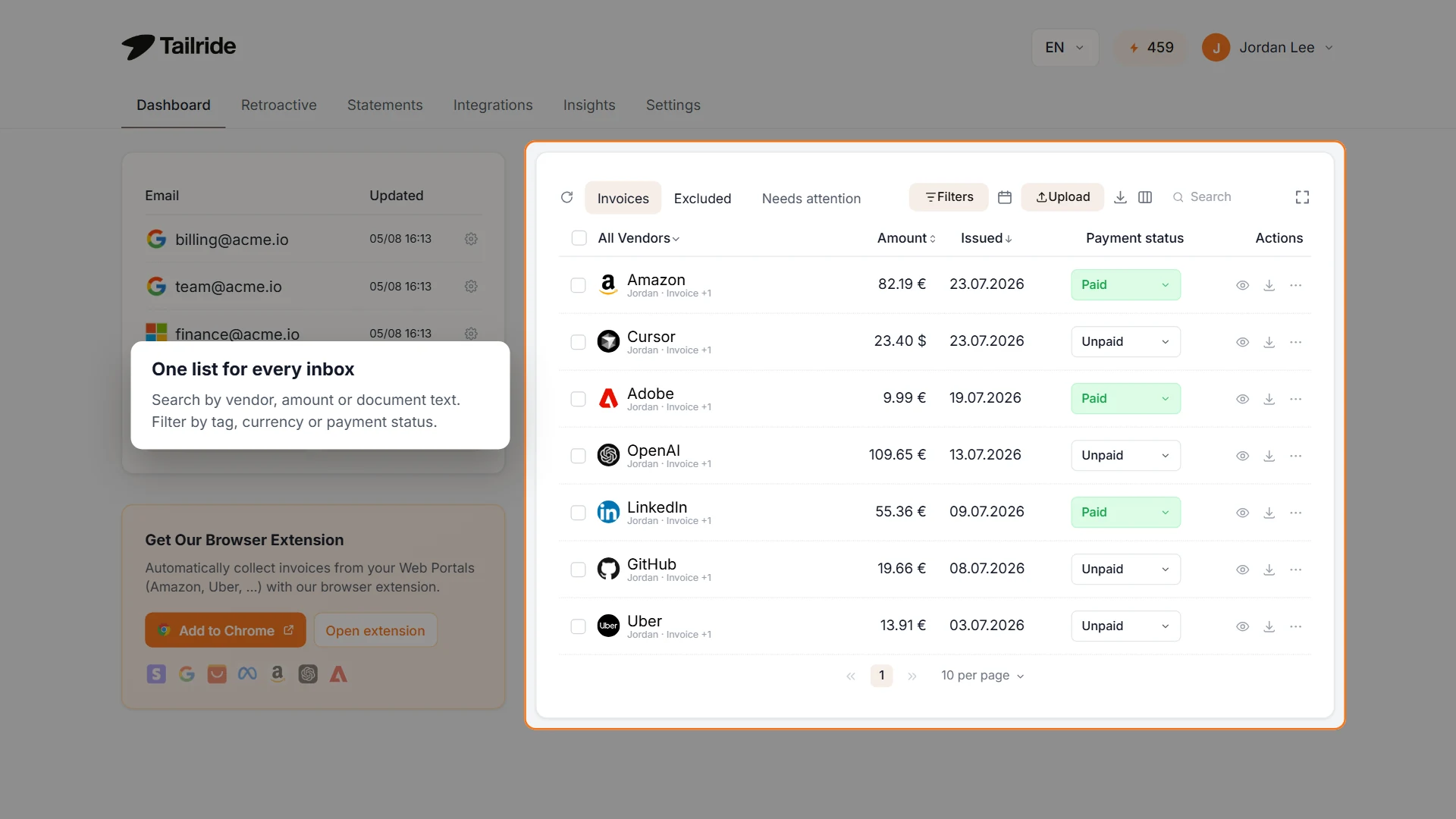
Illustrative Tailride dashboard. The example data shows collection before invoice PDFs are emailed to Cloud Demat.
The forwarding address solves the delivery step. Finding every invoice is a separate problem. One bill may arrive in a shared mailbox; another may be available only after signing in to a supplier portal. Tailride's inbox scanning and supplier portal collection bring those documents into one invoice list, where the team can search and inspect them before onward delivery.
For example, an operations team might receive its hosting invoice by email but have to download an advertising invoice from a vendor account. With both sources connected to Tailride, the handoff can use one Cloud Demat purchase-invoice destination. The dashboard above illustrates that collection view; it is Tailride's web interface, not a Sage screen.
Start with a small set of sources. Check that Tailride finds the invoices you expect and that each PDF is legible. If Cloud Demat already imports from one of those sources directly, leave that source on its existing route or you may send duplicates.
Set up Tailride Email Routing for Sage Cloud Demat
-
Confirm the destination with your accountant. Obtain the purchase-invoice intake email address for the correct Cloud Demat dossier. Check any sender-authorization requirements.
-
Connect the invoice sources in Tailride. Connect at least one email inbox for Email Routing, then add supported supplier portals as needed. Verify that a representative invoice appears in Tailride.
-
Open Integrations → Email Routing. In Tailride's web interface, open the Email Routing settings. Enable Email Forwarding and Automatic Sending if you want processed invoices delivered without a manual action.
-
Enter the Cloud Demat address. Paste the exact address into Forwarding Email Address and save. The subject template can remain as it is unless your accountant asks for a particular format. For one destination, you do not need a routing rule.
-
Run a single-invoice test. Let Tailride process one PDF, then ask the accountant to confirm it arrived in the right Cloud Demat dossier as a purchase document. Check the document and extracted details before broadening the setup.
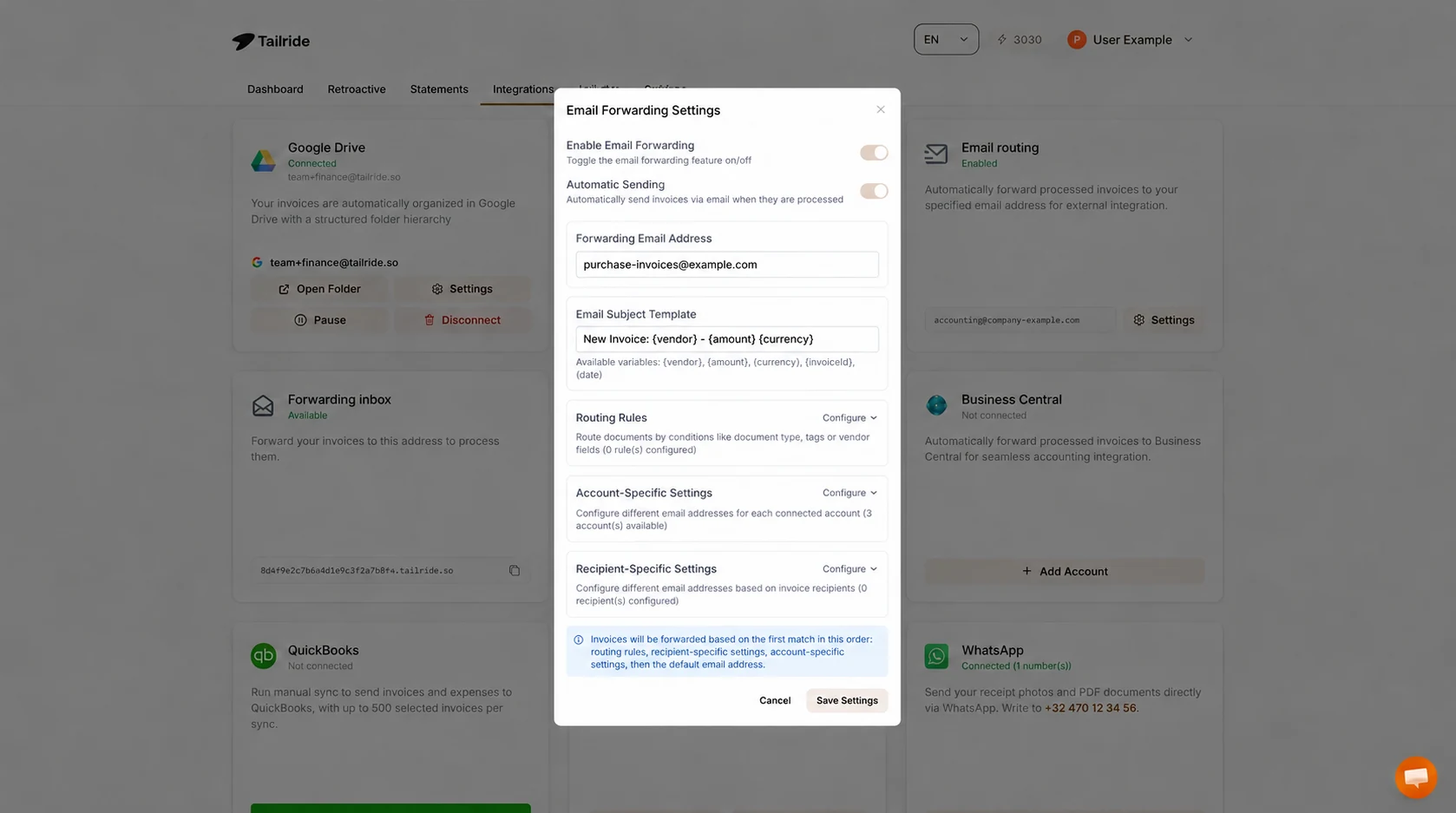
Tailride Email Routing in the web interface. The address is an example, not a live Cloud Demat mailbox; use the one provided for your dossier.
If you prefer to check every invoice before sending it, leave Automatic Sending off and send documents manually from the invoice actions menu. Tailride's Email Routing guide covers the available controls and how failed sends appear in Needs attention.
Run a first test your accountant can verify
A useful test checks more than whether Tailride says “sent.” Choose a recent, ordinary supplier invoice that has not already entered Cloud Demat through another route. Tell the accountant the supplier name, invoice number and approximate sending time. That gives them something specific to search for in the right client dossier.
| Checkpoint | What to confirm |
|---|---|
| Collected in Tailride | The expected invoice and PDF are present, with the correct supplier and recipient. |
| Sent by Email Routing | The destination is the dossier's purchase-invoice address, and Tailride shows no forwarding failure. |
| Received in Cloud Demat | The accountant sees the same document in the intended dossier and document category. |
| Ready for accounting review | The PDF is readable, and the fields Cloud Demat recognized can be checked against it. |
If the invoice is visible in Tailride but absent from Cloud Demat, focus first on the destination and sender. If it appears in the wrong dossier or category, pause automatic sending and correct the address before processing a backlog. If the same invoice appears twice, look for a supplier mailbox rule or direct import that is still active.
After the first successful test, try a second invoice from a different source - for example, one from a supplier portal rather than the finance inbox. This confirms that the collection side, not just the email delivery side, works for the sources you plan to automate. Only then expand to recurring delivery and older documents.
What happens after the email arrives?
Tailride sends the processed invoice PDF as an email attachment to the configured destination. Cloud Demat then handles the document within the relevant client workflow. Sage's BOB 50 documentation describes recognition, enrichment and an accountant's validation of proposed accounting entries before transfer to BOB 50.
Delivered email, document visible in Cloud Demat and accounting entry in Sage BOB 50 are three different milestones. Do not assume a successful send means the bill has already been checked or posted. Cloud Demat-to-BOB synchronization can take time after validation, according to Sage's synchronization help.
Your accountant still confirms the supplier, dates, VAT treatment, amounts and accounting assignment. The PDF is the document passed through this email route; this setup does not send Tailride's extracted fields into Sage BOB 50 as a structured API record.
Keep a clear record of each handoff
The team that collected an invoice and the accountant who books it may work in different systems. It helps to define who checks each stage. One person can monitor whether Tailride found and sent the PDF; the accountant checks intake, extracted details and the resulting accounting work in Sage. When something is missing, that division tells the team where to start looking.
A successful email send confirms delivery from Tailride's side, but it does not establish that Cloud Demat classified the file correctly or that BOB 50 has a finalized entry. Conversely, an invoice present in Cloud Demat does not tell you whether it was sent by Tailride, a supplier or another mailbox rule. For the first few invoices, compare the invoice number and PDF across the two systems. A simple test log with supplier, invoice number, source, sending date and accountant confirmation is enough.
Keep the original PDF available to the reviewer. It is the common reference if a date, supplier name or VAT amount was recognized incorrectly. The accountant's validation remains part of the process; the point of automation here is to spare the team repetitive collection and delivery work.
Multiple companies or document routes
An accounting practice may manage several client dossiers, each with its own intake address. Tailride supports routing rules as well as account-specific and recipient-specific email settings. Use them when invoices from different companies genuinely need different destinations. A rule can consider a document type, tag or vendor field; the first matching rule takes precedence over more general settings.
Keep the first configuration simple: one company, one purchase-invoice address and one verified test. Add a second destination only when you can identify its invoices reliably. A vendor name alone is a poor way to distinguish two legal entities that buy from the same supplier; check recipient or source-account information where available.
For a mixed document flow, agree with the accountant which types should reach the purchase intake. Credit notes, expenses and sales invoices may have separate Cloud Demat destinations or review procedures. Test each route with a representative document and avoid sending the same PDF through Tailride and another importer.
If an invoice does not show up in Cloud Demat
-
Check the destination. Recopy the complete purchase-invoice address for the right dossier. The screenshot address cannot receive real invoices.
-
Check the sender. Ask whether Cloud Demat accepts mail from the address Tailride uses to send documents for your account.
-
Check Tailride. Confirm that the invoice was collected and processed, both forwarding switches are set as intended, and there is no failure in Needs attention.
-
Check the document. Send one normal PDF with a clear invoice, then have the accountant look in the purchase-document intake for the correct dossier.
-
Check for duplicate routes. A supplier email rule, direct Cloud Demat import and Tailride forwarding can all deliver the same document.
Frequently asked questions
Can Tailride send invoices directly into Sage BOB 50?
This guide uses an email address for Sage Cloud Demat, which works alongside Sage BOB 50. The accountant reviews and validates the document in the Sage workflow before it reaches BOB 50. It is not a direct API posting connection.
Where do I find the Cloud Demat forwarding address?
Ask the accountant or Cloud Demat administrator responsible for your dossier. Request the address for purchase invoices specifically, plus any sender-authorization instructions. Do not reuse another company's address.
Do I need a routing rule for one company?
No. Put the confirmed address in Tailride's default Forwarding Email Address field. Rules are useful when documents must go to different dossiers or document-type destinations.
Will sending an invoice by email create a finalized BOB 50 entry?
No. Email delivery begins the Cloud Demat intake. Recognition, review, validation and synchronization are separate steps in the accountant's workflow.
Can I use an ordinary mailbox rule instead of Tailride?
Yes, if the relevant invoices all arrive in one inbox and a simple rule sends the right PDFs to the correct Cloud Demat address. Tailride is most useful when invoices are scattered across several inboxes or supported supplier portals and you want one place to review what was collected.
Should I send historical invoices immediately after setup?
First confirm one recent invoice end to end and check for existing imports. If you then send older invoices, agree on a date range and a single collection route with your accountant so they can distinguish new documents from ones already present in Cloud Demat.
Can we send invoices from supplier portals as well as email?
Yes, for portals supported by Tailride. Collect the invoices in Tailride, then use the same email route to pass their PDFs to the correct Cloud Demat address. Check the supported integrations for your suppliers.
Once the accountant has confirmed the right destination, connect your invoice sources to Tailride, send one test PDF and verify each handoff: Tailride, Cloud Demat, then the reviewed Sage BOB 50 workflow.
