
How to Print a Walmart Receipt Online & Automate Expense Tracking
Walmart Online Receipt. Find and print receipts from Walmart online orders. Access your proof of purchase from the app or website quickly.


How to Print a Walmart Receipt Online (and How to Automate It for Business)
To print a Walmart receipt online, log in to Walmart.com, go to Account → Purchase History, open your order, and press Ctrl+P (Windows) or Cmd+P (Mac) to print or save as PDF. The whole process takes under two minutes.
If you're doing this once, you're done. Keep reading for the full step-by-step, mobile instructions, and guest checkout recovery. If you're doing this every month for a business, skip straight to the automation section.
🚫 Stop Fetching Walmart Receipts Manually
If you're a business owner, accountant, or bookkeeper, logging into Walmart.com to download receipts one by one isn't just inconvenient - it's a measurable cost. Multiply it across Amazon, Target, Staples, and every other vendor your business uses, and you're looking at 10–25 hours per month spent on tasks that add zero value.
Tailride connects to your email inbox and automatically captures every Walmart receipt - along with receipts from 100+ other vendors - and pushes them directly into your accounting software. No portal logins. No manual downloads. No chasing clients for missing receipts.
→ Automate email receipt extraction with Tailride
→ Built for accounting firms: see the accountants solution
TL;DR: Print Your Walmart Receipt in 5 Steps
If you're in a hurry, here's the quick version:
1. Log in to Walmart.com (or open the Walmart app)
2. Go to Account → Purchase History
3. Find your order and click View Details
4. Press Ctrl+P (Windows) or Cmd+P (Mac) to open print dialog
5. Print to paper or Save as PDF for digital filing
Time needed: 1–2 minutes
Works for: Online orders from Walmart.com (desktop and mobile)
Guest checkout? See the section below on tracking orders without an account.
Keep reading for detailed instructions, mobile app steps, troubleshooting tips, and how to handle in-store receipts.
Why You'd Need a Printed Walmart Receipt
Even in a digital world, there are still plenty of situations where a physical or PDF copy of your receipt is essential:
-
Expense reports and reimbursement - If you're buying office supplies, equipment, or client materials from Walmart, a printed receipt is usually required for accounting and payroll
-
Returns and exchanges - While you can use the app, a printed receipt at the customer service desk speeds up the process
-
Warranty claims - Manufacturers almost always require proof of purchase to honor warranties
-
Tax documentation - Business owners need receipts to support deductions for equipment, supplies, and other business purchases
-
Client billing - If you're rebilling Walmart purchases to clients, you'll need itemized receipts
-
Budget tracking - Physical or digital records help with household or business financial planning
Walmart's massive online presence ($648 billion in recent annual revenue with a huge chunk from e-commerce) means they've built robust tools to access your purchase history going back several years.
Receipt Printing Methods at a Glance
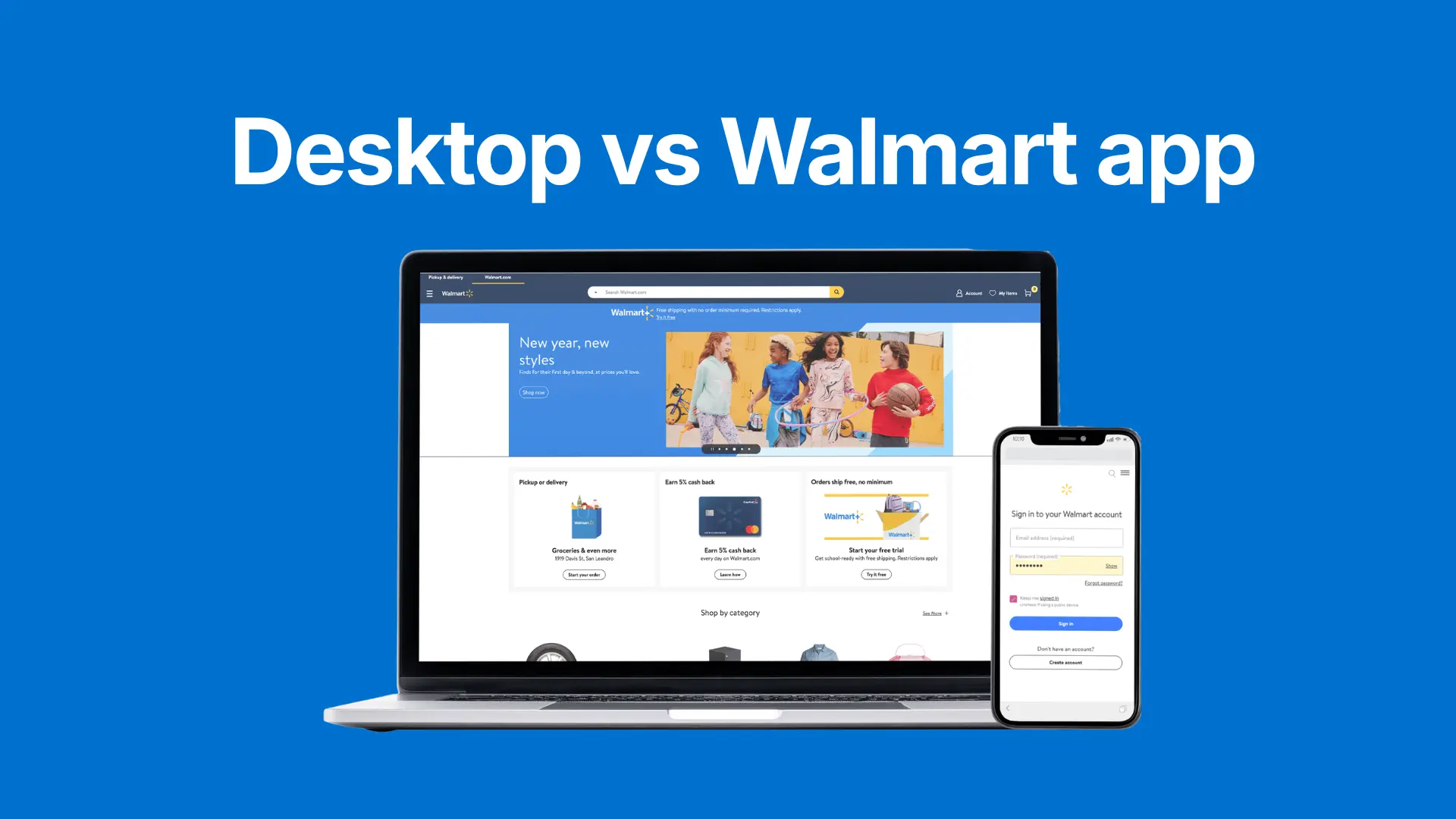
| Method | Best For | Key Steps |
|---|---|---|
| Desktop Website | Printing full-page receipts for official records (taxes, warranty, accounting) | Log in → Purchase History → View Details → Ctrl+P or Save as PDF |
| Walmart Mobile App | Quickly saving a digital copy (PDF) to your phone or wireless printing | App → Account → Purchase History → Share icon → Save/Email/Print |
Both methods work perfectly. Desktop generally gives you more control over formatting, which is important for official paperwork and accounting.
Step-by-Step: How to Print a Walmart Receipt Online
When you need a clean, full-page printed receipt for an expense report, warranty registration, or tax records, the desktop method is your best bet. Note that Walmart provides no bulk export - every receipt requires its own 4–5 click sequence, which is why businesses with recurring purchases increasingly rely on automated fetching instead.
Step 1: Log in and find Purchase History
1. Go to Walmart.com
2. Click your account icon in the top-right corner
3. Select Purchase History from the dropdown menu
This page is your complete digital filing cabinet for every online order you've made, organized by date.
Step 2: Find the right order and view details
1. Scroll through your purchase history to find the order you need
2. Click View Details next to that order
3. This opens a new page with your full, itemized receipt: payment method, shipping info, item breakdown, taxes, and totals
Step 3: Print or save as PDF
Now you're ready to print. This is handled by your web browser, not Walmart's site:
-
Click the menu icon (three dots or lines) in your browser and select Print
-
Or use the keyboard shortcut: Ctrl+P (Windows) or Cmd+P (Mac)
-
A print preview window will appear
Pro tip: No printer handy? In the print preview window, change the destination from your printer's name to "Save as PDF." This creates a perfect digital copy you can email to your accountant, upload to your expense system, or save to cloud storage.
How to Print a Walmart Receipt From Your Phone (iPhone & Android)
The Walmart app is the fastest way to access receipts when you're on the go - perfect for those moments when you need proof of purchase right now.
Step 1: Open the app and navigate to Purchase History
1. Open the Walmart app
2. Tap the Account icon (usually at the bottom of your screen)
3. Select Purchase History
This digital archive contains every purchase you've made through the app or online, going back years.
Step 2: Select your order
1. Scroll to find the order you need
2. Tap on it to open the full, detailed receipt
Step 3: Share, save, or print
You won't see a big "Print" button. Instead, use your phone's sharing features:
1. Look for the Share icon (usually a box with an arrow)
2. Choose what to do with your receipt:
-
Save as PDF - Send to Files (iPhone) or Google Drive (Android) for a clean digital copy
-
Email directly - Select your email app and send it instantly
-
Print wirelessly - Use AirPrint (iOS) or Android's print service if you're connected to a compatible printer
This mobile-first approach is incredibly powerful. You can pull up a receipt, save it to cloud storage, and email it to your accountant in under 60 seconds.
Printing Walmart receipts every month for expense reports? If you're also downloading receipts from Amazon, Target, Staples, and other retail suppliers, you're spending hours on manual downloads. Tailride connects to your email and online portals to automatically capture every receipt and organize them for your accounting software. See how Tailride automates retail receipts →
How to Get Walmart Receipts from Email
Every Walmart online order automatically triggers a confirmation email to the address on your account. That email contains your complete itemized receipt - the same data you'd find in Purchase History - and it lands in your inbox within minutes of placing the order.
This means your Walmart receipts already live in two places: the Walmart portal and your email. For occasional use, just search your inbox for "Walmart order confirmation" or "Your Walmart.com order" and you'll find every receipt going back years, no portal login required.
For businesses and accounting teams, this is where automation changes everything.
Tailride connects directly to your email inbox and automatically identifies every Walmart receipt - along with receipts from Amazon, Google Ads, Stripe, Shopify, and 100+ other vendors - the moment they arrive. It extracts the structured data (vendor, date, amount, line items, tax) and routes each receipt into your accounting software without any manual steps. On setup, it also scans retroactively, importing your entire receipt history from day one.
The result: your team never logs into Walmart.com to download a receipt again.
→ See how Tailride extracts receipts from your inbox automatically
Managing Walmart Receipts for Business & Accounting
If you're buying from Walmart regularly for business purposes, treating each receipt as a one-off task adds up fast.
Why businesses buy from Walmart
-
Office supplies - Paper, pens, folders, organizers
-
Equipment and tools - Printers, monitors, cables, small hardware
-
Client materials - Gift items, packaging supplies, event materials
-
Team supplies - Snacks, coffee, cleaning products for the office
-
Project expenses - Materials for client work that get rebilled
What your accountant needs from Walmart receipts
-
Itemized list - What exactly was purchased (to properly categorize expenses)
-
Date of purchase - To assign the expense to the correct accounting period
-
Total amount and tax - For accurate books and tax calculations
-
Payment method - To match against bank or credit card statements
A printed or PDF Walmart receipt includes all of this information, making it a complete, audit-ready document.
Organizing receipts for monthly accounting
1. Create a dedicated folder structure: "Business Receipts" → subfolders by vendor ("Walmart," "Amazon," etc.) or by month
2. Rename files consistently: Use a format like Walmart_Receipt_2026-02-12.pdf so files sort chronologically
3. Set a monthly routine: Dedicate 15–30 minutes at month-end to download and organize all receipts
This habit saves massive headaches at tax time and during audits.
When automation makes sense
If you're managing receipts from 5–10+ vendors every month, manual downloading becomes a time drain. Automation tools can:
-
Connect to your email and portals
-
Auto-capture receipts as they arrive
-
Extract structured data (date, vendor, amount, items)
-
Sync directly to QuickBooks, Xero, or your accounting system
For businesses and accounting professionals, this can save 10–20 hours per month on receipt collection alone.
How to Get a Walmart Receipt Without an Account (Guest Checkout)
Checked out as a guest and now need the receipt? No problem. Your receipt isn't lost - it's in your email.
Step 1: Find your order confirmation email
When you place an order as a guest, Walmart automatically sends an order confirmation email to the address you used at checkout. Open that email and locate your order number - it's the key piece of information you'll need.
Step 2: Use the Order Tracking page
1. Go to Walmart's Track My Order page (walmart.com/track)
2. Enter the email address you used at checkout
3. Enter your order number from the confirmation email
4. Click to view your order
Your complete order summary will appear, showing everything you bought, payment method, and shipping details.
Step 3: Print or save
Once your order appears, you can print it just like any other receipt:
-
Use Ctrl+P or Cmd+P to print
-
Or save as PDF for digital filing
This digital receipt serves as official proof of purchase, even without a Walmart account. It works for returns, warranties, and expense reports.
How to Get In-Store Walmart Receipts (Not Online Orders)
This guide focuses on online orders, but many people also need receipts from in-store purchases. Walmart offers a receipt lookup tool for this:
Using Walmart Receipt Lookup
1. Visit walmart.com/receipt-lookup
2. Enter the store location where you shopped
3. Enter the purchase date
4. Enter the last 4 digits of the payment card you used
5. View and download your receipt
This tool works for purchases made in physical Walmart stores, not online orders.
Important: The receipt lookup requires the exact payment card used. If you paid with cash or can't remember which card, this method won't work. In that case, visit the customer service desk at the store with your card or payment confirmation.
For more details on finding old Walmart receipts (both in-store and online), see our complete guide on how to find Walmart receipts.
Troubleshooting: Common Receipt Printing Problems
Problem 1: Receipt won't download or print (nothing happens)
Cause: Your browser's pop-up blocker is blocking the download.
Fix: Look for a small icon in your address bar indicating a blocked pop-up. Click it and allow Walmart.com to open new windows, then try printing again.
Problem 2: Order is missing from Purchase History
Cause: You checked out as a guest instead of logging into your account.
Fix: Use the "Track My Order" page with your email and order number (see the Guest Checkout section above).
Problem 3: Print preview looks jumbled or cut off
Cause: Browser print settings are incorrect.
Fix:
-
Try a different browser (if Chrome doesn't work, try Firefox or Edge)
-
Check the Scale setting in print preview - set it to 100% or Fit to Page
Problem 4: Can't find an old order
Cause: Long purchase history makes it hard to locate specific orders.
Fix:
-
Use date range filters to narrow the timeframe
-
Search by order number if you have the confirmation email
-
Check the "Canceled Orders" tab - completed orders occasionally get misfiled there
Walmart keeps your purchase history for several years, so the receipt is almost certainly in the system - it's just a matter of finding the right search method.
Automate Your Walmart (and Other Retail) Receipts
Printing one receipt per month is manageable. But if you're an accountant, bookkeeper, freelancer, or business owner managing receipts from multiple vendors, the manual process becomes a serious time drain.
The Problem: Receipt Collection Hell
Every month, you (or your team) need to:
-
Log into Walmart.com and download receipts
-
Log into Amazon and download receipts
-
Log into Target, Staples, Home Depot, Costco...
-
Download, rename, and file each one
-
Enter data into accounting software or expense reports
Time cost: 5–10 minutes per vendor × 10–15 vendors = 1–2.5 hours per month per person.
For accountants managing 10 clients, that's 10–25 hours per month spent on receipt downloads alone.
The Tailride Solution
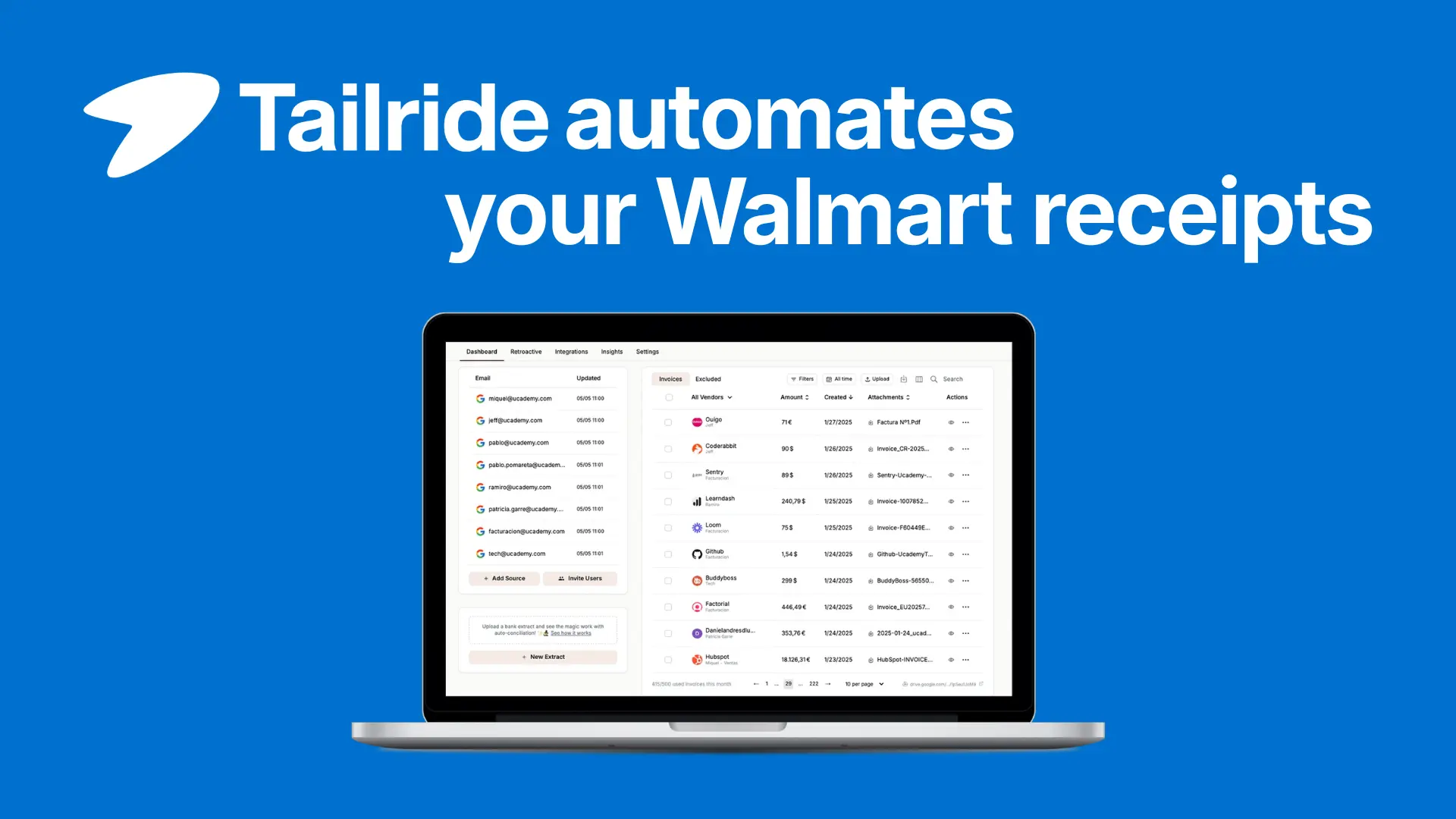
1. Connect once - Link your email accounts and retail portals (Walmart, Amazon, Target, etc.)
2. Automatic retrieval - Tailride scans your inbox and portals to fetch receipts - retroactively and ongoing
3. Data extraction - AI pulls structured data (vendor, date, amount, items, tax) from each receipt
4. Centralized dashboard - All receipts in one searchable place, organized by vendor and date
5. Accounting integration - Push receipt data directly into QuickBooks, Xero, or your ERP system
Result: Instead of logging into 15 vendor sites every month, you just open Tailride and see all receipts ready to export or sync.
Who This Is Built For
-
Accountants and bookkeepers managing receipts for multiple business clients
-
Small business owners tracking office supplies, equipment, and operational expenses
-
Freelancers and agencies expensing materials or rebilling retail purchases to clients
-
Finance teams reconciling corporate purchasing cards across departments
Try Tailride's Retail Receipt Automation Free →
Common Questions About Walmart Receipts
How long does Walmart keep my online purchase history?
One of the best perks of having a Walmart account is that they keep your online purchase history for several years. If you need proof of purchase for a warranty claim on a washing machine you bought two years ago, you can likely still find it by filtering your purchase history by date.
Can I get a receipt if I paid with a gift card?
Yes. How you paid doesn't change anything. Whether you used a credit card, PayPal, or a Walmart gift card, the order details are logged in your account the same way. Your receipt will show every item you bought and list the gift card as the payment method - completely valid proof of purchase.
Is a printed online receipt valid for in-store returns?
Absolutely. A printed receipt from your Walmart.com order works just as well as a store-issued one for returns or exchanges, as long as you're within the return window. Just bring the printed sheet with your item to the customer service desk.
What do the codes and numbers on my Walmart receipt mean?
If you're trying to decode your receipt for tax or accounting purposes, our guide on what the tax number on your Walmart receipt means explains all the codes and how to use them for business documentation.
Can I download multiple receipts at once?
Unfortunately, Walmart.com doesn't offer a bulk download option. You need to access each order individually and print or save it. This is where automation tools become valuable - they can bulk-fetch all receipts from your email or portal automatically.
For Accountants & Finance Teams
Managing Walmart (and other retail) receipts for multiple clients? Stop logging into portals manually. Tailride connects to your clients' email and retail accounts (with permission) to automatically fetch all receipts - Walmart, Amazon, Target, Staples, and more.
No more chasing clients for receipts
All receipts centralized, organized by vendor and date
Auto-sync into QuickBooks, Xero, or your accounting platform
Saves 10–25 hours/month on receipt collection
Related Resources
If you're managing receipts from multiple vendors, these guides may also help:
-
How to Find Walmart Receipts - Complete guide to locating old receipts
-
What Is the Tax Number on Your Walmart Receipt? - Decode receipt codes for accounting
-
Best Free Receipt Scanner Apps - Organize physical and digital receipts
Or explore Tailride's receipt automation for Walmart and 100+ other retailers and vendors.