
How to Get an Amazon Invoice in 4 Clicks (2026 Guide)
Get any Amazon invoice in 4 clicks. Where to find it, when it appears, what to do if it's missing - plus bulk download options for finance teams.

Last updated: April 2026 · ~6 min read
Trusted by finance teams and bookkeepers - 10,000+ Amazon invoices processed at a 99.9% success rate. Tailride automates this end-to-end for accounting firms and finance teams.
Need just one invoice for personal records? Follow the 4 steps below.
Processing 50+ Amazon invoices a month? See how Tailride works for finance teams →
TL;DR - Get your Amazon invoice in 4 clicks
An Amazon invoice is the official, itemized financial document required for tax filings, expense reports, and warranty claims - distinct from the order summary that appears in your purchase confirmation email. To download yours:
-
Sign in to your Amazon account
-
Open Your Orders
-
Click Order Details on the relevant purchase
-
Click Invoice in the top-right corner and save the PDF
Invoices typically appear 24–48 hours after the shipping confirmation.
Doing this once? The 4 steps above are all you need.
Doing this monthly? Use the free Chrome extension (built for freelancers and finance pros) or Tailride for accounting firms (multi-client AP automation).
What is an Amazon invoice (and how it differs from an order summary)
An Amazon invoice is a legally compliant financial document listing itemized costs, seller information, tax breakdown (VAT, GST, or sales tax), and your billing address. It's the only Amazon document accepted for accounting, tax filing, and most warranty claims.
| Document | What it contains | Best for |
|---|---|---|
| Order Summary | Quick confirmation of items and total paid | Personal record, immediate confirmation after purchase |
| Invoice | Itemized costs, seller details, tax breakdown, billing/shipping address | Tax filings, expense reports, accounting, warranty claims |
| Packing Slip | List of items in shipment, no pricing shown | Verifying you received everything in the shipment |
For anything official - taxes, business expenses, audit, warranty - only the Invoice is accepted. An order summary won't pass an audit.
How to download an Amazon invoice (full walkthrough)
Step 1 - Sign in to your Amazon account
Go to amazon.com (or your regional site - amazon.co.uk, amazon.de, amazon.fr, etc.) and sign in with the account that placed the original order. Invoices are tied to the purchasing account: if a colleague placed the order, you'll need their access or their forwarded PDF.
Step 2 - Open Your Orders
Click Returns & Orders in the top-right navigation, or go directly to amazon.com/your-orders. Use the date filter (Past 3 Months, Past 6 Months, custom range, or by year) or the search bar - manually scrolling years of order history wastes time, especially for accounts with frequent purchases.
Step 3 - Click Order Details on the relevant purchase
Locate the order and click Order Details on the right side of the order card. This opens the full breakdown of the purchase, including shipment status, payment method, and document links.
Step 4 - Click Invoice in the top-right corner
On the Order Details page, look for Invoice in the top-right corner of the order box. This is the most common stumbling point: the link is visually subtle, and people often grab the order summary by mistake. Make sure you're clicking the link explicitly labeled "Invoice".
Step 5 - Save or print the PDF
Clicking the Invoice link opens a printable, official PDF in your browser. Use your browser's save dialog or print-to-PDF function to download it locally - give it a meaningful filename like amazon-invoice-2026-04-15-orderID.pdf to keep your records searchable later.
Pro tip: the Invoice link only appears for orders that have already shipped. For pre-orders, digital purchases, or orders placed within the last 24 hours, you'll see only the order summary. If the link is missing, see the troubleshooting section further down this page.
How this scales: manual vs automated
| Manual download | Tailride | |
|---|---|---|
| Time per 100 invoices | 5–8 hours | ~10 minutes |
| Output | PDF only | PDF + structured line items + VAT, ready for QuickBooks/Xero |
| Multi-client / multi-account | One login at a time | Single dashboard for all client books |
Full breakdown of time savings, audit-readiness, and ROI in The hidden cost of manual invoice processing further down this page.
Is manual download enough for your situation?
The five steps above work for everyone, but how much time you'll spend on them depends entirely on volume. Pick the scenario that fits:
You only need an occasional invoice for personal expenses or warranty. The walkthrough above is all you'll ever need. Bookmark this guide and you're done.
You're a freelancer or solo founder with several dozen Amazon purchases each month. Manual download starts costing real time at this volume. A free Chrome extension can pull every invoice from your account in a single click - see the Amazon Invoice Downloader tool. It runs entirely in your browser using your existing Amazon session, so credentials are never stored.
You're a bookkeeper or accountant handling Amazon invoices across several clients. Hopping between client portals doesn't scale - especially during month-end close or tax season. Tailride is built specifically for accounting firms managing multiple client books - see AP automation for accounting firms.
You run finance or AP for a growing company with dozens of vendors beyond Amazon. You need a unified workflow for both portal-based invoices (Amazon, Meta Ads, AWS) and email-based invoices (Stripe, suppliers, contractors). See how Tailride works for accounting and finance teams.
If you've identified your scenario and clicked through, you're set. The sections below cover edge cases, troubleshooting, and how to read the invoice itself - useful reference for the times you do still pull one manually.
When the invoice isn't available yet
Amazon generates the official invoice after your order ships, typically within 24–48 hours of the shipping confirmation email. Before that point, you'll see only an order summary.
Edge cases with different timelines:
-
Digital downloads (Kindle eBooks, audiobooks, software) - invoice usually available within a few hours of purchase, sometimes immediately.
-
Subscribe & Save orders - invoice generated per shipment, not per subscription enrollment. Wait for the shipping notification.
-
Pre-orders - invoice not generated until the item ships at release date.
-
Marketplace (third-party seller) orders - timing depends on the seller (see next section).
How to get an invoice from a third-party seller
For purchases sold by a third-party Amazon seller (anything not "Sold by Amazon.com Services LLC" or your regional Amazon entity), the seller is responsible for issuing the invoice. The standard Invoice link is replaced by a Request Invoice button.
What to do:
-
Click Request Invoice on the Order Details page - this sends a direct message to the seller.
-
Most sellers respond within 1–3 business days with the invoice attached.
-
If there's no response after 3 business days, contact the seller directly via their seller profile page.
-
If the seller is still unresponsive, escalate through Amazon Customer Service. Amazon can pressure non-responsive sellers to comply with their invoice obligations.
How to read your Amazon invoice (key fields explained)
Once you've downloaded the PDF, the document contains the fields your accountant or tax authority will ask for:
-
Order ID - unique identifier for the purchase, used for any support inquiry.
-
Sold by - either "Amazon.com Services LLC" (or your regional Amazon entity) or the third-party seller's legal name and address.
-
Itemized costs - each product's pre-tax price, listed separately from shipping and tax.
-
Tax lines - the exact VAT, GST, or sales tax amount paid, broken out by rate. Critical for tax-deductible business expenses.
-
Billing address - the address tied to your payment method.
-
Shipping address - where the order was delivered.
-
Payment method - usually the last 4 digits of the card used.
For business accounting, the line that matters most is the tax breakdown - without it, expense claims are routinely rejected by finance teams or auditors.
Common Amazon invoice problems (troubleshooting)
I can't see the Invoice link
Most often a timing issue - wait 48 hours after the shipping confirmation. Other causes: the order is digital and uses a different document template; the order is a marketplace purchase with a Request Invoice button instead; or you're logged into a different Amazon account than the one that placed the order.
The invoice has the wrong billing name or address
You'll need to contact Amazon Customer Service (for items sold by Amazon) or the third-party seller directly. Provide the Order ID and the corrected information. Amazon generally won't modify invoices more than 6 months after the order - request corrections promptly.
I need an invoice for a gift I sent
The invoice stays with you, the buyer. The recipient only sees a packing slip without prices. Sign into your own account, go to Your Orders, find the gift purchase, and download the invoice from Order Details as you would for any other order.
I need a single combined invoice for multiple orders
Standard Amazon accounts generate one invoice per shipment, even when multiple items were ordered in the same checkout. There's no built-in option to combine. Amazon Business accounts have bulk export and consolidated reporting features - for company purchasing, see the Amazon Business invoice downloader.
My Amazon account is suspended
Invoice access is blocked while the account is suspended. Contact Amazon's account specialist team via the official help center. If you need invoices for accounting urgently, your bank or credit card statement can serve as supporting evidence in the interim - though it's not equivalent to a formal invoice for audit purposes.
The hidden cost of manual invoice processing
Manual invoice download takes 3–5 minutes per Amazon invoice once you account for navigation, login confirmation, PDF saving, and renaming. For a bookkeeping firm processing 200 Amazon invoices across 10 clients each month, that's 10–17 hours of billable time spent on document retrieval alone - before any data entry, categorization, or reconciliation. For an in-house finance team handling end-of-month across 50+ vendors, the figure compounds quickly.
Tailride is purpose-built for accounting workflows, collecting the same Amazon invoices in roughly 20 minutes per month, including line items, VAT details, and vendor information ready for QuickBooks, Xero, or your ERP. Documents are pulled in your browser using your existing session - credentials never leave your machine.
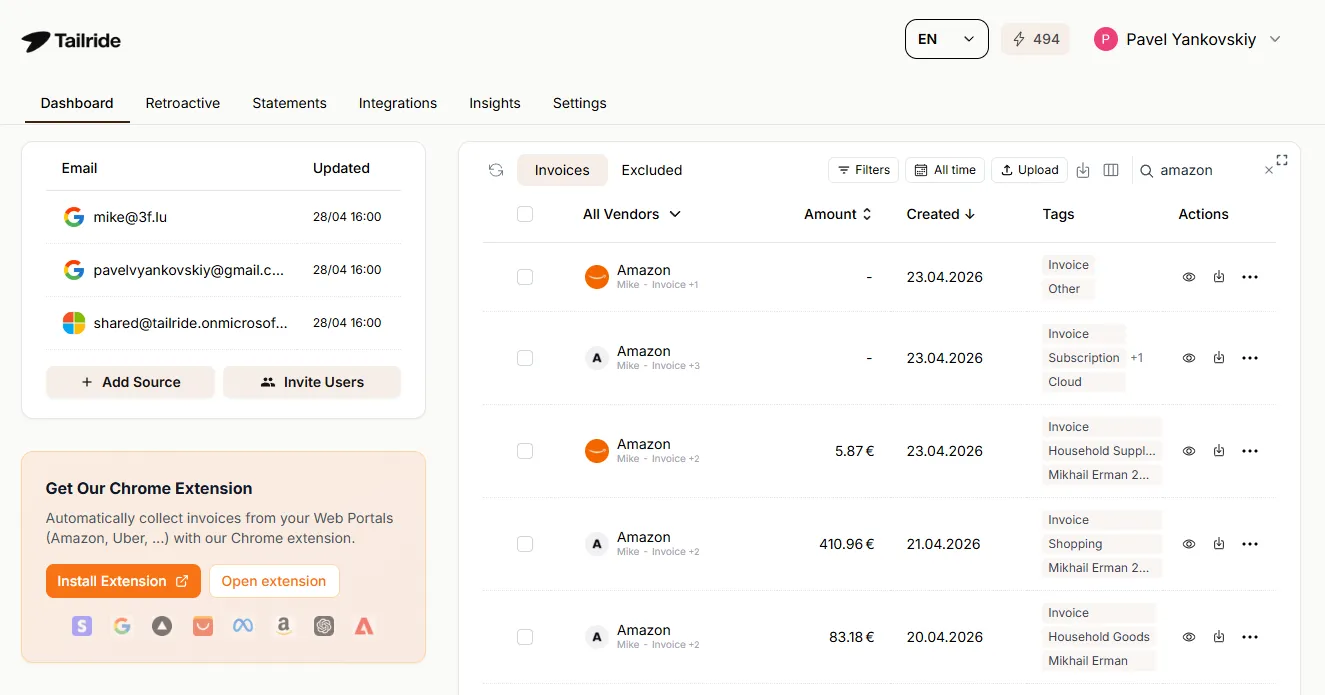
Manual download vs Tailride
| Manual download | Tailride | |
|---|---|---|
| Time per 100 invoices | 5–8 hours (3–5 min × 100, plus context switching) | ~10 minutes (one bulk run) |
| Risk of missed invoices | High - date-filter gaps, page-by-page navigation, third-party seller exceptions | Near zero - full backlog scan, automatic pagination, third-party detection |
| Output format | PDF only | PDF + structured line items + VAT details + vendor metadata |
| Audit-ready export | No - manual rename and folder sort required | Yes - direct sync to QuickBooks, Xero, Google Drive, or ERP |
| Credentials handling | Stays in your browser (manual session) | Stays in your browser (no password storage, runs in your existing session) |
| Multi-client / multi-account | One login at a time | Built for accounting firms with multiple client books |
Pick the path that fits your scale
| For finance pros & freelancers | For accounting firms & AP teams |
|---|---|
| Free Chrome extension. No login storage. Bulk export to QuickBooks, Xero, or Google Drive. Built for individual finance pros and small teams. | Multi-client workflows. Vendor portals + email inbox in one dashboard. QuickBooks / Xero sync. Built for accountants. |
| Install free Chrome extension → | See it for accounting firms → |
FAQ
How long does it take for an Amazon invoice to be available?
Amazon generates the official invoice 24–48 hours after the shipping confirmation email for physical items. Digital purchases generate an invoice within hours. Pre-orders and Subscribe & Save items get an invoice only after the actual shipment.
Is an Amazon order summary the same as an invoice?
No. The order summary is a confirmation receipt of what you bought and paid; the invoice is the formal financial document with seller details, tax breakdown, and billing address. Tax authorities and accountants only accept the invoice.
How do I get an invoice for a gift order?
The invoice stays with the buyer's account. Sign into your own Amazon account, open Your Orders, find the gift purchase, and download the invoice from Order Details. The recipient never sees pricing - they only get a packing slip listing what was sent.
Can I download all my Amazon invoices at once?
Standard accounts don't offer native bulk download - each invoice has to be opened individually. The Tailride Amazon Invoice Downloader is a free Chrome extension that pulls every invoice in your order history at once, including past years of backlog.
Why does my Amazon invoice show "Sold by" a different company?
That order was fulfilled by a third-party marketplace seller, not Amazon directly. The seller is responsible for the invoice and tax compliance. If something is wrong on the document, contact the seller through their profile page rather than Amazon.
Can I edit billing details on an existing invoice?
You can't self-edit a generated invoice. Contact Amazon Customer Service (for items sold by Amazon) or the third-party seller within 6 months of the order, and provide the Order ID along with the corrected information. They'll issue a revised PDF.
Do I need an Amazon Business account to get a VAT invoice?
No - regular accounts in eligible regions also receive VAT invoices, though Business accounts give cleaner bulk download and proper tax-ID population. If your company buys regularly, see the Amazon Business invoice downloader for the dedicated workflow.
Can I capture invoices from my email instead of vendor portals?
Yes. If you receive invoices as email attachments from suppliers, you can extract PDF invoices from your inbox automatically, alongside portal-based extraction for Amazon and other vendor portals - covered in a single workflow.