How to Extract Invoices From Outlook Automatically (2026)
Extract invoices from Outlook automatically - with rules, Power Automate, or Tailride, which reads them and posts to your books.

From your inbox to your accounting system - without forwarding, downloading, or retyping a thing.
The short version: Outlook gives you three native ways to handle invoices automatically - a rule to file invoice emails into a folder, saving attachments (by hand or with a macro), and a Power Automate flow that saves attachments to OneDrive or SharePoint as they arrive. All three move the file; none of them read the data inside it. To get the actual invoice details - supplier, amount, tax, line items - into your books without typing, you need a tool that connects to Outlook and extracts as well as collects.
Tailride does exactly that: connect your Outlook inbox once, and every invoice is captured, read by AI, and pushed into QuickBooks, Xero, or Odoo.
Invoices pile up in Outlook faster than anyone files them. They arrive from dozens of suppliers, some as PDFs, some buried in the email body, some forwarded twice before they reach you. Doing anything useful with them - paying them, coding them, getting them to your accountant - starts with getting them out of the inbox in an organised form. This guide covers every way to automate that in Outlook, from a five-minute rule to a hands-off pipeline, and where each one stops being enough.
First, decide what "automatically" should do
"Automate my invoices in Outlook" can mean three very different jobs, and most frustration comes from picking a method that does a smaller job than you needed:
-
File the emails - get every invoice email out of your main inbox and into one place.
-
Save the files - pull the PDF attachments out and store them somewhere central.
-
Extract the data - turn each invoice into structured fields you can review, pay, and post to your accounting system.
Outlook's built-in tools handle the first two well and the third barely at all. Knowing which job you're actually trying to do tells you exactly how far down this list to go.
Method 1: An Outlook rule to file invoices
The simplest automation in Outlook is a rule that watches for invoice emails and moves them somewhere tidy.
-
In Outlook, open Settings → Mail → Rules (or Rules → Manage Rules in the desktop app).
-
Click Add new rule and give it a name like "Invoices".
-
Set a condition - Subject includes "invoice", or From a known supplier. You can add several conditions for receipts, statements, and the like.
-
Set the action - Move the message to a folder you've created called Invoices.
-
Save it. New matching emails now land in that folder on their own.
This takes five minutes and instantly de-clutters your inbox. Its limits show up fast, though. Keyword matching is blunt: an invoice whose subject says "Your receipt from…" or "Facture" slips straight past a rule looking for the word invoice, while a newsletter that happens to mention invoicing gets swept in. And a rule only moves the email - the PDF is still trapped inside, and not a single field has been read. You've organised your inbox, not processed your invoices.
Method 2: Saving the attachments
If what you actually want is the PDFs, Outlook can save them - the question is how much manual work you're willing to do.
By hand, you open an email, right-click the attachment, and choose Save As, or use Save All Attachments to grab several at once. Fine for a quiet week; unbearable at month-end across a few hundred emails.
On the Windows desktop app, a VBA macro can auto-save attachments from a chosen folder to a local directory as they arrive. It works, but it's desktop-only, breaks when Microsoft updates Outlook, and asks you to maintain a script most finance teams would rather not own. It also still doesn't read anything - you end up with a folder full of invoice (3).pdf files and the data-entry job completely untouched.
Method 3: A Power Automate flow
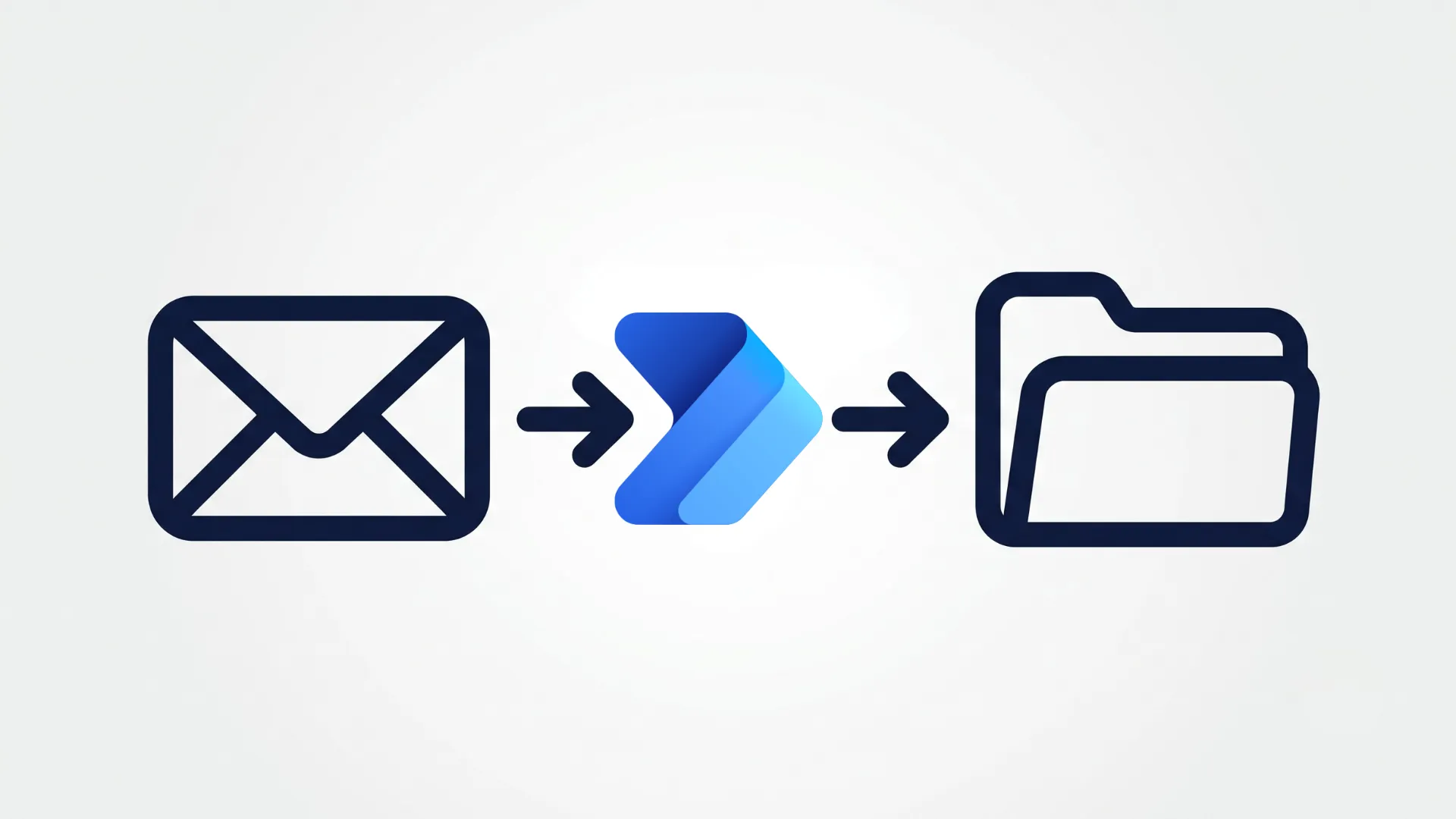
This is the method most people mean by "extract invoices from Outlook automatically," and it's the most capable of the native options. Power Automate (included with most Microsoft 365 business plans) can watch your inbox and act on every invoice email without you lifting a finger.
Here's the core flow:
-
Go to make.powerautomate.com and sign in.
-
Choose Create → Automated cloud flow.
-
Pick the trigger "When a new email arrives (V3)" and connect your Outlook account.
-
In the trigger's settings, set the Folder to Inbox, turn Include Attachments to Yes, and add a Subject Filter containing Invoice (or filter by specific senders).
-
Add the action Get Attachments (V2), then an Apply to each loop over the attachments.
-
Inside the loop, add Create file for OneDrive for Business or SharePoint, mapping the Attachment Name and Attachment Content.
-
Save and test by sending yourself an invoice.
From now on, every invoice attachment lands in a OneDrive or SharePoint folder automatically, which is a genuine step up - a centralised, searchable store you can wire into approvals.
Two things bite people here. First, Power Automate treats inline images as attachments, so email-signature logos and banners get saved alongside real invoices unless you add a filter on file type or size - plan to only keep .pdf files, or you'll drown in stray PNGs. Second, this still saves documents, not data. To pull the supplier, amount, and tax out of those PDFs, you have to bolt on AI Builder's "extract information from invoices" model and route the results into Excel or Dynamics - a separate, licensed capability that's a real project to set up and tune, not a checkbox.
What the native methods can't do
Stand back and the pattern is clear. Outlook rules sort your inbox. Saving attachments and Power Automate get the files somewhere central. But across all of them, three gaps remain:
-
No data extraction out of the box. You finish with organised PDFs, not invoice numbers, amounts, tax, and line items. The actual data entry is exactly where you started - unless you take on AI Builder, with its licensing and setup.
-
Brittle, keyword-based filtering. Rules and subject filters miss invoices that don't say "invoice," and catch plenty that aren't. Anything in another language, or with the invoice in the email body rather than attached, falls through.
-
Email only. Plenty of suppliers - Amazon, Meta Ads, Adobe - don't email invoices at all; you have to log into their portals to download them. No Outlook automation touches those.
For a small volume from predictable senders, a rule plus a Power Automate flow is a perfectly reasonable setup. Past that, you're maintaining flows and still doing the data entry by hand, which is the point where a purpose-built tool pays for itself.
Which approach should you use?
Match the method to the volume:
-
A handful of invoices from a few regular senders, and you just want them filed? An Outlook rule is all you need - five minutes, no licence, done.
-
You want the PDFs centralised and you're comfortable in the Power Platform? Build a Power Automate flow to OneDrive or SharePoint, and add a file-type filter so signature images don't sneak in.
-
Real volume, invoices arriving in the email body, or you want the data in your accounting system rather than a pile of PDFs? Connect an extraction tool and skip the flow-building entirely.
The dividing line is almost always whether you need the files organised or the data entered. Outlook is good at the first; the second is where a dedicated tool earns its keep - and where the hours actually go at month-end.
The faster way: capture and extract in one step
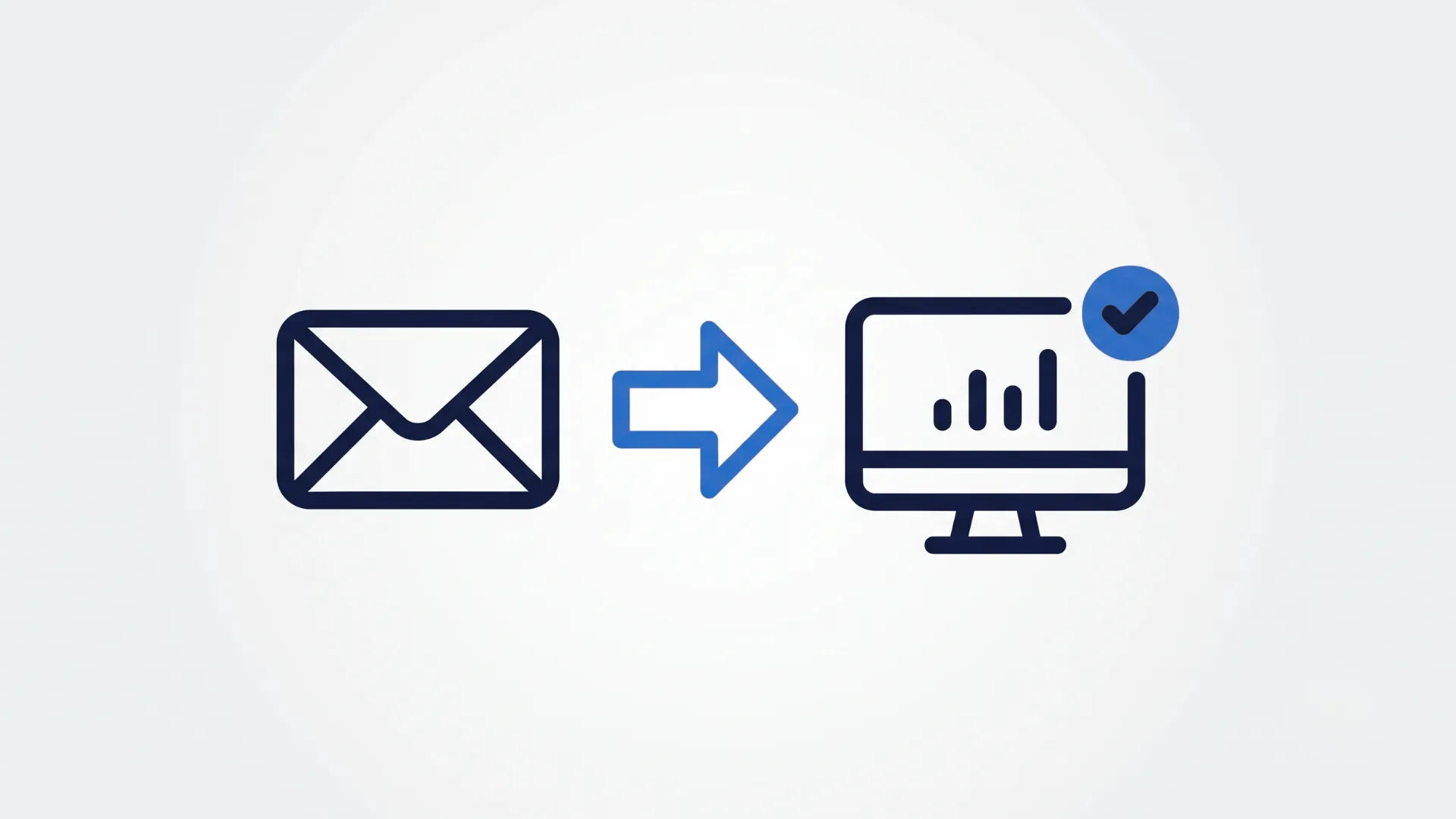
The shortcut past all of this is a tool that doesn't just save invoices from Outlook but reads them. Instead of building a flow that moves PDFs to a folder and then a second system to extract from them, you connect your inbox once and get structured, coded data out the other end.
That's the job Tailride is built for. It connects to your Outlook inbox - and Gmail and IMAP, if your team is mixed - and watches for invoices and receipts, including the ones sitting in the email body rather than attached. Its AI processing reads each one, native or scanned, pulls every field including line items, applies your rules, and attaches the original document. Then it pushes the finished data straight into QuickBooks, Xero, or Odoo.
There's no flow to build, no AI Builder to license, and no signature-image problem to debug. And because it isn't limited to email, the same tool grabs the invoices that live behind vendor portals too - the ones Power Automate can never reach.
How to set it up, step by step
The hands-off version takes about two minutes:
-
Connect your Outlook inbox. Sign in with Microsoft through a one-time secure authorisation - no passwords stored, no flow to configure.
-
Let it scan. Tailride checks new mail (and, if you want, your existing history) for invoices and receipts, attachments and in-body alike.
-
Review the extracted fields. Each invoice arrives already read - supplier, dates, amounts, tax, line items - so this is a quick check, not data entry.
-
Send it to your books. Approve and the coded data flows into your accounting system with the original PDF attached.
Compared with the Power Automate route - build the flow, filter the attachments, add AI Builder, map the output, maintain all of it - it's the same destination reached by connecting an account and walking away.
Stop forwarding invoices to yourself. Connect Outlook to Tailride free - your first 10 invoices a month are on us.
Common problems with Outlook invoice automation
Whichever route you take, the same handful of issues tend to come up:
-
Invoices in the email body. Many suppliers paste the invoice into the email instead of attaching a PDF. Attachment-based flows skip these entirely; you need a tool that reads the body too.
-
Inconsistent subjects. "Invoice," "Receipt," "Your order," a bare reference number - keyword rules can't keep up with how differently suppliers label things. AI that recognises an invoice by its content doesn't care about the subject line.
-
Duplicates. The same invoice forwarded by a colleague and received direct gets captured twice. Look for de-duplication so it doesn't hit your books twice.
-
Shared mailboxes. Invoices often arrive in a shared accounts@ mailbox several people touch. Make sure whatever you set up can watch a shared inbox, not just a personal one.
-
History. Switching on automation today does nothing for the months of invoices already sitting in Outlook. A tool that can scan your back-catalogue clears the backlog in one pass; a Power Automate flow only ever looks forward.
How Tailride handles invoices in Outlook
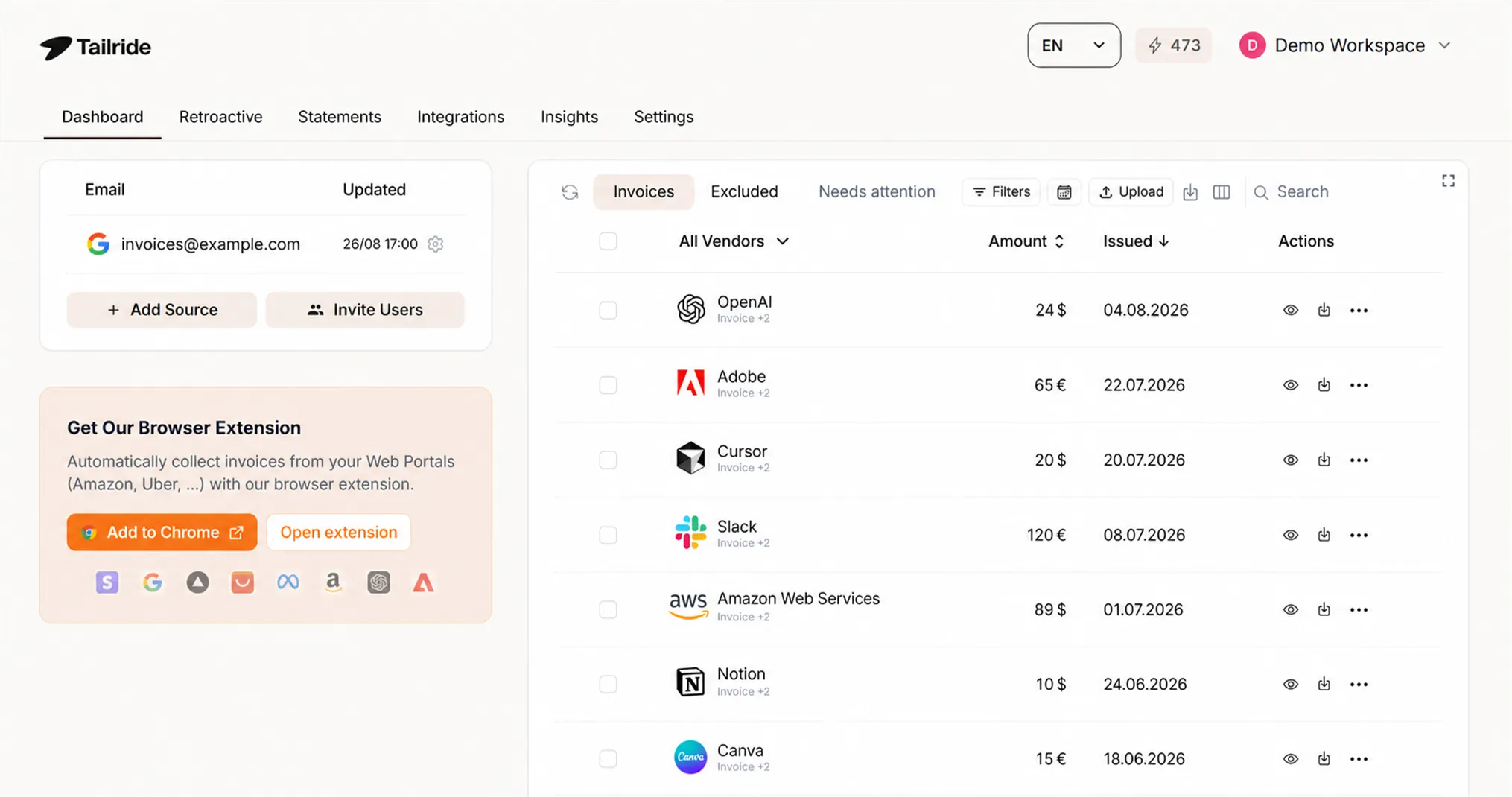
To put it plainly: Tailride turns your Outlook inbox into a feed of clean accounting data. Connect the mailbox - personal or shared - and it captures every invoice and receipt, reads them with the same class of AI behind tools like ChatGPT pointed at invoices, codes them against your rules, and files them in QuickBooks, Xero, or Odoo with the source document attached. It reads in-body invoices, handles scans, de-duplicates, and can sweep your existing history so you start clean.
The native Outlook tools are genuinely useful for sorting and storing. Tailride picks up where they stop - at turning those stored files into data you don't have to type. (For more on the underlying tech, see our guide to invoice OCR, or how inbox scanning works.)
Ready to clear the inbox for good? Start free or see how inbox scanning works.
FAQ
Can Outlook automatically save invoices?
Yes, to a point. An Outlook rule can move invoice emails into a folder automatically, and a Power Automate flow can save their attachments to OneDrive or SharePoint as they arrive. Both save the file; neither extracts the data inside it, so you still have to read and enter the invoice details yourself unless you add a separate extraction tool.
How do I create a rule in Outlook for invoices?
Go to Settings → Mail → Rules, click Add new rule, set a condition such as "Subject includes invoice" or a specific sender, and set the action to move the message to an Invoices folder. New matching emails will be filed there automatically.
Can Power Automate extract invoice data from Outlook?
Power Automate can save invoice attachments automatically, and with the AI Builder "extract information from invoices" model it can also pull out fields and send them to Excel or Dynamics. AI Builder is a separate, licensed capability and takes real setup, which is why many teams use a dedicated tool like Tailride that does capture and extraction in one step.
How do I extract invoices from Outlook automatically without Power Automate?
Connect your Outlook inbox to an invoice automation tool like Tailride. It scans your mail for invoices and receipts, extracts every field with AI, and posts the data to your accounting system - no flow to build and no AI Builder licence.
How do I download all invoices already in my Outlook?
Native Outlook automation only acts on new mail. To clear a backlog, use a tool that can scan your existing email history - Tailride does this - and pull every past invoice in one pass.
Does Outlook have built-in invoice OCR?
Not in Outlook itself. OCR and invoice-field extraction come from AI Builder (within the Power Platform) or from a third-party tool. Outlook on its own can move emails and save attachments, but it does not read the contents of an invoice.
