How to Extract Data From a PDF Invoice (2026)
How to extract data from a PDF invoice - the methods, the tools compared, and the fastest way to get clean, structured data into your accounting system.

Turn a PDF into clean, structured invoice data - and skip the retyping.
The short version: to extract data from a PDF invoice you have five options - copy it by hand, convert the PDF to a spreadsheet, run OCR, use a template-based parser, or use AI extraction. Which one is right depends on two things: whether your PDF is a real text file or a scan, and whether you're doing this once or every week. For anything ongoing, AI extraction wins - it reads any layout, handles scans, and returns clean fields without templates. Tailride does this end to end: it pulls the invoice in, extracts the data with AI, and pushes it straight into QuickBooks, Xero, or Odoo.
A PDF invoice looks like data, but it isn't - not in a form anything can use. The supplier, the amounts, the tax, the line items are all locked inside a document built for human eyes, not your accounting system. Getting them out cleanly is the whole game. Here's every way to do it, when each one makes sense, and how to stop doing it by hand.
First, what kind of PDF are you dealing with?
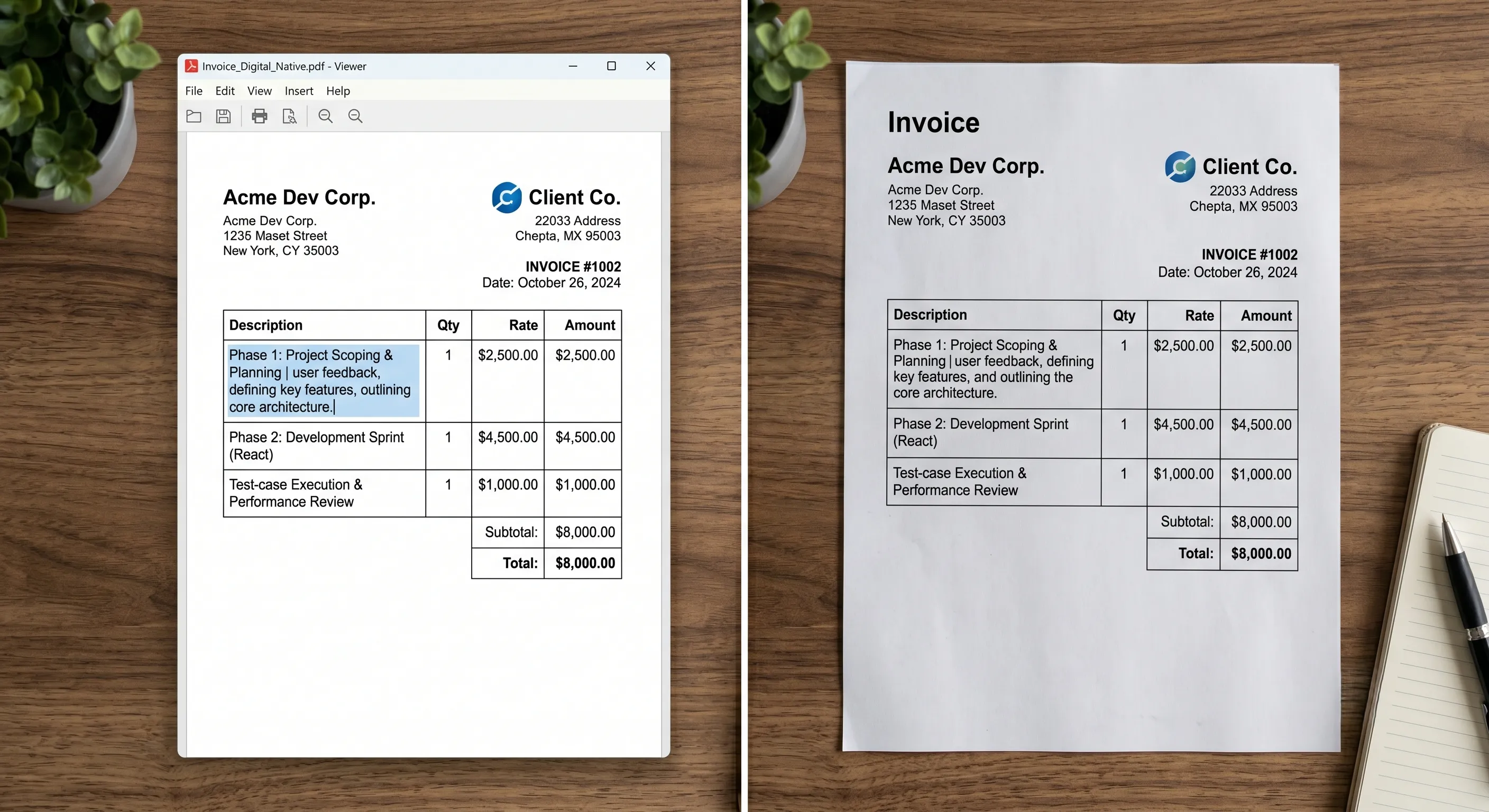
Before you pick a method, check one thing, because it decides everything: is your PDF a real text file or a picture of one?
-
A native (digital) PDF was generated by software - exported from an accounting tool, a billing system, or a "Save as PDF". The text is real and selectable. If you can highlight the invoice number with your cursor, it's native, and extracting it is comparatively easy.
-
A scanned (image) PDF is a photo or scan of a paper invoice. To a computer it's just pixels - there's no text to select, only an image of text. Pulling data out of it requires OCR (optical character recognition) to "read" the picture first.
Most businesses get a mix of both, which is why the methods that only handle one type quietly fall apart in practice.
The five ways to extract data from a PDF invoice
| Method | Handles scans? | Effort | Best for |
|---|---|---|---|
| Copy and paste by hand | Yes (you're the OCR) | High, every time | A one-off invoice |
| Convert PDF to Excel/CSV | Native only | Medium | Simple, text-based PDFs |
| OCR software | Yes | Medium + cleanup | Turning scans into text |
| Template-based parser | With OCR | High to set up | A few suppliers, fixed layouts |
| AI extraction | Yes | Low, ongoing | Many suppliers, mixed formats |
Copy and paste. Free, no setup, and fine for a single invoice. It's also slow and error-prone, and it doesn't scale past a handful - your eyes are doing the OCR, and they get tired.
Convert the PDF to a spreadsheet. Tools like Adobe Acrobat or Google Docs can export a native PDF's text into Excel or CSV. It works for clean, text-based invoices, but tables and line items often come out scrambled, and it does nothing for scans.
OCR software. OCR reads the text off an image PDF so you can work with it. It's the necessary first step for any scan - but raw OCR gives you a wall of text, not labelled fields, so you still have to find and structure the data yourself. (For the mechanics of how this works, see our guide to invoice OCR.)
Template-based parsers. You draw a template that says "the invoice number is here, the total is there," and the tool applies it. Accurate for a small set of suppliers whose layouts never change - but every new vendor or redesign means a new template, so maintenance piles up fast.
AI extraction. Instead of templates, an AI model understands what an invoice is, so it finds the supplier, dates, amounts, tax, and line items on any layout - native or scanned - and returns them as clean, labelled fields. No template to build, no maintenance when a vendor changes their design. For any volume, this is the method that actually holds up.
How to choose the right method
A quick way to land on one:
-
A single invoice, once? Copy it by hand or export it to Excel. No tool is worth installing for a one-off.
-
A steady trickle from a few suppliers with fixed layouts? Template-based invoice parsing (Docparser and similar) is cheap and accurate - just expect to maintain a template per layout.
-
Lots of invoices from many vendors, or scans in the mix? AI extraction. Templates can't keep up with the variety, and AI reads native and scanned PDFs alike.
-
Building a custom pipeline? A developer-focused parser or the open-source invoice2data library gives you raw structured output to wire in yourself.
-
You just want the invoice in your books? Skip the parsing step entirely and use a tool that captures, extracts, and posts to your accounting system in one move.
Once you're past a handful of suppliers, AI is usually the only option that keeps up.
The tools, compared
If you've decided to use software rather than do it by hand, here's how the main options stack up. (Prices change - treat these as a guide and check current rates.)
| Tool | Approach | Best for | Into your accounting system? | From ~ |
|---|---|---|---|---|
| Tailride | AI capture + extraction | Getting invoices and their data into QuickBooks, Xero, or Odoo, end to end | Yes, natively | Free tier |
| Nanonets | AI | Complex invoices with dense line-item tables; enterprise/ERP | Via integrations/API | ~$499/mo |
| Parsio | AI / template / GPT | Affordable, flexible parsing of emails and PDFs | Export / API | ~$41/mo |
| Docparser | Template / zonal OCR | Stable, consistent layouts from a few suppliers | Export / Zapier | ~$39/mo |
| invoice2data | Open-source library | Developers who want a free, self-hosted option | Build it yourself | Free |
The honest distinction: most of these are extraction engines - they hand you the data and leave the rest to you or your developer. Tailride is the one built for the full accounts-payable job, so the data doesn't just get extracted, it lands coded in your books. If your goal is structured output to wire into a custom pipeline, a pure parser like Parsio or Nanonets fits. If your goal is "the invoice ends up in my accounting system without me typing," that's a different tool. For a deeper buyer's-guide view of the category, see our overview of invoice data capture software.
Which fields you actually need
"Extract the data" usually means pulling a specific set of fields off the invoice:
-
Invoice number and PO number
-
Issue date and due date
-
Supplier name, address, and VAT/tax ID
-
Line items - description, quantity, unit price
-
Subtotal, tax, and total
-
Currency
Done well, that PDF becomes a clean structured record - ready as JSON for a pipeline, as a spreadsheet for review, or posted straight into your ledger:
| Field | Value |
|---|---|
| Supplier | Acme SaaS Ltd |
| Invoice number | INV-2026-04417 |
| Issue date | 2026-05-31 |
| Due date | 2026-06-30 |
| Currency | EUR |
| Line item | Pro plan - May 2026 · qty 1 · €20.00 |
| Subtotal | €20.00 |
| Tax | €4.00 |
| Total | €24.00 |
The line items are the hard part - more on that below.
How to extract data from a PDF invoice, step by step

Using an AI extraction tool, the whole job is short:
-
Bring the invoice in. Upload the PDF, forward it to a dedicated address, or let the tool pull it from your inbox or a vendor portal automatically.
-
Let the AI read it. It detects whether the PDF is native or scanned, runs OCR if needed, and identifies each field.
-
Check the fields. Review the extracted supplier, amounts, tax, and line items - well-trained tools get these right the vast majority of the time, so this is a glance, not data entry.
-
Send it where it's going. Export to Excel or JSON, or push it straight into your accounting system, with the original PDF attached.
The manual route covers the same ground with none of the automation: open the PDF, read it, type each field into a spreadsheet, repeat. It works - it just doesn't scale.
Skip steps 1–4. Tailride captures the invoice, extracts every field with AI, and files it in your books automatically - your first 10 invoices a month are free.
How to check the extracted data is right
Extraction is only useful if you can trust it, so build in a quick check instead of assuming the numbers are clean:
-
Make the totals reconcile. The line items should add up to the subtotal, and subtotal plus tax should equal the total. If they don't, something was misread.
-
Confirm the required fields exist. Flag any invoice missing a supplier, date, total, or tax - those are the ones to review by hand.
-
Sanity-check dates and currency. A due date before the issue date, or the wrong currency symbol, is a classic OCR slip.
-
Watch for duplicate invoice numbers. The same number twice usually means the same bill captured twice.
-
Keep the source PDF. Attach the original to every record so any figure can be traced back in seconds.
Good tools run most of these checks automatically and only flag what fails, so your review comes down to a few exceptions instead of every invoice.
The hard parts (and how to handle them)
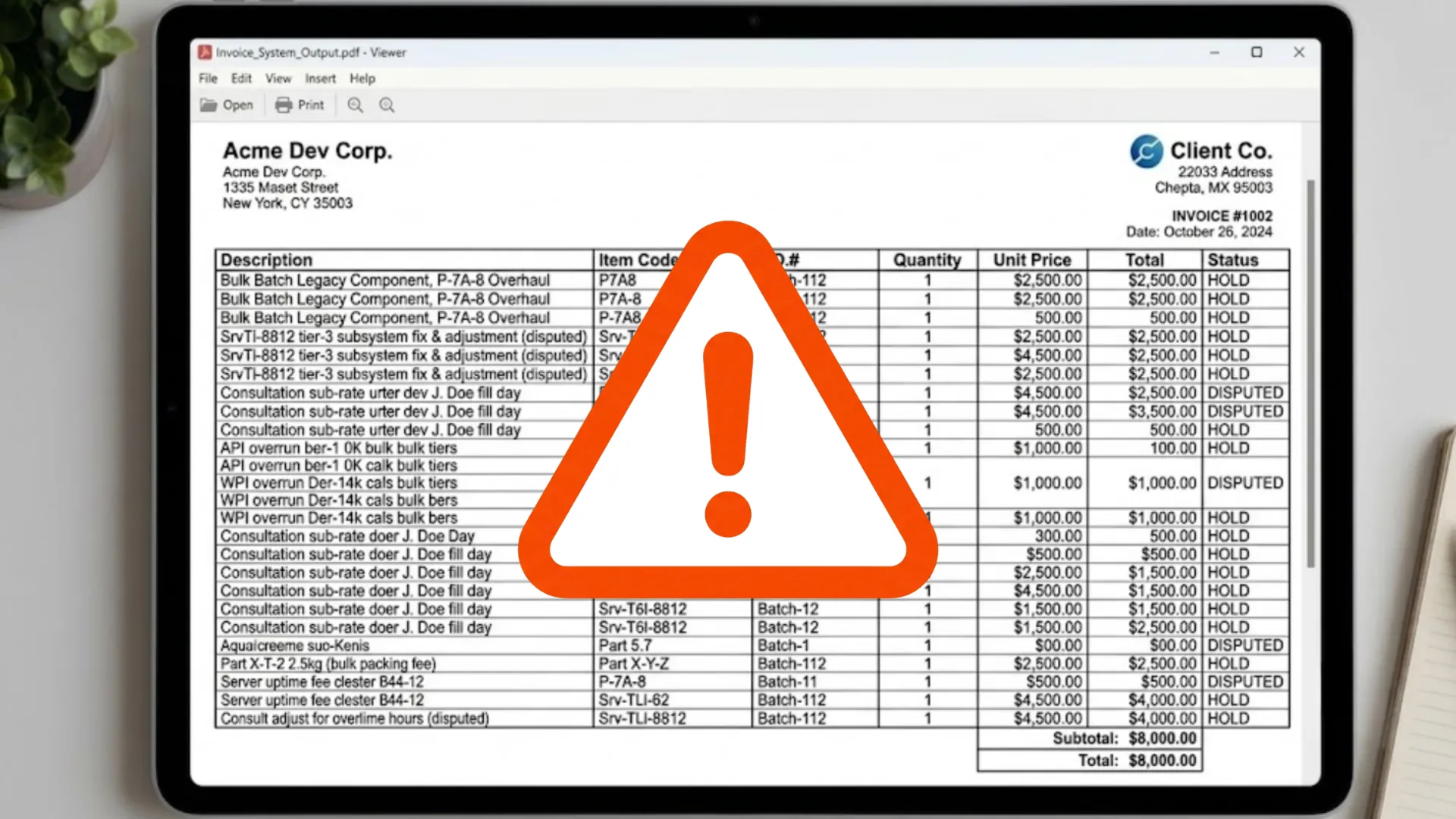
Most extraction projects trip on the same few things:
-
Scanned and low-quality PDFs. Faint, skewed, or photographed invoices break naive extraction. You need genuine OCR with image clean-up, not just text parsing.
-
Line-item tables. A single invoice can have dozens of rows across multiple pages. Tools that handle key fields fine often mangle tables - if line items matter to you, test them specifically.
-
Endless layout variety. Every supplier formats invoices differently. Template tools need a template per layout; AI tools read them all, which is why they win once you're past a handful of vendors.
-
Accuracy and review. No method is flawless. The practical goal is high enough accuracy that a human reviews exceptions rather than re-keys everything - and a clear audit trail with the source PDF attached.
How Tailride extracts PDF invoice data
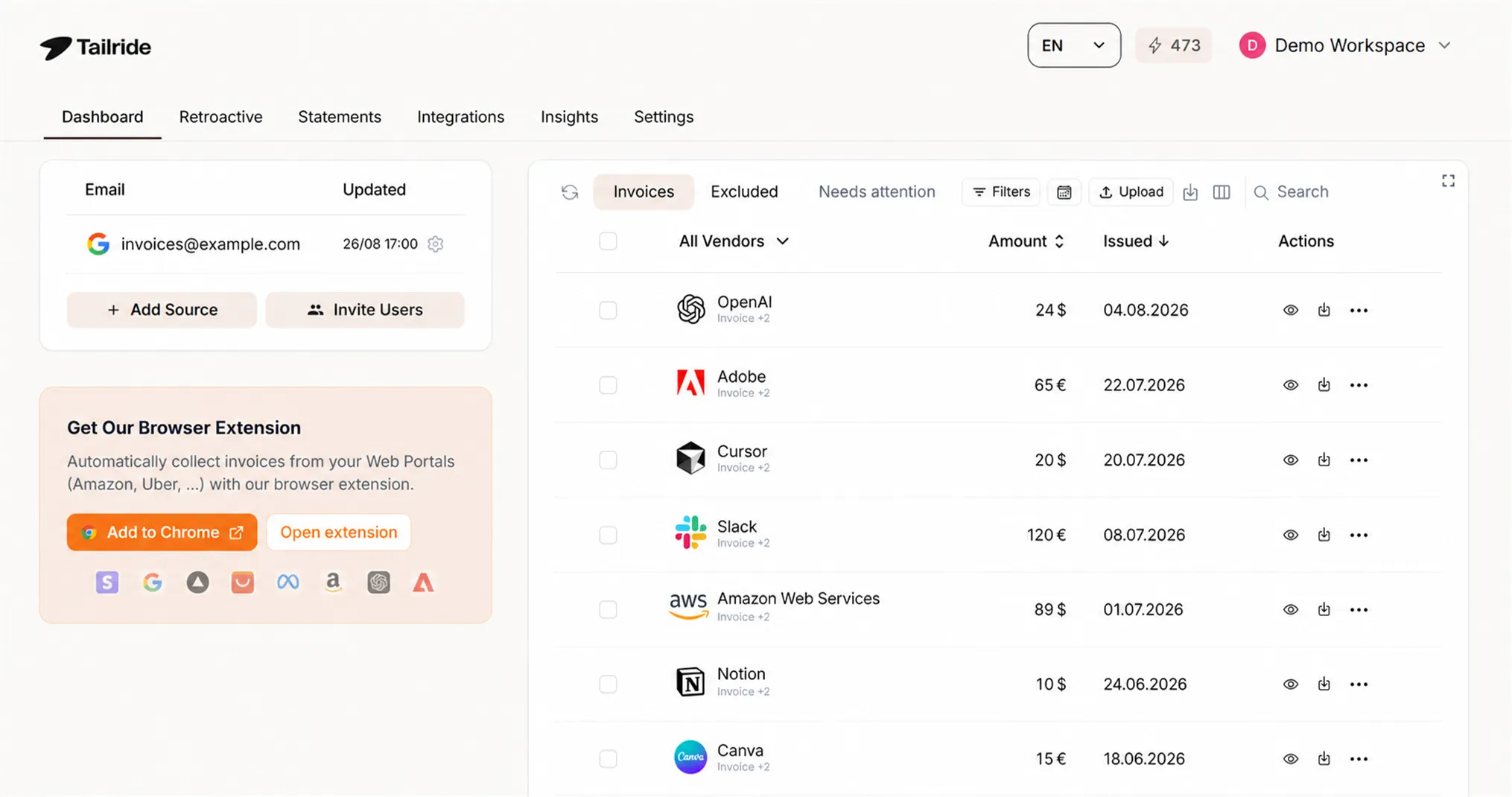
Tailride is built for the end-to-end version of this. It connects to your inbox - Gmail, Outlook, IMAP - and to 20+ vendor portals, so it collects the PDFs in the first place, not just processes ones you upload. Its AI processing reads each invoice - native or scanned - extracts every field including line items, applies your rules, and attaches the original document. Then it pushes the finished data straight into QuickBooks, Xero, or Odoo.
The difference from a standalone parser is the last mile: you don't get a JSON file to deal with, you get the invoice sitting in your accounting system, coded and ready.
Want to stop extracting invoices by hand? Start free or see how it works.
FAQ
How do I extract data from a PDF invoice?
Pick one of five methods: copy it manually, convert the PDF to a spreadsheet, run OCR, use a template-based parser, or use AI extraction. For a one-off, manual copy is fine; for anything recurring, AI extraction is fastest because it reads any layout and handles scans without templates.
Can you extract data from a scanned PDF invoice?
Yes, but you need OCR - a scanned PDF is an image, so the tool has to "read" the text before it can structure it. AI extraction tools run OCR automatically; a plain PDF-to-Excel converter won't work on a scan.
How do I extract invoice data to Excel?
A native (text-based) PDF can be exported to Excel or CSV with tools like Adobe Acrobat, though tables often come out messy. An AI extraction tool gives cleaner results and can export structured fields, including line items, to a spreadsheet.
Is AI invoice extraction accurate?
For standard fields like supplier, dates, and totals, well-trained AI tools are accurate the large majority of the time. Line-item tables are harder, so review those. The realistic goal is reviewing exceptions, not re-typing everything.
What's the best free way to extract data from a PDF invoice?
For a one-off, copy-paste or a free PDF-to-Excel export. For developers, the open-source invoice2data library is free. For ongoing use with no setup, tools like Tailride have a free tier covering your first invoices each month.
How do I extract data from multiple PDF invoices at once?
Use a tool that supports batch processing - upload a folder of PDFs, or let it pull them automatically from your inbox or a vendor portal, and it extracts them all in one run. Manual copy-paste and most simple converters only handle one file at a time.
How do I extract line items from a PDF invoice?
Line items - the individual rows of description, quantity, and price - are the hardest part to extract, especially across multiple pages. AI extraction tools detect the table structure and pull each row as a separate record; template parsers can manage it for fixed layouts. Test a tool on your real invoices' line items before relying on it.
What data can be extracted from an invoice?
Typically the invoice and PO numbers, issue and due dates, supplier name and VAT ID, line items (description, quantity, price), subtotal, tax, total, and currency.
