Rechnungen in Odoo importieren: Alle Methoden im Test (2026)
So können Sie Rechnungen in Odoo importieren – manueller Upload, E-Mail-Alias, CSV und Automatisierung im Vergleich. Der Praxis-Guide für 2026.

Zuletzt aktualisiert: Mai 2026 · ~8 Min. Lesezeit · Veröffentlicht von Tailride
Gilt für: Odoo 17, 18 und 19 - die Schritte sind in allen drei Versionen identisch.
Die Odoo Buchhaltung leistet hervorragende Arbeit, sobald sich die Belege erst einmal im System befinden. Sie überhaupt erst in das System zu bekommen, steht jedoch auf einem anderen Blatt. Durchschnittlich kostet die manuelle Bearbeitung einer einzelnen Eingangsrechnung 12,88 $ und nimmt branchenübergreifend rund 17,4 Tage in Anspruch (Ardent Partners, AP Metrics that Matter in 2024) - die meiste Zeit geht dabei für das Herunterladen, Hochladen, manuelle Abtippen und das Korrigieren von OCR-Fehlern drauf, die gar nicht erst passieren dürften.
Wenn Sie Ihre Kreditorenbuchhaltung in Odoo automatisieren möchten oder einfach nach dem besten Weg suchen, Rechnungen in Odoo importieren zu können, ohne Stunden mit manueller Fleißarbeit zu vergeuden, sind Sie hier richtig. Dieser Guide beleuchtet jede verfügbare Methode – inklusive einer ehrlichen Einschätzung für die Praxis.
Rechnungen in Odoo importieren: Welche Methode passt zu Ihnen?
Bevor wir ins Detail gehen, stellen Sie sich diese drei kurzen Fragen:
-
Wie viele Rechnungen verarbeiten Sie pro Monat? Unter oder über 30 Stück?
-
Woher stammen die Rechnungen? E-Mail-Anhänge, Lieferantenportale, gescannte Papierbelege, strukturierte XML-Dateien – oder eine bunte Mischung?
-
Wie viel manueller Prüfaufwand ist akzeptabel? Darf es keinerlei Fehler geben, oder sind gelegentliche Korrekturen völlig in Ordnung?
Wenn Ihr Volumen gering ist und Rechnungen als saubere PDFs per E-Mail eintreffen → ist Methode 2 (E-Mail-Alias) der schnellste Weg.
Wenn Sie historische Daten aus einem Altsystem migrieren → Methode 3 (CSV-Import).
Wenn Sie ein signifikantes Volumen aus unterschiedlichen Quellen bewältigen müssen → Methode 4 (Tailride).
Wenn es sich um reine Ausnahmen oder absolute Einzelfälle handelt → reicht Methode 1 (Manueller Upload) völlig aus.
Woher Eingangsrechnungen in der Praxis stammen
Die meisten Buchhaltungsteams haben es mit einer Kombination aus folgenden Quellen zu tun:
-
E-Mail - Lieferanten senden PDFs oder XML-Anhänge direkt an ein Postfach
-
Lieferantenportale - Amazon Business, Stripe, Uber Eats und hunderte andere erfordern einen Log-in und den manuellen Download
-
Gescannte Dokumente - Papierbelege, die vom Team digitalisiert wurden
-
EDI / strukturierte Formate - UBL-, ZUGFeRD- oder Factur-X-XML-Dateien von größeren Lieferanten
-
Historische Daten - Massenimporte von vergangenen Rechnungen bei Systemwechseln oder dem Onboarding
Jede dieser Quellen harmoniert unterschiedlich gut mit den verfügbaren Importmethoden in Odoo.
Methode 1: Manueller Upload (PDF oder XML)
So funktioniert es
Aktivieren Sie zunächst die Dokumentendigitalisierung in Odoo: Gehen Sie zu Buchhaltung → Konfiguration → Einstellungen, scrollen Sie zum Bereich Digitalisierung, aktivieren Sie Dokumentendigitalisierung und wählen Sie, ob Eingangsrechnungen Automatisch oder Auf Anfrage verarbeitet werden sollen.
Sobald dies aktiviert ist, rufen Sie das Buchhaltungs-Dashboard auf. Sie können nun PDF- oder XML-Rechnungen einfach per Drag-and-Drop auf die Kachel des Eingangsrechnungs-Journals ziehen oder auf dieser Kachel auf Hochladen klicken. Odoo liest den Inhalt aus und erstellt einen Entwurf für die Eingangsrechnung:
-
PDF-Rechnungen - werden über OCR verarbeitet, die Lieferantenname, Datum, Betrag und Rechnungspositionen ausliest. Jedes PDF verbraucht einen IAP-Credit.
-
Strukturierte XML-Formate (UBL, ZUGFeRD, Factur-X) - die Daten werden direkt eingelesen, ohne OCR und ohne Credit-Verbrauch. Wenn Ihre Lieferanten XML senden, ist dies der präziseste native Importweg.
Die extrahierten Daten füllen den Rechnungsentwurf. Sie prüfen diesen, nehmen bei Bedarf Anpassungen vor und buchen ihn.
Hinweis zu IAP-Credits: Die Digitalisierung in Odoo basiert auf einem In-App-Purchase-System (IAP). Credits werden in Paketen unter iap.odoo.com erworben. Sowohl PDF-Uploads als auch die Verarbeitung via E-Mail-Alias verbrauchen einen Credit pro Dokument. XML-Dateien sind stets kostenlos.
Fazit
✓ Geeignet für: gelegentliche Uploads, strukturierte XML-Dateien von Lieferanten, Teams mit sehr geringem Rechnungsvolumen.
✗ Ungeeignet für: alles, was automatisch per E-Mail eintrifft, Lieferantenportale oder Volumina ab ca. 30 Stück pro Monat. Irgendjemand muss jede Datei nach wie vor manuell herunterladen und wieder hochladen.
Methode 2: Odoo E-Mail-Alias für Eingangsrechnungen
So funktioniert es
Odoo bietet die Möglichkeit, eine dedizierte E-Mail-Adresse einzurichten - Ihren E-Mail-Alias für Eingangsrechnungen - , die aus jeder eingehenden E-Mail mit PDF- oder XML-Anhang automatisch einen Rechnungsentwurf erstellt.
Schritt 1 - Dokumentendigitalisierung aktivieren
Navigieren Sie zu Buchhaltung → Konfiguration → Einstellungen → Bereich Digitalisierung und aktivieren Sie die Funktion. Dies ist zwingend erforderlich, damit der E-Mail-Alias Anhänge verarbeiten kann.
Schritt 2 - Alias-Domain konfigurieren
Gehen Sie zu Einstellungen → Allgemeine Einstellungen, scrollen Sie zum Bereich Diskutieren, aktivieren Sie Benutzerdefinierter E-Mail-Server und geben Sie Ihre Alias-Domain ein. Bei Odoo Online (odoo.com) ist die Alias-Domain anhand Ihrer Datenbank-Subdomain bereits automatisch vorkonfiguriert – diesen Schritt können Sie dann überspringen.
Schritt 3 - E-Mail-Alias finden oder festlegen
Sobald die Alias-Domain aktiv ist, wird automatisch ein Standard-Alias vendor-bills@[alias-domain] für Ihr Eingangsrechnungs-Journal erstellt. Um diesen einzusehen oder anzupassen: Buchhaltung → Konfiguration → Journale → Eingangsrechnungen → Reiter Erweiterte Einstellungen → E-Mail-Alias.
Jede E-Mail, die mit PDF- oder XML-Anhängen an diese Adresse geschickt wird, erzeugt eine neue Entwurfsrechnung in Odoo – ein Entwurf pro PDF-Anhang. Bitten Sie Ihre Lieferanten, Rechnungen direkt an diese Adresse zu senden, oder richten Sie eine automatische Weiterleitung aus Ihrem bestehenden Buchhaltungs-Postfach ein.
Hinweise:
Es werden ausschließlich PDF- und XML-Anhänge verarbeitet. JPEG-Dateien und in den Text eingebettete Bilder müssen manuell hochgeladen werden.
Die PDF-Digitalisierung kostet einen IAP-Credit pro Dokument. XML-Dateien sind kostenfrei. Credits können unter iap.odoo.com erworben werden.
Für wiederkehrende, vertrauenswürdige Lieferanten können Sie die automatische Verbuchung aktivieren: Kontaktformular des Lieferanten → Reiter Buchhaltung → Automatisierung → Rechnungen automatisch buchen. Die Optionen sind: Immer, Nach 3 Überprüfungen fragen oder Niemals.
Fazit
✓ Geeignet für: Teams, bei denen die meisten Lieferanten Rechnungen direkt per E-Mail senden, moderate Volumina, unkomplizierte PDF- oder XML-Layouts.
✗ Ungeeignet für: Lieferantenportale (Anbieter, die Download-Links statt Anhänge versenden), inkonsistente oder komplexe PDF-Formate, hohe Volumina, bei denen sich die IAP-Kosten summieren, Multi-Entity-Setups mit komplexer Alias-Verwaltung.
Methode 3: Odoo Massenimport per CSV / Excel
So funktioniert es
Der CSV-Import von Odoo ist ein reines Massen-Tool - in erster Linie gedacht für historische Daten und Systemmigrationen, nicht für das Tagesgeschäft.
Gehen Sie zu Buchhaltung → Lieferanten → Rechnungen, klicken Sie auf das Aktionsmenü (Zahnrad oder Favoriten-Stern, je nach Ansicht) und wählen Sie Importieren. Laden Sie die Odoo-Vorlage herunter, um die genaue Spaltenstruktur zu sehen, füllen Sie diese mit Ihren Rechnungsdaten (Lieferant, Datum, Betrag, Konto, Steuer, Positionen) und laden Sie die Datei hoch. Odoo ordnet die Spalten zu und erstellt die Belege im Batch-Verfahren.
Tipp: Nutzen Sie den Odoo-eigenen Export bestehender Rechnungen als Vorlage. Das Mapping der Spalten verzeiht keine Fehler - überflüssige Leerzeichen, falsche Datumsformate oder fehlende Kontocodes führen dazu, dass der gesamte Import fehlschlägt.
Fazit
✓ Geeignet für: Migrationen aus einem anderen Buchhaltungssystem, Import eines Backlogs historischer Rechnungen, einmalige Massenoperationen mit strukturierten Tabellendaten.
✗ Ungeeignet für: Fortlaufende Prozesse. Dies ist ein reines Migrations-Tool, kein Workflow für wiederkehrende Aufgaben. Bietet absolut keinen Mehrwert für den alltäglichen Rechnungseingang per E-Mail oder aus Lieferantenportalen.
Methode 4: Kreditorenbuchhaltung in Odoo mit Tailride automatisieren ← Die beste Wahl ab mittlerem Volumen
Für Teams, die jeden Monat ein echtes Rechnungsvolumen stemmen müssen - sei es aus E-Mails, Lieferantenportalen oder beidem - , stoßen manuelle Methoden schnell an ihre Grenzen. Hier kommt automatisierte Rechnungsverarbeitung ins Spiel, um diese Lücke zu schließen.
So funktioniert es
Tailride erfasst Rechnungen automatisch aus den zwei wichtigsten Quellen:
-
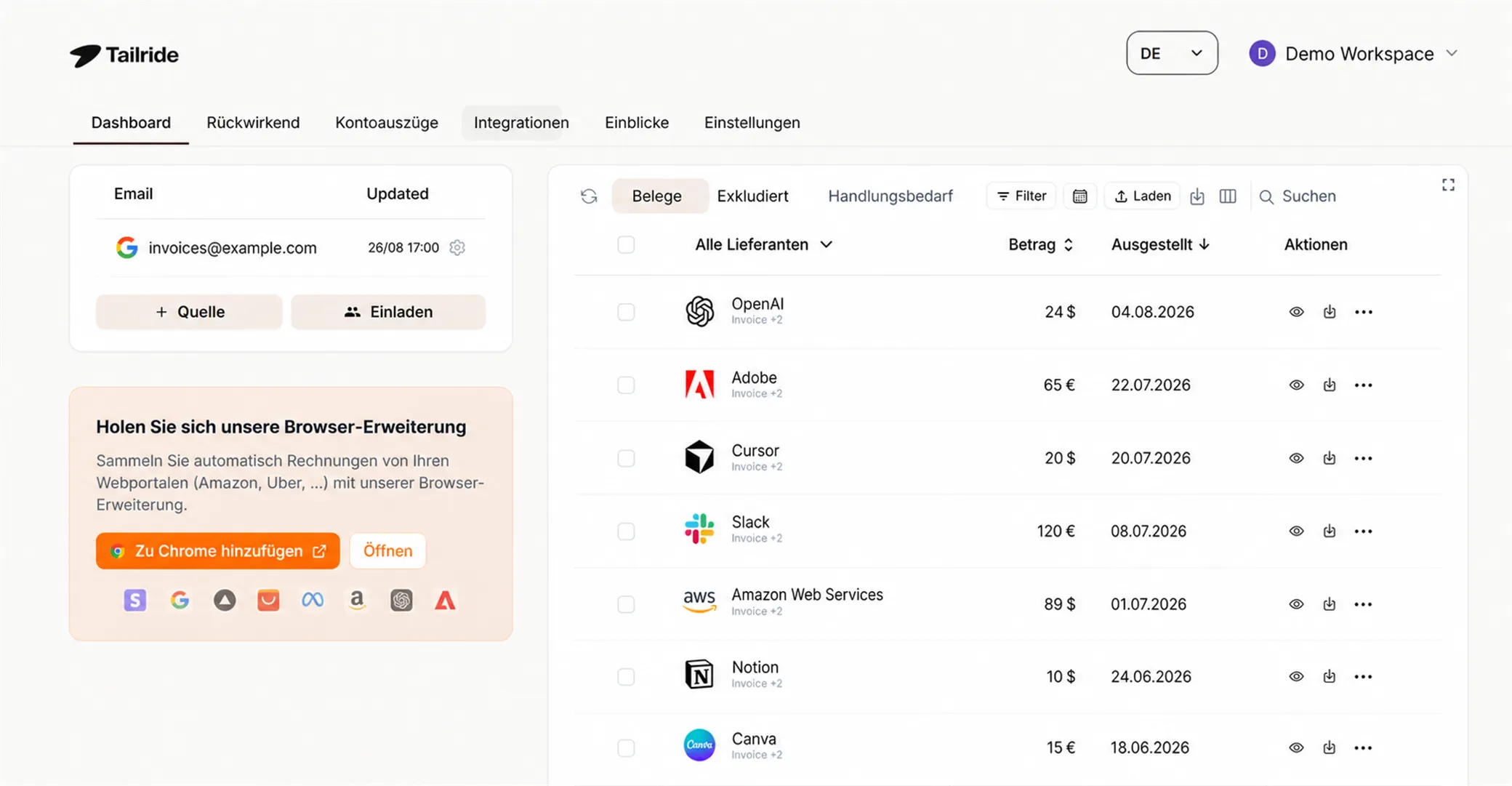
E-Mail - Tailride verbindet sich mit Ihrem Posteingang und zieht Rechnungsanhänge vollautomatisch in dem Moment, in dem sie eintreffen. Sie müssen keinen Finger rühren.
-
Lieferantenportale - für Portale wie Amazon Business, Stripe und Hunderte andere arbeitet Tailride über eine Browser-Erweiterung: Sie loggen sich wie gewohnt ins Portal ein, und die Erweiterung erfasst die Rechnungen direkt von der Seite - kein manuelles Herunterladen, kein lästiges Abtippen mehr.
Die Engine zur Software zur Rechnungsdaten-Extraktion von Tailride liest alle strukturierten Positionsdaten - Lieferant, Beträge, Steuern, Beschreibungen - aus und bündelt alles in einem übersichtlichen Dashboard.
Von dort aus ist die Übergabe an Odoo nur eine Sache weniger Klicks: Sie markieren die benötigten Belege, klicken auf An Odoo senden, und innerhalb von Sekunden erscheinen die Entwürfe in Ihrem Odoo Buchhaltungs-Workspace - inklusive aller Positionsdaten, bereit zur Prüfung und Verbuchung. Es werden keine IAP-Credits verbraucht. Kein OCR-Glücksspiel.
Sollten Sie Rechnungen importieren müssen, die vor der Einrichtung von Tailride eingegangen sind, bietet der rückwirkende Rechnungs-Scan auch hierfür die passende Lösung.
Warum das bei hohem Volumen besser funktioniert als native Odoo-Methoden
| Odoo-Bordmittel (Upload / Alias) | Tailride | |
|---|---|---|
| Lieferantenportale | ✗ | ✓ Browser-Erweiterung |
| OCR-Genauigkeit bei komplexen PDFs | Mittel | Hoch |
| IAP-Credits pro Dokument nötig | Ja (PDF) | Nein |
| Alle Quellen in einem Dashboard | ✗ | ✓ |
| Positionsdaten in Odoo-Entwürfen | Teilweise | Vollständig |
Bereit für die Verknüpfung?
Eine detaillierte Schritt-für-Schritt-Anleitung - von der Einrichtung des API-Schlüssels über die Testverbindung bis zur ersten übertragenen Rechnung - finden Sie in unserem dedizierten Integrations-Guide:
So senden Sie Rechnungen automatisch an die Odoo Buchhaltung →
Fazit
✓ Geeignet für: Jedes Team, das mehr als 30 Rechnungen/Monat aus gemischten Quellen (E-Mail + Portale) verarbeitet, Steuerkanzleien und Buchhaltungsbüros, die mehrere Mandanten betreuen, sowie Finanzteams, die revisionssichere Positionsdaten in Odoo benötigen, ohne diese manuell abtippen zu müssen.
✗ Ungeeignet für: Teams mit extrem geringem Volumen, die kein zusätzliches Tooling einführen möchten. Bei unter ~20 Rechnungen im Monat sind manuelle Methoden oft völlig ausreichend.
Alle vier Methoden im Vergleich
| Manueller Upload | E-Mail-Alias | CSV-Import | Tailride | |
|---|---|---|---|---|
| Einrichtungszeit | Keine | 15–30 Min. | Keine | 5 Min. |
| Rechnungsquellen | PDF- / XML-Dateien | E-Mail-Anhänge | Tabellenkalkulationen | E-Mail + Portale + PDF |
| Unterstützt Lieferantenportale | ✗ | ✗ | ✗ | ✓ (Browser-Erweiterung) |
| Unterstützt UBL / ZUGFeRD XML | ✓ | ✓ | ✗ | ✓ |
| Genauigkeit auf Positionsebene | Mittel (OCR) | Mittel (OCR) | Hoch (manuelle Vorbereitung) | Hoch (KI-Extraktion) |
| IAP-Credits erforderlich | Ja (nur PDF) | Ja (nur PDF) | Nein | Nein |
| Skaliert mit dem Volumen | ✗ | Teilweise | ✗ | ✓ |
| Fortlaufende Automatisierung | ✗ | Teilweise (nur E-Mail) | ✗ | ✓ (E-Mail Auto / Portale per Erweiterung) |
| Import historischer Rechnungen | Einzeln | ✗ | Massen-Batch (Migration) | Rückwirkender Scan |
| Am besten für | Gelegentliche Uploads | Reine E-Mail-Lieferanten | Migration / Backlog | Das tägliche AP-Geschäft |
Fehlerbehebung: Häufige Probleme, wenn Sie Rechnungen in Odoo importieren
Odoo Dokumentendigitalisierung funktioniert nicht
Der häufigste Grund: Die Dokumentendigitalisierung ist schlichtweg nicht aktiviert. Gehen Sie zu Buchhaltung → Konfiguration → Einstellungen → Bereich Digitalisierung und aktivieren Sie diese, bevor Sie einen Upload oder einen E-Mail-Alias-Workflow starten. Überprüfen Sie außerdem, ob Sie noch ausreichend IAP-Credits unter iap.odoo.com haben - ein aufgebrauchtes Guthaben stoppt die Digitalisierung ohne Vorwarnung.
PDF-Digitalisierung liefert unvollständige oder falsche Daten
Die OCR von Odoo hat oft Schwierigkeiten mit abweichenden, handschriftlichen oder stark formatierten PDFs. Wenn Sie durchgehend hohe Genauigkeit bei unterschiedlichsten Lieferantenformaten benötigen, bewältigt ein dediziertes Extraktions-Tool wie Tailride komplexe Layouts deutlich besser als die Odoo-internen Tools.
E-Mail-Alias für Odoo Eingangsrechnungen funktioniert nicht
Prüfen Sie drei Dinge: (1) Die Alias-Domain ist unter Einstellungen → Allgemeine Einstellungen → Diskutieren korrekt konfiguriert, (2) die Dokumentendigitalisierung ist aktiviert, und (3) die E-Mail enthielt einen PDF- oder XML-Anhang - kein JPEG oder eingefügtes Bild. Stellen Sie auch sicher, dass die E-Mail nicht vom Spam-Filter abgefangen wurde, bevor sie Odoo erreichen konnte.
Fehler „Authentifizierung fehlgeschlagen“ bei der API-Verbindung
Fast immer liegt dies an einem falsch kopierten API-Schlüssel - schon ein einziges überflüssiges Zeichen lässt die Verbindung scheitern. Kopieren Sie den Key in Odoo neu oder generieren Sie einen frischen. Stellen Sie sicher, dass die Login-E-Mail mit dem Odoo-Konto übereinstimmt, dem der Schlüssel gehört.
Fehler „Datenbank nicht gefunden“ (Database not found)
Der Datenbankname ist nicht immer identisch mit Ihrer Subdomain. Gehen Sie in Odoo auf Meine Datenbanken (My Databases) und bestätigen Sie den exakten Namen, bevor Sie ihn in Integrations- oder Verbindungseinstellungen eintragen.
API-Schlüssel funktioniert nicht mehr
Wahrscheinlich haben Sie bei der Generierung ein Ablaufdatum festgelegt. Wenn der Schlüssel abläuft, bricht die Integration lautlos ab. Generieren Sie einen neuen Schlüssel mit der Einstellung Kein Ablaufdatum (No expiry) und aktualisieren Sie ihn im Integrations-Tab von Tailride.
Selbst gehostetes Odoo akzeptiert keine API-Verbindungen
Bei einigen selbst gehosteten Konfigurationen der Odoo Community-Version ist XML-RPC auf Serverebene deaktiviert. Klären Sie mit Ihrem Odoo-Administrator, ob externe API-Aufrufe zulässig sind, bevor Sie weiter an den Zugangsdaten feilen.
Odoo CSV-Rechnungsimport schlägt fehl
Das Spalten-Mapping von Odoo ist streng - zusätzliche Leerzeichen, falsche Datumsformate oder fehlende Kontocodes führen unweigerlich zu Fehlern. Exportieren Sie vorhandene Rechnungsdaten direkt aus Odoo, um diese als perfekte Vorlage für die erwartete Struktur zu nutzen.
Testverbindung klappt, aber das Senden an Odoo schlägt fehl
Dem Odoo-Benutzerkonto, das mit dem API-Schlüssel verknüpft ist, fehlen wahrscheinlich die Schreibrechte für das Ziel-Einkaufsjournal oder das Aufwandskonto. Bitten Sie Ihren Administrator, die Zugriffsrechte für Eingangsrechnungen zu überprüfen.
Häufig gestellte Fragen (FAQ)
Was ist der beste Weg, um Rechnungen in Odoo importieren zu können?
Das hängt stark von Ihrem Volumen und den Rechnungsquellen ab. Bei geringem Volumen und reinen E-Mail-Lieferanten funktioniert der in Odoo integrierte E-Mail-Alias hervorragend. Für Teams, die monatlich 30+ Belege aus gemischten Quellen - E-Mail und Lieferantenportale - verarbeiten, ist Tailride wesentlich schneller, präziser und verursacht keine IAP-Credit-Kosten.
Unterstützt Odoo ZUGFeRD- und UBL-XML-Rechnungen?
Ja. Die Odoo Buchhaltung liest strukturierte XML-Formate wie UBL 2.1, ZUGFeRD und Factur-X direkt aus - die OCR und IAP-Credits werden dabei komplett umgangen. Wenn Ihre Lieferanten diese Formate senden (was in der DACH-Region durch ZUGFeRD/XRechnung immer häufiger wird), können sowohl der manuelle Upload als auch der E-Mail-Alias diese ohne Zusatzkosten verarbeiten.
Was kosten die Odoo IAP-Credits für die Digitalisierung?
Credits werden im Paket unter iap.odoo.com gekauft. Jedes PDF, das über den Upload oder den E-Mail-Alias verarbeitet wird, verbraucht einen Credit. XML-Dateien sind grundsätzlich kostenfrei. Bei einem hohen Rechnungsvolumen summieren sich die Credit-Kosten schnell - das ist einer der Hauptgründe, warum skalierende Teams auf Extraktions-Tools wechseln, die keine IAP-Credits aufbrauchen.
Lassen sich Rechnungen von Amazon Business, Stripe oder anderen Portalen in Odoo einlesen?
Nicht mit nativen Odoo-Methoden - Lieferantenportale erfordern einen Log-in und einen aktiven Download, was die integrierten Odoo-Tools nicht abbilden können. Die Browser-Erweiterung von Tailride erfasst Rechnungen direkt auf den Lieferantenportal-Seiten, während Sie eingeloggt sind, und ermöglicht es Ihnen, diese mit wenigen Klicks an Odoo zu übergeben.
Wie kann ich historische Rechnungen in Odoo importieren?
Für riesige Mengen historischer Datensätze in Tabellenform empfiehlt sich der CSV-Import von Odoo. Wenn Sie Tailride nutzen, ermöglicht der rückwirkende Rechnungs-Scan, auch ältere Rechnungen über den gleichen Extraktions- und Odoo-Push-Workflow zu verarbeiten, ganz ohne manuelle Datenaufbereitung.
Werden importierte Rechnungen automatisch gebucht oder als Entwurf gespeichert?
Alle Methoden legen die Belege standardmäßig als Entwurf an. Bei vertrauenswürdigen Lieferanten mit wiederkehrenden Rechnungen kann die Odoo-Funktion zur automatischen Verbuchung (Lieferanten-Kontaktformular → Reiter Buchhaltung → Rechnungen automatisch buchen) den Beleg direkt buchen - dies muss jedoch für jeden Lieferanten explizit eingerichtet werden.
Kann ich verschiedene Rechnungsstapel unterschiedlichen Odoo-Journalen oder Konten zuweisen?
Ja, sofern Sie Tailride nutzen. Bei jeder Übertragung an Odoo können Sie das Einkaufsjournal, das Aufwandskonto und die Steuerdetails pro Stapel individuell festlegen - so behalten Sie die volle Kontrolle darüber, wie Rechnungen in Odoo kategorisiert werden.
Funktioniert das in Odoo 17, 18 und 19 identisch?
Ja. Die Schritte in diesem Guide gelten für Odoo 17, 18 und 19 gleichermaßen. Der grundlegende Workflow für den Import und die Digitalisierung von Rechnungen ist über diese drei Versionen hinweg unverändert geblieben.
Weiterführende Artikel
-
So senden Sie Rechnungen automatisch an die Odoo Buchhaltung
-
Software zur automatisierten Rechnungserfassung: So funktioniert sie
Weniger Handarbeit, mehr Zeit für das Wesentliche
Tailride erfasst Rechnungen aus Ihren E-Mails sowie Lieferantenportalen und führt sie auf einem zentralen Dashboard zusammen - kein manuelles Herunterladen, kein Abtippen. Von dort aus genügen wenige Klicks, um sie an Odoo zu senden: Markieren Sie die Belege, klicken Sie auf An Odoo senden, und schon Sekunden später erscheinen die Entwürfe sauber in Ihrem Odoo-Workspace. Keine versteckten OCR-Kosten. Kein Copy-and-Paste. Keine bösen Überraschungen.
Starten Sie Ihre kostenlose Testphase und lassen Sie noch heute Ihre ersten Rechnungsentwürfe automatisch in Odoo ankommen.
Noch Fragen? Erreichen Sie uns über den In-App-Chat oder unter support@tailride.so.
