How to Email Invoices and Receipts to QuickBooks (2026)
How to email invoices and receipts to QuickBooks - set up your @assist.intuit.com address, match to bank transactions, and get every invoice in automatically.

Forward a receipt, and QuickBooks reads it and lines it up against your bank feed - here's the setup, and how to stop forwarding them one by one.
QuickBooks Online will read an emailed receipt for you and line it up against your bank feed - no typing required. Every user gets a custom forwarding address ending in @assist.intuit.com; send a receipt or bill there and it lands in your Receipts tab with the date, amount, vendor, and last four card digits already pulled out, ready to match to a transaction. That covers the receipts that reach your inbox as attachments. The invoice behind a portal login, the one pasted into an email body, the one a teammate never forwards - those still need a hand, unless you connect a tool that captures them too.
What follows is the built-in setup, the receipt-versus-bill quirk that trips people up, and how to get everything into QuickBooks without forwarding it one piece at a time.
Receipts vs bills: how QuickBooks treats what you email
This is the part that trips people up, and it's specific to QuickBooks. When you email a document to QuickBooks, it usually lands as a receipt - an expense you'll match against a card or bank transaction - not as a bill you'll pay later. For a card purchase you've already made, that's exactly right: the receipt is the proof, and you match it to the charge in your bank feed.
If what you emailed is really a supplier bill you haven't paid yet, choose Create bill when you review it and it lands in Bills as money you owe. Sorting that out up front saves a lot of "why is this in the wrong place" later.
Three ways to get invoices into QuickBooks
You have three routes, and most businesses mix them. Keying transactions in by hand is the floor - fine for the odd expense, hopeless at volume. Forwarding to your @assist.intuit.com address is the natural step up for card receipts. And a capture tool that plugs into QuickBooks takes over the forwarding entirely and reaches the invoices that never touch your inbox. We'll cover the built-in route first, then how to automate the rest.
The built-in way: set up your QuickBooks forwarding address
Every user gets their own custom email address at @assist.intuit.com. Here's how to create and use it.
-
In QuickBooks Online, go to All apps → Accounting → Receipts.
-
Select Forward from email, and in the address field, create your customised address ending in
@assist.intuit.com. -
Send or forward your receipts and bills - as image or PDF attachments - to that address. You can send several in one email.
-
They appear in the Receipts tab, where QuickBooks pulls the date, amount, vendor, and last four digits of the card.
-
In the For review tab, either match each one to a transaction in your bank feed, or pick Create bill (you'll pay it later) or Create expense (already paid).
Attachments need to be between 46KB and 20MB - so a very low-resolution snap can be rejected, and a giant multi-page scan can bounce.
If your account is older, you may still see the legacy @qbodocs.com address; the current one is @assist.intuit.com.
Letting your team forward receipts too
You don't have to be the only one sending. QuickBooks lets you give standard users permission to forward, each from their own address:
-
Go to All apps → Accounting → Receipts.
-
Select Manage forwarding email.
-
Turn on the toggle for each user you want to let forward receipts and bills.
Now everyone snaps and forwards their own receipts, and they all land in the same Receipts tab for review - handy for a team that spends on cards.
Email isn't the only built-in route, either. The QuickBooks mobile app lets anyone photograph a receipt the moment they're handed it - no forwarding, no waiting until they're back at a desk - and it drops into the same Receipts tab. For expenses caught on the move it's usually quicker than email, and it's the same flow underneath, so app snaps and forwarded PDFs all end up in one queue.
Matching to your bank feed: the part that saves the most time
The reason QuickBooks's receipt flow is worth setting up isn't just capture - it's the match. Because QuickBooks reads the vendor, amount, date, and last four card digits, it can line an emailed receipt up against the exact transaction in your bank feed, so your expense is documented and reconciled in one step. Instead of a receipt sitting in a folder and a mystery charge sitting in your bank feed, the two are joined, with the image attached to the transaction.
That match is the real reason to set the feature up - and the reason it defaults to receipts, the things you've already spent.
Tips for cleaner receipts in QuickBooks
A few habits keep the matching smooth:
-
One clear photo per receipt. Good light, flat, the whole receipt in frame - QuickBooks reads sharp images far better, and a legible last four card digits is what powers the match to your bank feed.
-
Forward the PDF for supplier bills, and convert them to bills promptly so what you owe stays accurate.
-
Turn on team forwarding. Receipts sitting on someone's phone are receipts you'll never see - let each person forward from their own address.
-
Review the Receipts tab regularly. Matching is easiest while the bank feed is fresh, so a quick weekly pass beats a quarterly pile.
Where the built-in address stops
For card receipts it's hard to beat, but its reach is fixed:
-
Email only. An invoice behind an Amazon Business, Meta Ads, or Adobe login was never emailed - there's nothing in your inbox to forward.
-
One send at a time. Every receipt is a manual forward: painless for a few, a slog across a month of cards and suppliers.
-
Receipts by default. A supplier invoice you plan to pay later shows up as a receipt, and switching it to a bill is on you.
-
Attachments, 46KB to 20MB. Anything in the email body, or a file too small or too large, is skipped.
So the built-in address covers one lane - attached receipts that arrive by email - and hands you the others.
Why your emailed receipt didn't appear (or went to the wrong place)
If a forward didn't turn up where you expected, it's usually one of these:
-
It went to Receipts, not Bills. That's the default. If it's a supplier bill you'll pay later, convert it to a bill from the Receipts tab.
-
It was in the email body, not attached. QuickBooks reads attached images and PDFs, so an inline receipt won't process - save it as a file first, or use a tool that reads the body.
-
The file was too small or too large. Attachments need to be between 46KB and 20MB; a tiny screenshot or a huge scan can be rejected.
-
You used the wrong address. Check you sent to your current
@assist.intuit.comaddress, not an old@qbodocs.comone. -
That user wasn't enabled. Only users switched on under Manage forwarding email can forward - turn on the toggle for them.
-
The fields didn't fill. A blurry image, or one where the card's last four digits aren't legible, means QuickBooks can't match it cleanly and you'll fill the details in yourself.
Getting everything in, not just what you forward
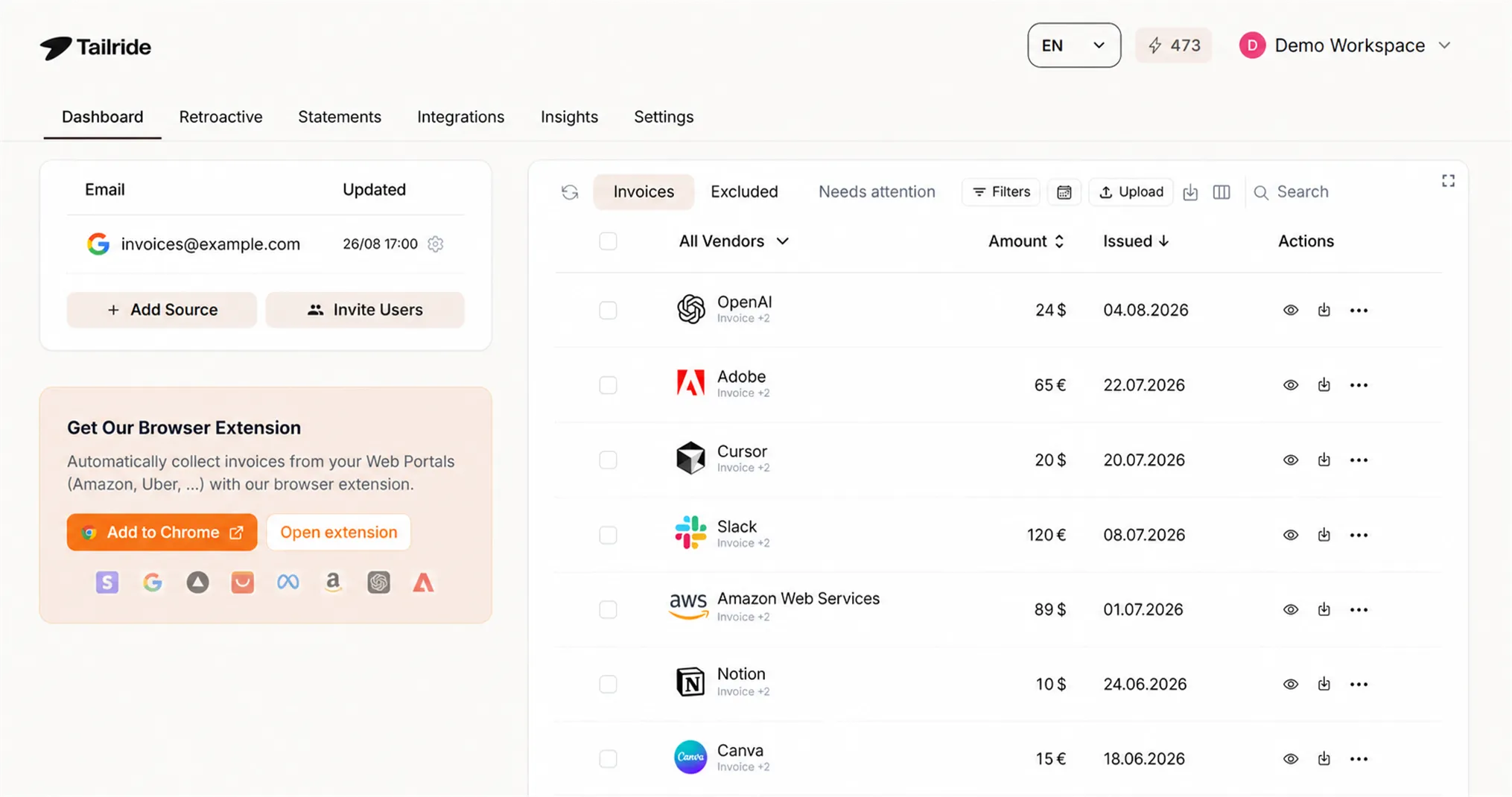
The built-in address is only as complete as your inbox and your memory. To close both gaps, you connect something that finds invoices wherever they live and posts them to QuickBooks for you - which is what Tailride does, as a native integration.
It watches your inbox and reads invoices whether they're attached or sitting in the email body, reaches the ones locked behind vendor portals like Amazon and Meta Ads through a browser extension, and takes receipts you photograph and send to its WhatsApp or Telegram bot. Each one is read in full - vendor, date, total, tax, line items - coded to your rules, and posted into QuickBooks as a finished bill or expense with the document attached. The portal invoice, the in-body receipt, the one a teammate forgot - all in the same place, without a single forward.
Get every invoice into QuickBooks, automatically. Connect Tailride free - your first 10 invoices a month are on us.
How to set it up, step by step
-
Connect QuickBooks. In Tailride, open Integrations and connect QuickBooks with a one-time secure sign-in.
-
Connect your sources. Link your inbox, add your vendor portals, and connect WhatsApp or Telegram if you use them.
-
Set your rules (optional). Tell Tailride how to categorise in plain language ("all Uber receipts → Transport"), so entries arrive coded.
-
Review in QuickBooks. Captured invoices land as bills or expenses, ready to approve and reconcile - and you can sweep your inbox history to clear any backlog.
When to use which
-
A steady stream of card receipts you'll match to your bank feed? QuickBooks's built-in forwarding address is a great fit - set it up and use it.
-
Invoices scattered across portals, email bodies, and messengers, or any real volume? Add a capture tool so nothing depends on you forwarding each one, and so the invoices that never hit your inbox still make it in.
Most businesses run both: the built-in address for quick card receipts, and automatic capture for everything else.
What it looks like in practice
Picture a US agency owner. A client-lunch receipt gets photographed and forwarded to their @assist.intuit.com address, and QuickBooks matches it to the card charge before the plates are cleared. Meanwhile the AWS bill arrives in the email body - where forwarding can't help - so a capture tool grabs it; the Meta Ads invoice sits behind a login and gets pulled by the browser extension; and a software receipt from a teammate lands automatically instead of never being sent. By reconciliation time, every expense is documented and matched, and there's no shoebox and no chasing.
FAQ
How do I email invoices and receipts to QuickBooks?
Set up your custom forwarding address: in QuickBooks Online go to All apps → Accounting → Receipts, select Forward from email, and create an address ending in @assist.intuit.com. Forward image or PDF receipts to it and they appear in the Receipts tab for review and matching.
What is my QuickBooks receipt forwarding email address?
It's a custom address you create ending in @assist.intuit.com (one per user). Older accounts may still use the legacy @qbodocs.com address. You set or manage it under All apps → Accounting → Receipts.
Does an emailed document become a receipt or a bill in QuickBooks?
By default QuickBooks treats emailed documents as receipts - expenses to match against your bank feed. If it's really a bill you'll pay later, you can convert it to a bill from the Receipts tab so it appears in what you owe.
Can QuickBooks match an emailed receipt to a bank transaction?
Yes. QuickBooks reads the vendor, date, amount, and last four card digits, then lets you match the receipt to the corresponding transaction in your bank feed, with the image attached.
Can my team forward receipts to QuickBooks?
Yes. Under All apps → Accounting → Receipts, select Manage forwarding email and enable each user. Everyone forwards from their own address, and receipts land in one shared Receipts tab.
What file types and sizes does QuickBooks accept by email?
Image and PDF attachments between 46KB and 20MB. Very low-resolution images and oversized scans won't process, and invoices pasted into the email body aren't captured.
How do I get invoices from Amazon or other portals into QuickBooks?
Those aren't emailed, so forwarding can't reach them. Use a tool with a browser extension that pulls invoices from portals and posts them into QuickBooks - Tailride does this for Amazon, Meta Ads, and 20+ others.
