
Apple Purchase History: How to Find and View Apple Receipts
Apple Purchase History. Find and view your Apple receipts and billing history in seconds. Step-by-step guide for App Store, iTunes, and Apple.com.

Trying to find a specific Apple receipt can feel like searching for a needle in a digital haystack. Whether it's for an expense report, an audit, a warranty claim, tax documentation, or just to figure out when you subscribed to that one app, knowing where to look is key. If you handle Apple purchases regularly - or manage them for a business - this guide will show you the fastest way to find any receipt, plus how to automate the whole process so you never have to search again.
Quick Summary: Ways to View Your Apple Purchase History
Before we dive into the detailed steps, here's a quick snapshot of all the methods available:
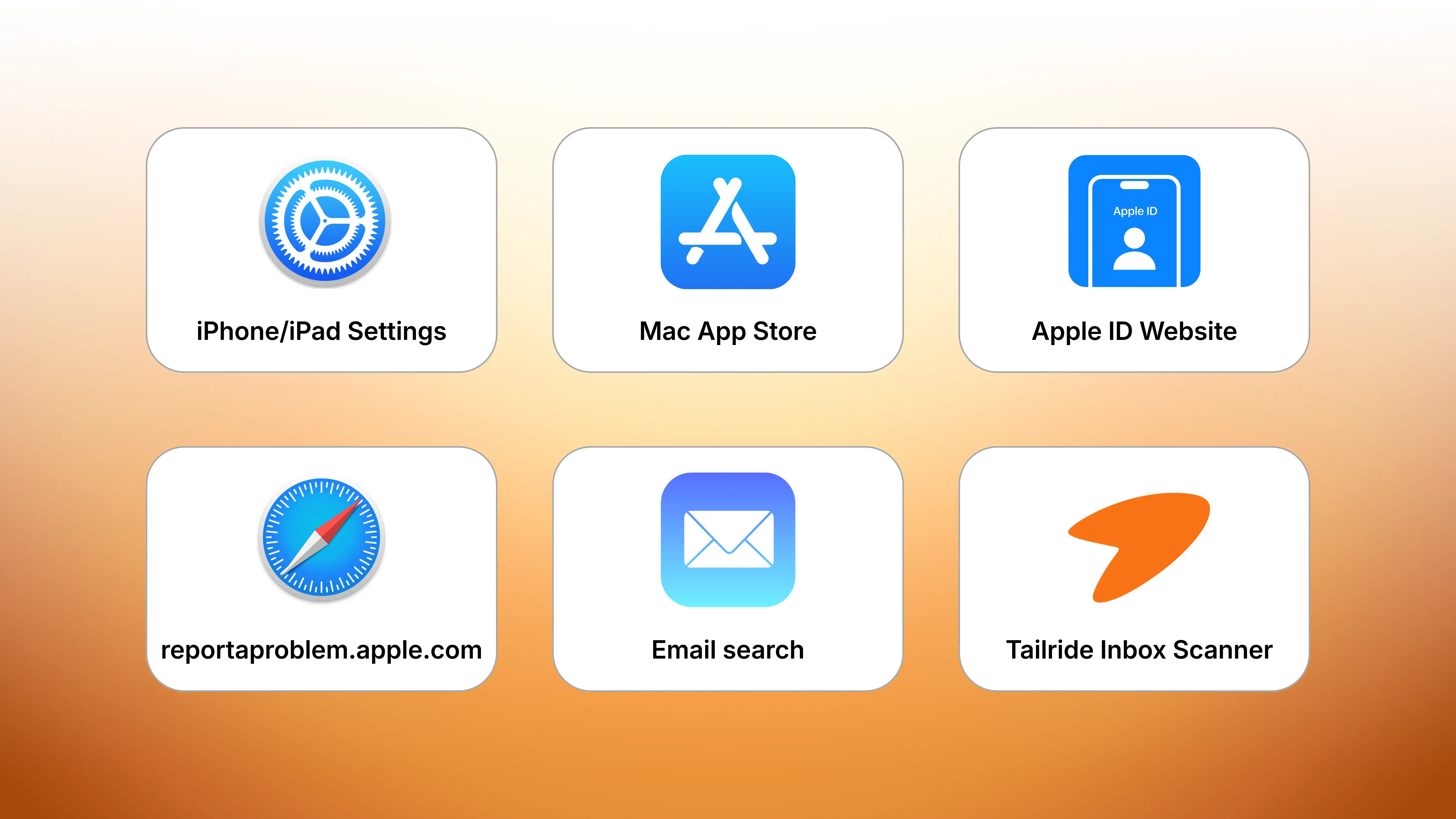
| Method | Best For | Time to Receipt |
|---|---|---|
| iPhone/iPad Settings | Quick checks, recent purchases, subscriptions | 30 seconds |
| Mac App Store | Mac-specific apps and subscriptions | 1 minute |
| Apple ID Website | Complete overview of all purchases | 2 minutes |
| reportaproblem.apple.com | Disputing charges, refund requests | 2 minutes |
| Email search ("Your Apple Invoice") | Physical gear orders, tax records | 2–3 minutes |
| Tailride Inbox Scanner | Automated capture of all receipts (past & future) | 1-click setup |
Tip for business users: If you manage Apple purchases regularly for accounting, expense reports, or audits, skip ahead to the "Automate Your Apple Receipts" section below.
Your Map to Finding Every Apple Purchase
Apple keeps a comprehensive log of your purchases tied to your Apple ID. That includes:
-
App Store and in-app purchases
-
Subscriptions (Apple Music, iCloud+, Apple TV+, third-party apps)
-
Apple Books and digital content
-
Some Apple services
Physical purchases from Apple Store (online or retail) are usually tracked separately through order emails and the Apple Store app.
A few quick notes:
-
One Apple ID = one purchase history. If you use multiple Apple IDs (e.g., personal and business), you'll need to check each separately.
-
Some charges appear grouped. Apple may bundle small purchases into a single charge, which can make line-item matching tricky.
-
Family Sharing complicates things. Purchases by family members appear under their Apple ID but may charge the organizer's payment method.
How to See Your Apple Purchase History on iPhone or iPad
The fastest way to check recent purchases is right on your device.
Step-by-step:
1. Open the Settings app
2. Tap your Apple ID profile at the top
3. Tap Media & Purchases
4. Tap View Account (you may need to sign in again)
5. Tap Purchase History
6. Adjust the date filter (last 90 days, or select a specific year)
7. Tap any purchase to see full details
You'll see app names, subscription charges, dates, and amounts. For active subscriptions, you can jump directly to manage or cancel them.
For business users: The detailed receipt includes your billing address and payment method, which your accountant will need for tax documentation or depreciation records - especially important for business-purchased devices like iPads or Apple Pencils.
How to View Your Purchase History on a Mac
On macOS, your purchase history lives in the App Store app.
Steps:
1. Open the App Store app
2. Click your profile icon or name in the sidebar
3. Click Account Settings (sign in if prompted)
4. Scroll to Purchase History
5. Adjust the date range as needed
6. Click More or Details next to any item for the full breakdown
This is especially useful for Mac-only apps, subscriptions purchased through the Mac App Store, or verifying which Apple ID is active on a particular machine.
How to Check Apple Purchases from a Web Browser
If you don't have your device handy - or manage multiple Apple IDs - the web is often faster.
Option 1: Apple ID Account Page
1. Go to appleid.apple.com
2. Sign in with your Apple ID
3. Navigate to Media & Purchases (naming may vary)
4. Look for Purchase History or similar
Apple occasionally updates the layout of this page, so exact wording may shift, but you'll typically find clear links to your purchases and subscriptions.
Option 2: reportaproblem.apple.com
For charges you don't recognize or want to dispute:
1. Visit reportaproblem.apple.com
2. Sign in with your Apple ID
3. Review recent purchases with dates, amounts, and names
4. Click any purchase to see details or Report a Problem for refunds
This tool is particularly handy for troubleshooting unexpected charges or quickly confirming a specific transaction.
How to Find Apple Store Hardware Receipts
Apps and subscriptions are one thing; physical gear like MacBooks, iPhones, and AirPods are another. For hardware purchased directly from Apple, receipts are usually tied to Apple Store orders.
Using the Apple Store app:
1. Open the Apple Store app on your iPhone or iPad
2. Tap your profile icon
3. Go to Orders
4. Select the relevant order
5. Look for View Invoice or Download Invoice
Using your email:
Apple also emails order confirmations and invoices for hardware. Search your inbox for:
-
"Your receipt from Apple"
-
"Your invoice from Apple"
-
"Order acknowledgment"
-
"Shipment notification"
For more detail on App Store-specific receipts, see our guide on finding App Store receipts.
Business owners: Keep these hardware receipts organized. Your accountant will need them for asset depreciation and tax deductions. The order date and purchase price in these invoices are critical for accurate financial records.
Your Email Inbox Is Your Best Friend
For many people, the most complete trace of Apple purchases lives in email. Apple sends:
-
"Your receipt from Apple" for most purchases
-
"Your invoice from Apple" for some orders
-
Subscription renewal confirmations
-
Order and shipping notifications
How to search effectively:
-
Use the email address tied to your Apple ID
-
Try keywords like "Apple receipt", "Your invoice from Apple", or the specific app/product name
-
Filter by date range if you remember roughly when you made the purchase
This approach is especially useful when:
-
You need a formal invoice for expense reports or tax
-
You're reconciling credit card statements
-
You've switched devices and need proof of an older purchase
Keeping digital records straight is smart. But if you're juggling lots of purchases - Apple or otherwise - it's worth looking into the best way to scan receipts to keep everything organized.
Managing multiple Apple purchases manually? Every month you search for "Your Apple Invoice" is time wasted. Tailride scans your inbox automatically and organizes every Apple receipt (plus other vendor invoices) in one place - ready for expense reports, audits, or just quick reference. Learn about automated receipt capture →
A little organization upfront - whether manual or automated - makes handling warranties, tax deductions, and returns much easier down the road.
Automate Your Apple Receipts So You Never Search Again
If you only need one Apple receipt once a year, the manual steps above work perfectly.
But if you're an accountant, freelancer, or business owner who regularly expenses Apple purchases - or if you're managing receipts for a team - manually searching "Your Apple Invoice" in your inbox every month gets old fast.
The Problem with Manual Receipt Hunting
Each time you need to:
-
Pull a receipt for expense reporting
-
Prepare documents for an audit
-
Handle tax deductions for business purchases
-
Manage multiple Apple IDs (personal + business)
-
Reconcile your credit card statements
...you're doing manual work that could be automated. Emails get lost, searches miss receipts, and receipts end up scattered across multiple inboxes and devices.
The Tailride Solution
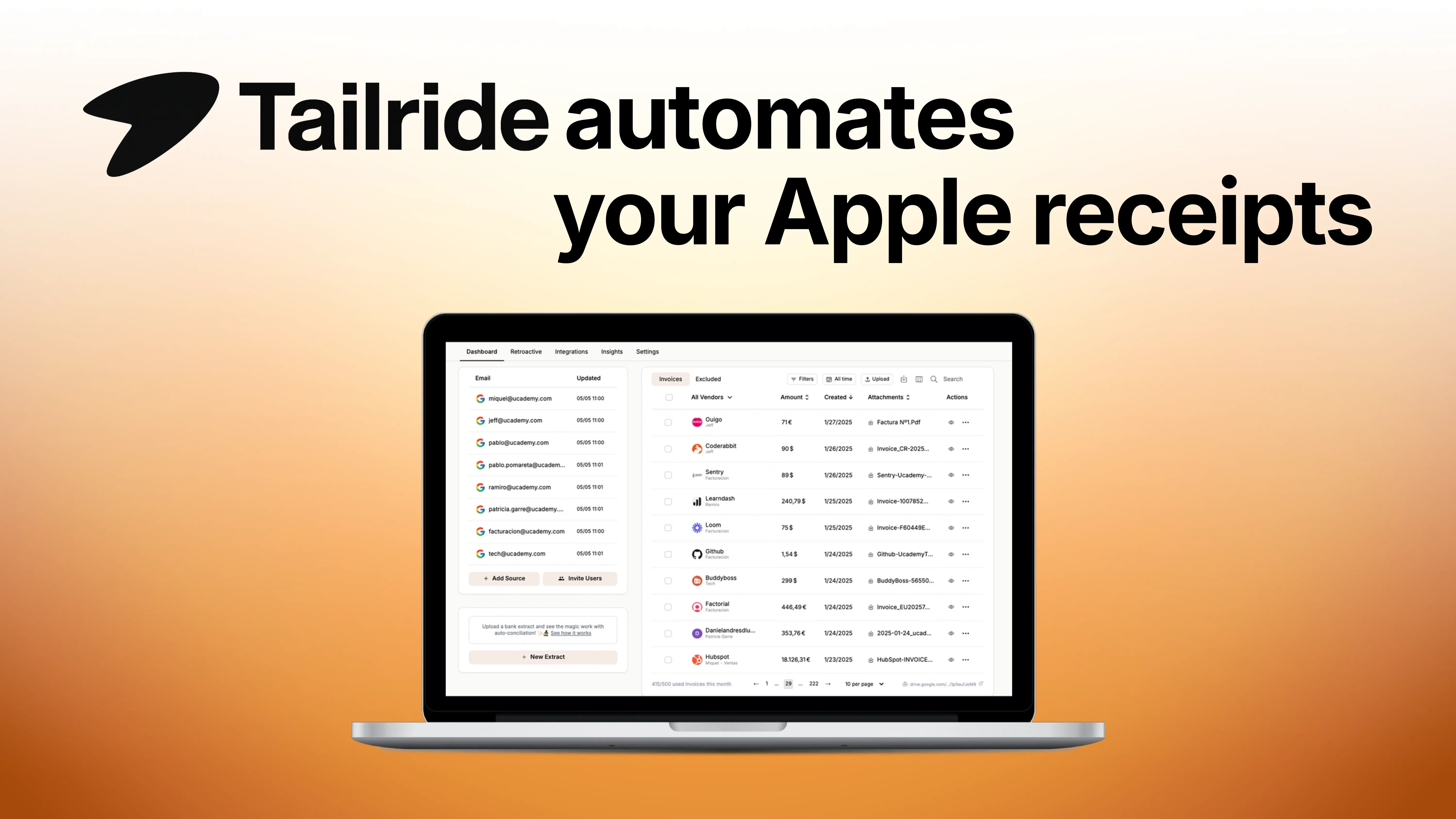
Tailride's Inbox Scanner connects to your Gmail, Outlook, or IMAP inbox and:
-
Scans your entire email history retroactively - finding every Apple receipt you've already received
-
Auto-captures future receipts automatically as they arrive
-
Extracts invoice data (date, amount, item, order ID) into structured records
-
Organizes by vendor so all Apple receipts are in one searchable place
-
Integrates with accounting tools to sync directly into QuickBooks, Xero, or your expense system
Result: Instead of searching email when you need a receipt, all Apple (and other vendor) invoices are centralized, categorized, and ready for expense reports or audits in seconds.
Who This Solves For
-
Accountants managing client expense reports
-
Freelancers tracking business deductions
-
SMB owners with mixed personal/business Apple spending
-
Finance teams reconciling corporate cards
-
Anyone who buys from multiple Apple accounts (personal, family, business)
Try Tailride's Inbox Scanner Free →
FAQ: Common Questions About Your Apple Receipts
How far back can I see my Apple purchases?
Your Apple purchase history is a complete log that goes all the way back to the day you created your Apple ID. You can filter by the last 90 days or jump to a specific year. Very old purchases may have less detail than recent ones, but the core transaction record remains.
Can I get a PDF invoice for an Apple purchase?
Yes. For digital purchases (apps, subscriptions):
-
Locate the transaction in your purchase history
-
Use the Resend option to email yourself a copy
-
Save or print the email as a PDF
For physical items purchased from Apple's online store, your shipping confirmation email typically includes a downloadable PDF invoice.
Why can't I find a specific purchase?
A few common reasons:
-
Different Apple ID - Check if you used a personal vs business account
-
Still pending - Charges can take 24–48 hours to process and appear
-
Grouped charges - Apple sometimes bundles small purchases together
-
Deleted email - Check spam, trash, or archived folders
If you still can't locate it, contact Apple Support for help.
Are email receipts enough for accounting and tax purposes?
In most cases, yes. Email receipts from Apple that include the seller name, date, amount, product description, and your billing information are typically acceptable for expense reports, bookkeeping, and audits. The challenge is keeping them organized and accessible - which is where a systematic approach or automation helps.
For Accountants & SMB Owners
Spending too much time collecting client or employee Apple receipts? Tailride's inbox-connected receipt extraction can scan your clients' inboxes (with permission) and automatically forward all invoices - including Apple receipts - straight into your accounting system.
No more chasing clients for "that Apple subscription receipt"
All receipts in one place, organized by date and vendor
Integrates with QuickBooks, Xero, and other platforms
Saves ~5 hours/month per client on expense reconciliation